
How to Setup and Install WordPress Postie Plugin
The Setup and Install WordPress Postie Plugin process allows you to publish WordPress posts directly from an email account. Instead of logging into the WordPress dashboard every time you want to create content, Postie enables you to send an email and automatically convert it into a published post, draft, or page.
This feature is especially useful for bloggers, remote teams, content contributors, and organizations that need a quick and convenient publishing workflow. In this guide, you will learn how to install, configure, and use the Postie plugin on your WordPress website.
What Is the WordPress Postie Plugin?
Postie is a WordPress plugin that retrieves emails from a designated mailbox and converts them into WordPress content. It can create posts, pages, and even attach images from incoming emails.
Some key features include:
-
Publish posts through email.
-
Automatically upload image attachments.
-
Support multiple email protocols.
-
Create drafts or publish instantly.
-
Assign categories and tags.
-
Manage multiple authors.
The ability to Setup and Install WordPress Postie Plugin can significantly simplify content management for websites that receive frequent content submissions.
Prerequisites
Before you Setup and Install WordPress Postie Plugin, make sure you have:
-
A working WordPress website.
-
Administrator access to WordPress.
-
An email account dedicated to Postie.
-
POP3 or IMAP access enabled for the mailbox.
-
Basic knowledge of WordPress plugin management.
Install Postie Plugin from WordPress Dashboard
This is the easiest way to Setup and Install WordPress Postie Plugin.
Step 1: Log in to WordPress Admin
Access your WordPress dashboard using your administrator credentials.

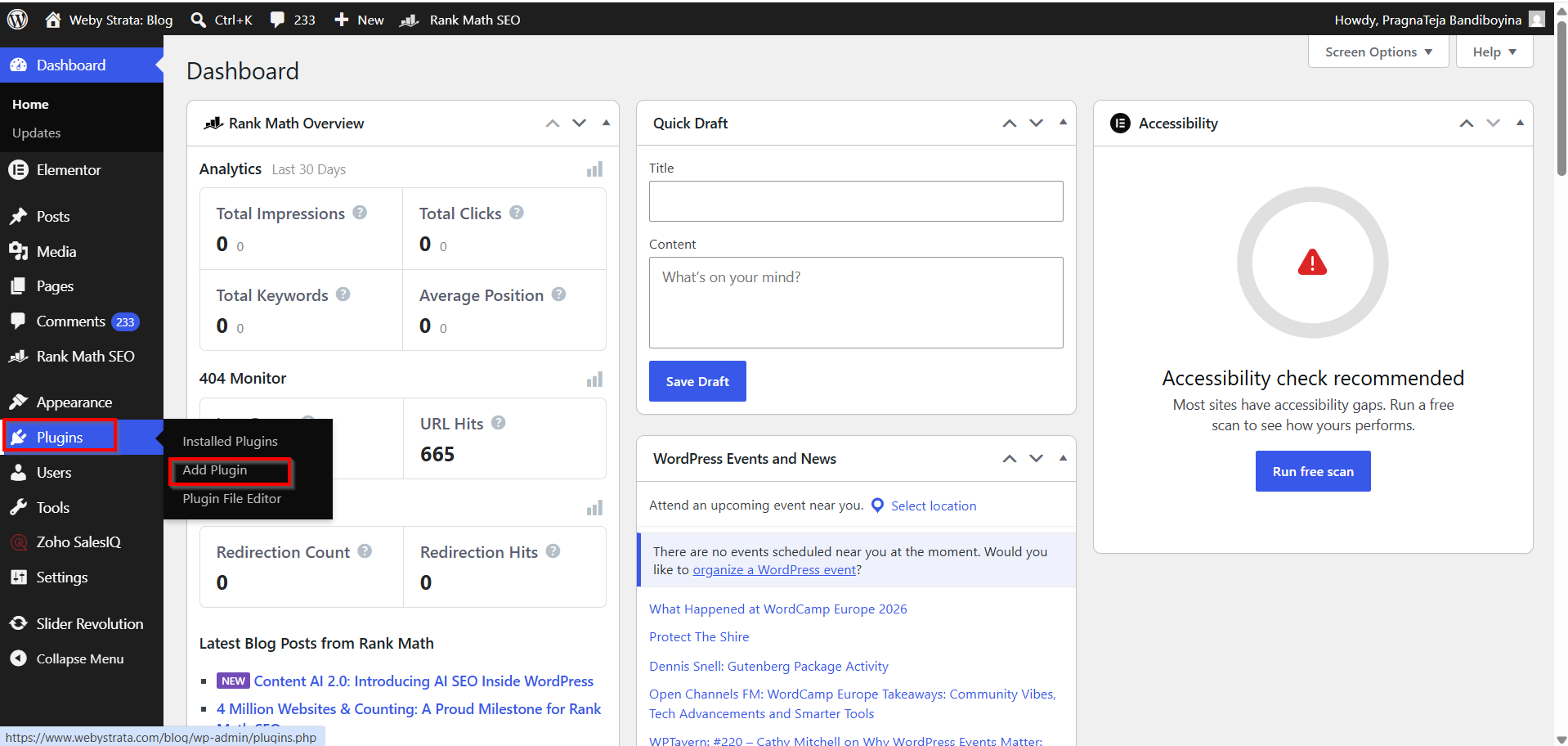
Step 2: Navigate to Plugins
From the left-side menu, click:
Plugins → Add Plugin
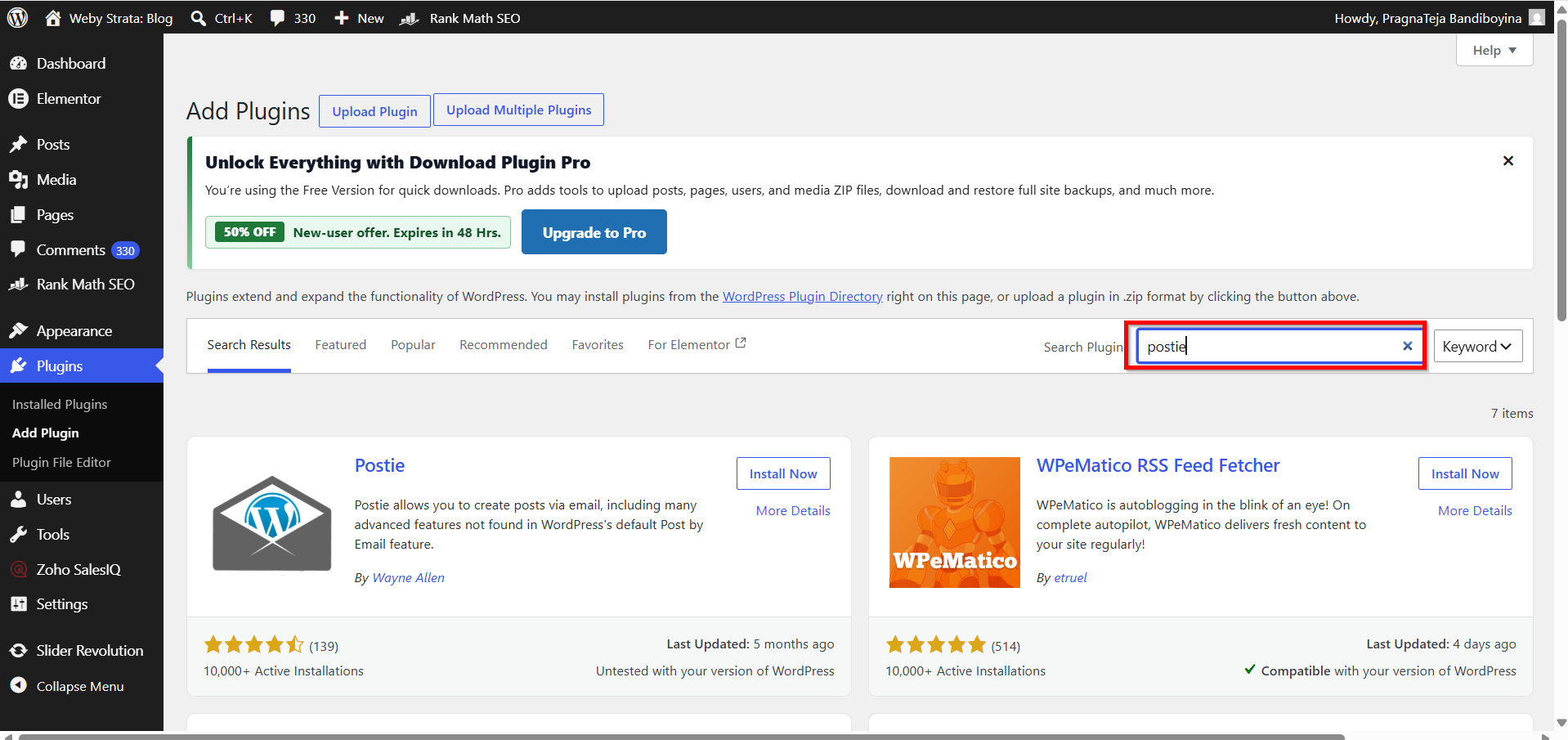
Step 3: Search for Postie
In the search box, type:
Postie
Locate the Postie plugin from the search results.
Step 4: Install the Plugin
Click the Install Now button next to the Postie plugin.
Wait for WordPress to complete the installation process.

Step 5: Activate the Plugin
After installation, click the Activate button.
The plugin will now appear in your WordPress settings menu.

Configure Postie Plugin Settings
Once you Setup and Install WordPress Postie Plugin, configuration is required for proper operation.
Step 1: Access Postie Settings
Navigate to:
Settings → Postie
The configuration panel will open.

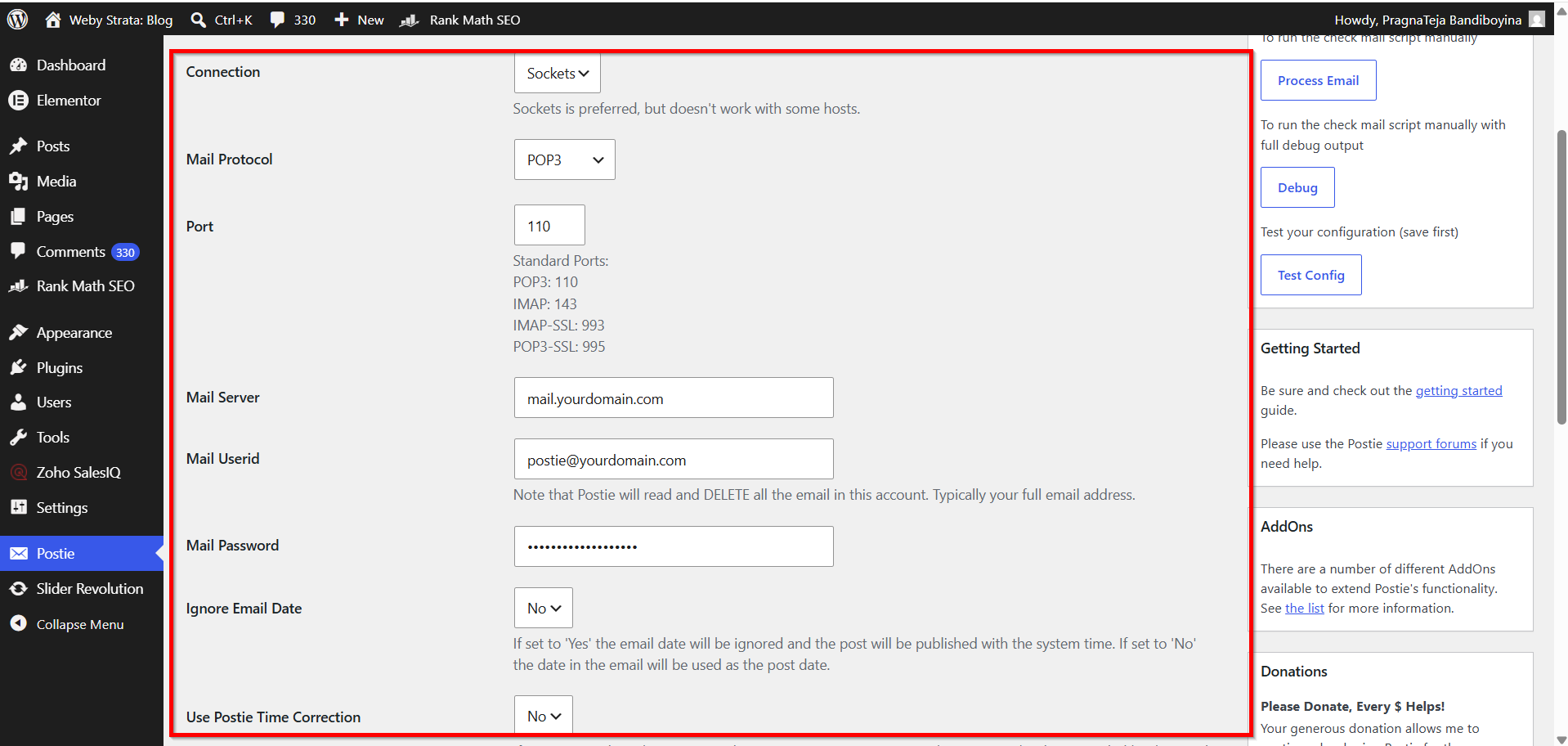
Step 2: Enter Mail Server Information
Provide the following details:
-
Mail Server
-
Email Address
-
Password
-
Port Number
-
Connection Type (POP3 or IMAP)
Example:
-
Mail Server: mail.yourdomain.com
-
Username: postie@yourdomain.com
-
Password: Your Email Password
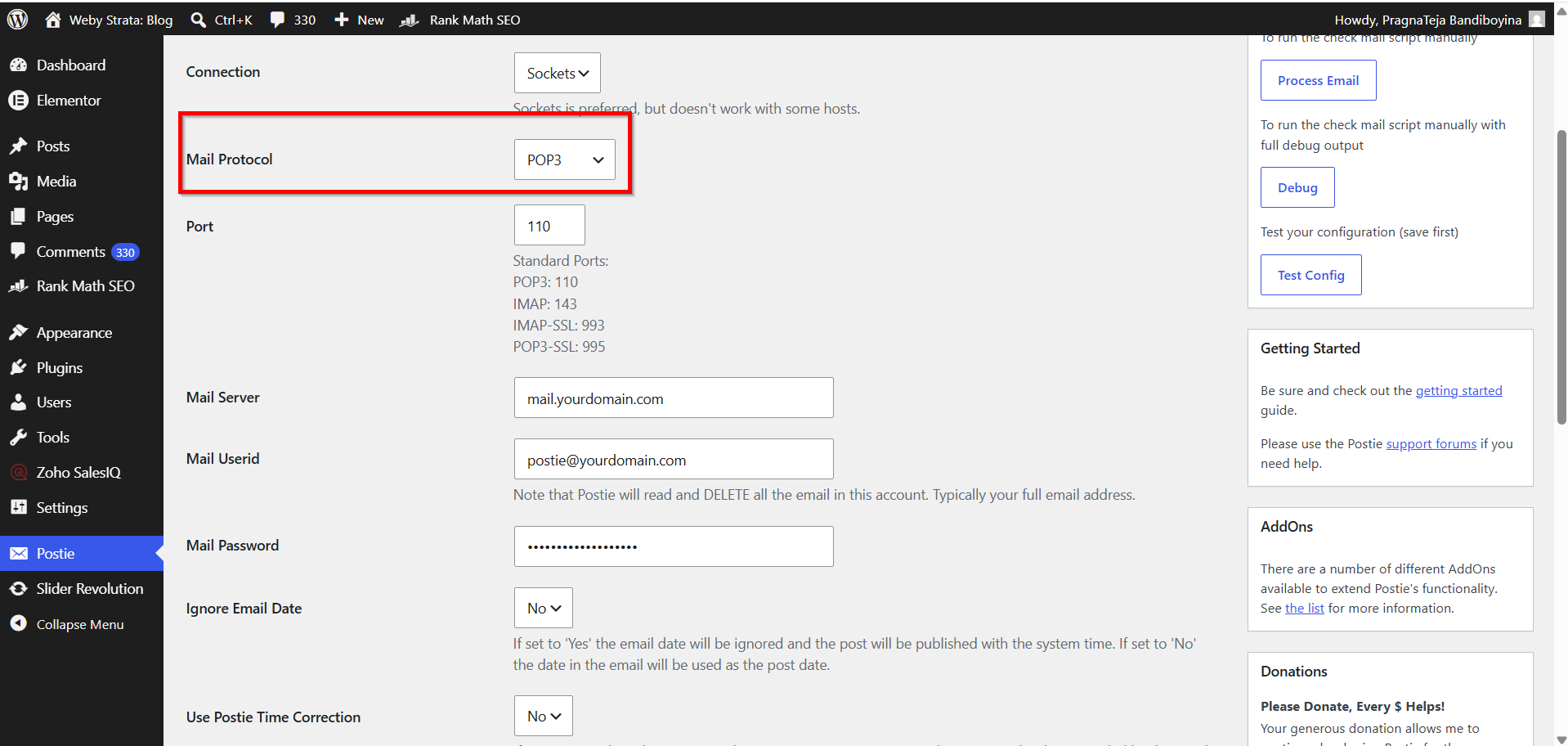
Step 3: Select Mail Protocol
Choose either:
-
POP3
-
IMAP
IMAP is generally recommended because it offers better email synchronization.
Step 4: Configure Security Settings
Enable SSL or TLS if your mail server supports secure connections.
This protects login credentials and email data.
Step 5: Save Changes
Click Save Changes to store your configuration.

Benefits of Using the Postie Plugin
Before you begin the Setup and Install WordPress Postie Plugin process, here are some advantages of using it:
1. Publish Content Remotely
Create and publish articles from any device that can send emails.
2. Save Time
Eliminate the need to access the WordPress dashboard for every post.
3. Support Attachments
Images attached to emails can automatically be added to posts.
4. Simplify Team Collaboration
Contributors can submit content through email without requiring WordPress access.
5. Flexible Publishing Options
Choose whether emails become drafts, published posts, or pages.
Conclusion
The Setup and Install WordPress Postie Plugin process is an excellent solution for users who want to publish WordPress content directly from email. By installing the plugin, configuring your mailbox, and setting up publishing preferences, you can automate content creation and streamline your workflow. Whether you're managing a blog, a news website, or a collaborative content platform, Postie provides a simple and efficient way to publish posts without constantly accessing the WordPress dashboard.
