
Learn to Downgrade Your WordPress Version
WordPress updates often include important security patches, bug fixes, and new features. However, there may be situations where a recent update causes compatibility issues with your website's plugins, themes, or custom functionality. In such cases, you may need to temporarily downgrade your WordPress version until the issue is resolved.
This guide explains how to safely Downgrade WordPress Version using the WP Downgrade | Specific Core Version plugin.
Prerequisites
Before proceeding, ensure that you:
-
Create a complete website backup.
-
Back up your WordPress database.
-
Verify which WordPress version you want to install.
-
Disable any caching plugins temporarily.
These precautions will help you restore your website if anything goes wrong during the downgrade process.
Downgrade WordPress Version Using WP Downgrade Plugin
The WP Downgrade plugin provides a simple way to install a specific WordPress core version without manually replacing files.
Step 1: Log in to Your WordPress Dashboard
Access your WordPress admin area by visiting:
https://yourdomain.com/wp-admin
Enter your administrator credentials and log in.
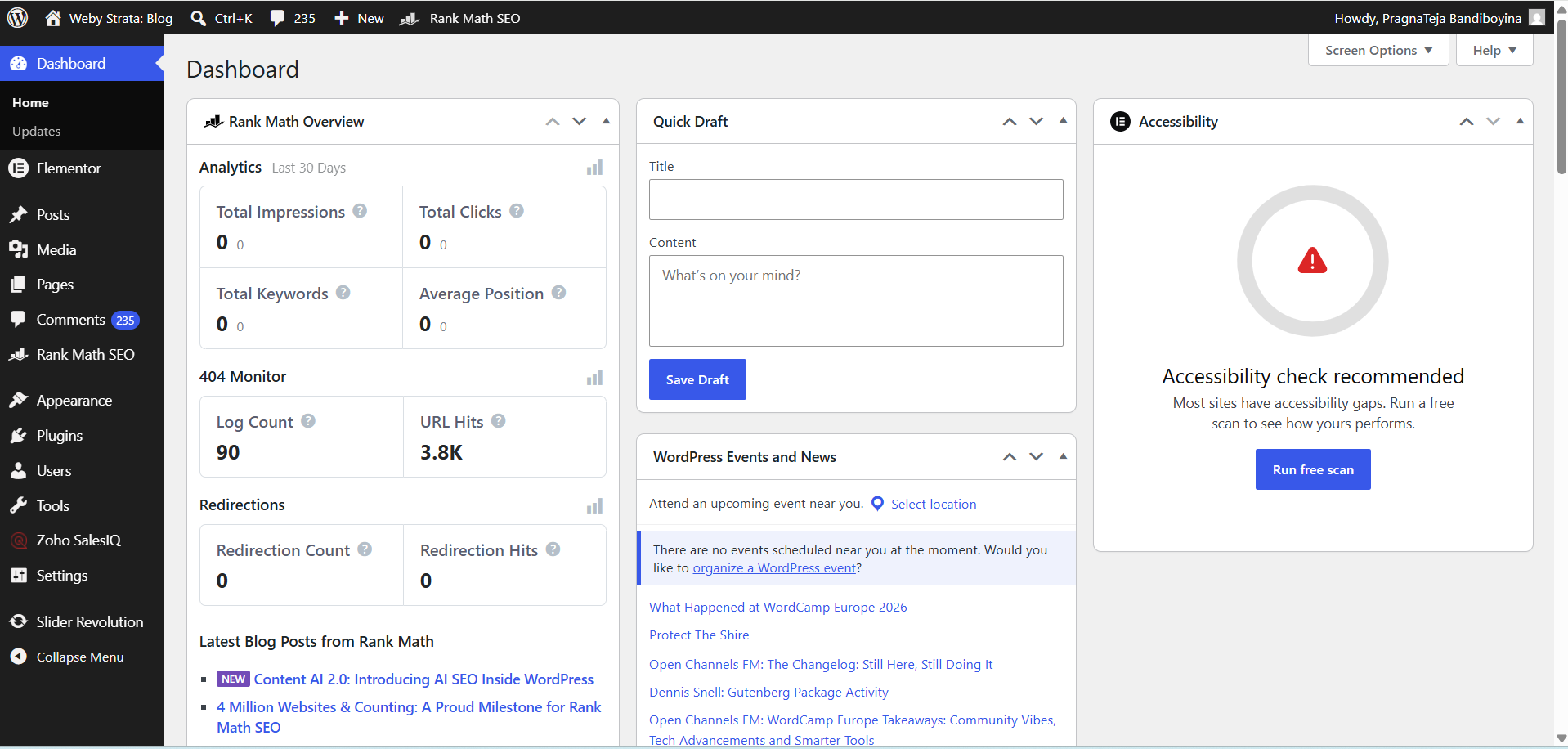
Step 2: Install the WP Downgrade Plugin
-
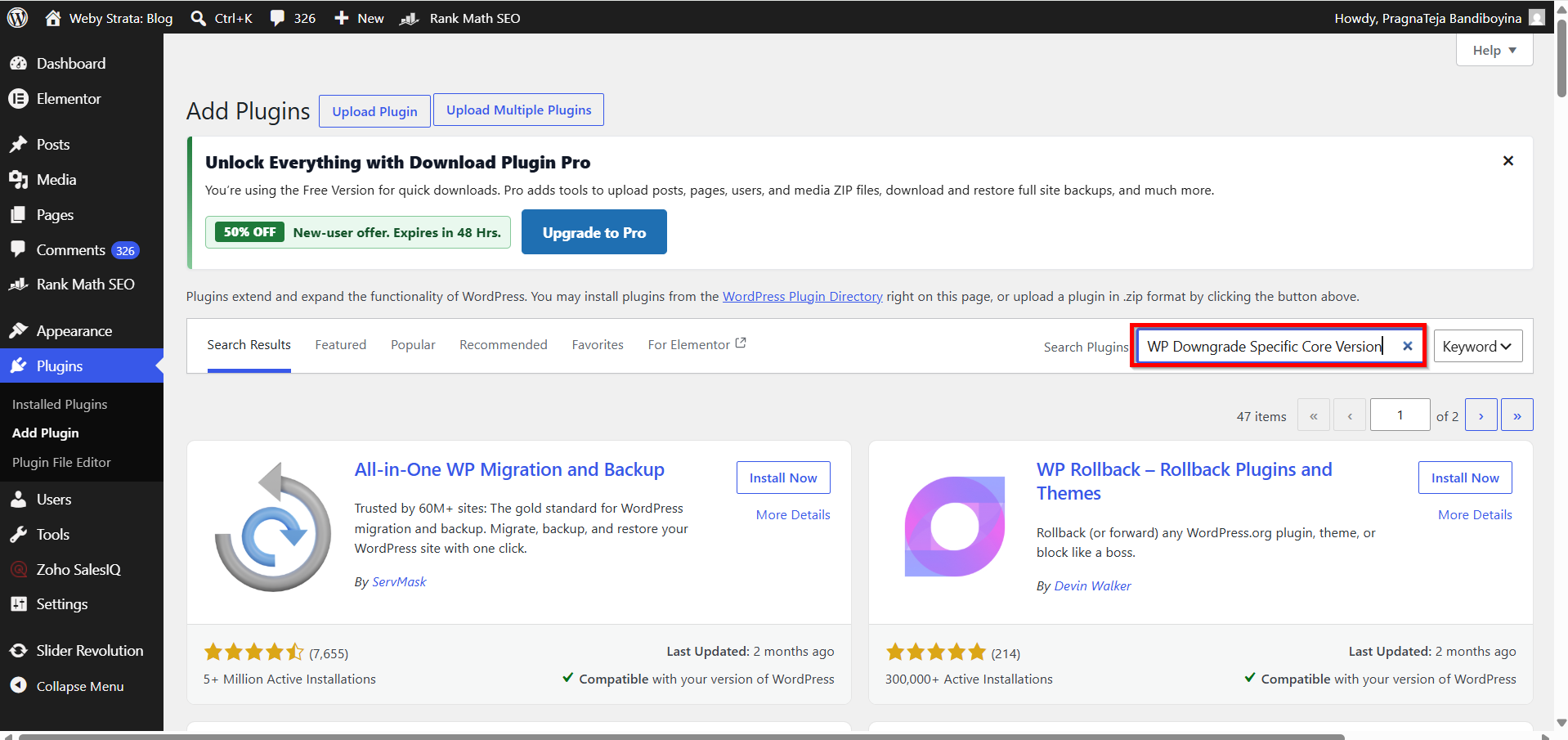
Navigate to Plugins > Add Plugin.

2. Search for WP Downgrade | Specific Core Version.
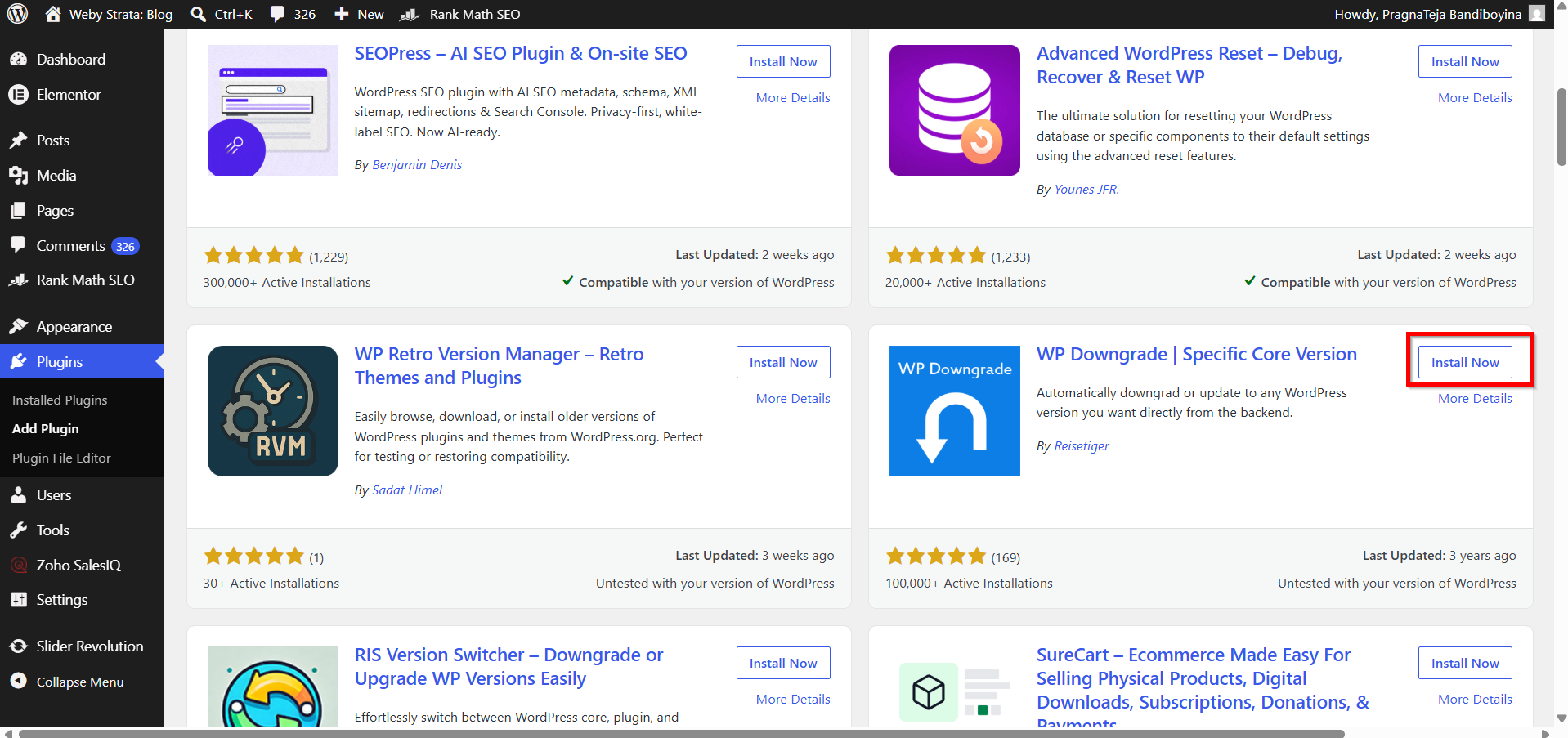
3. Click Install Now.
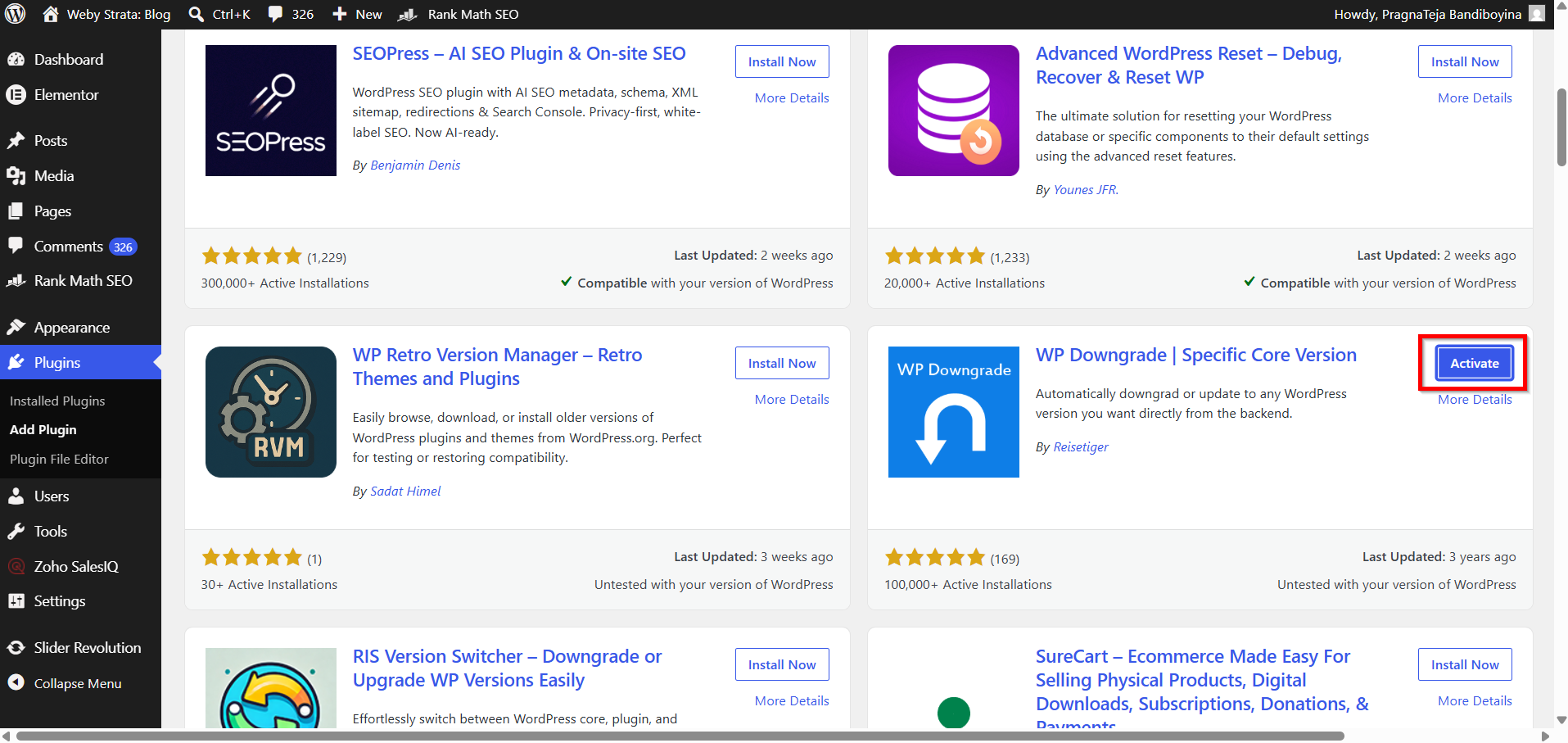
4. Activate the plugin.
Step 3: Specify the Target WordPress Version
-
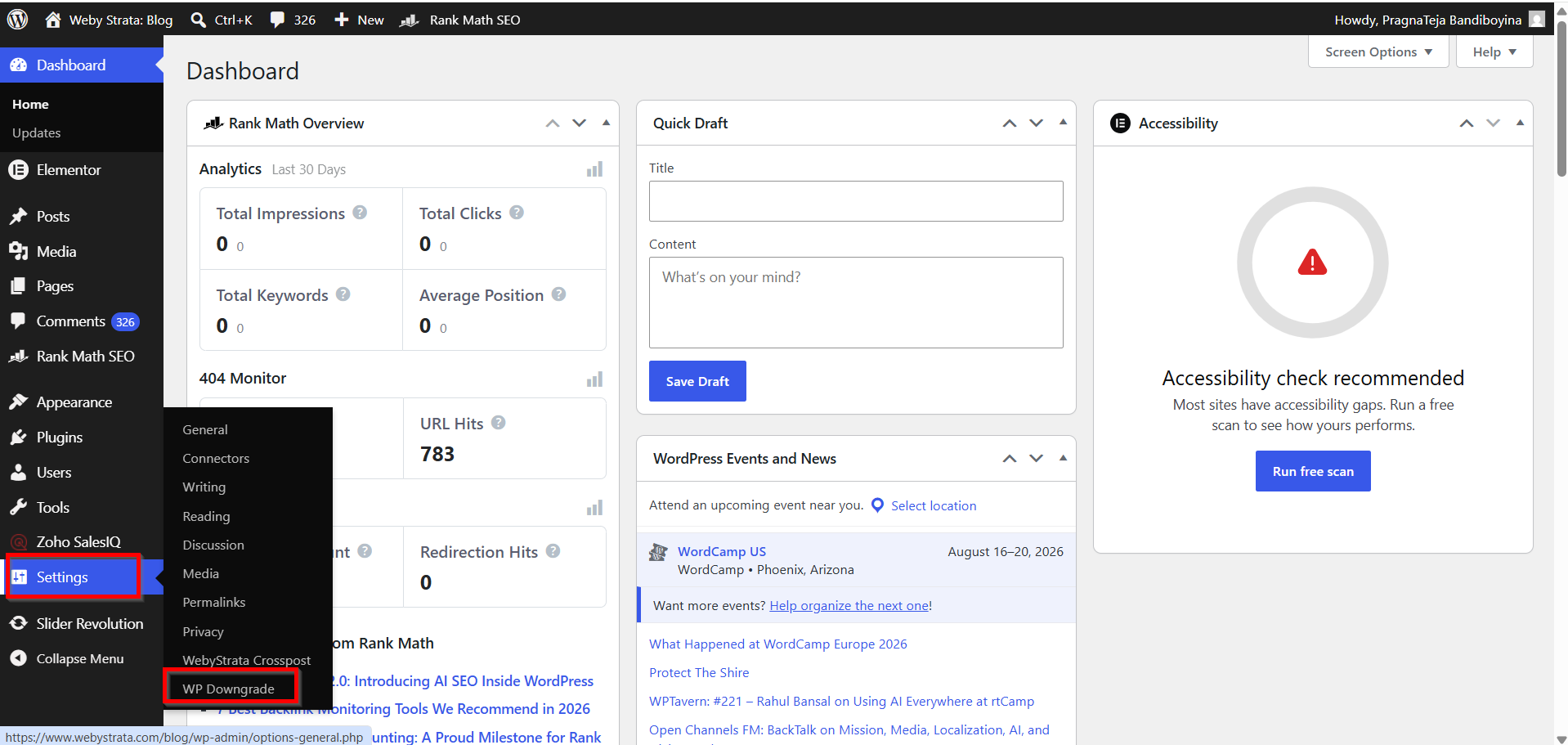
Go to Settings > WP Downgrade.
2. Locate the WordPress Target Version field.
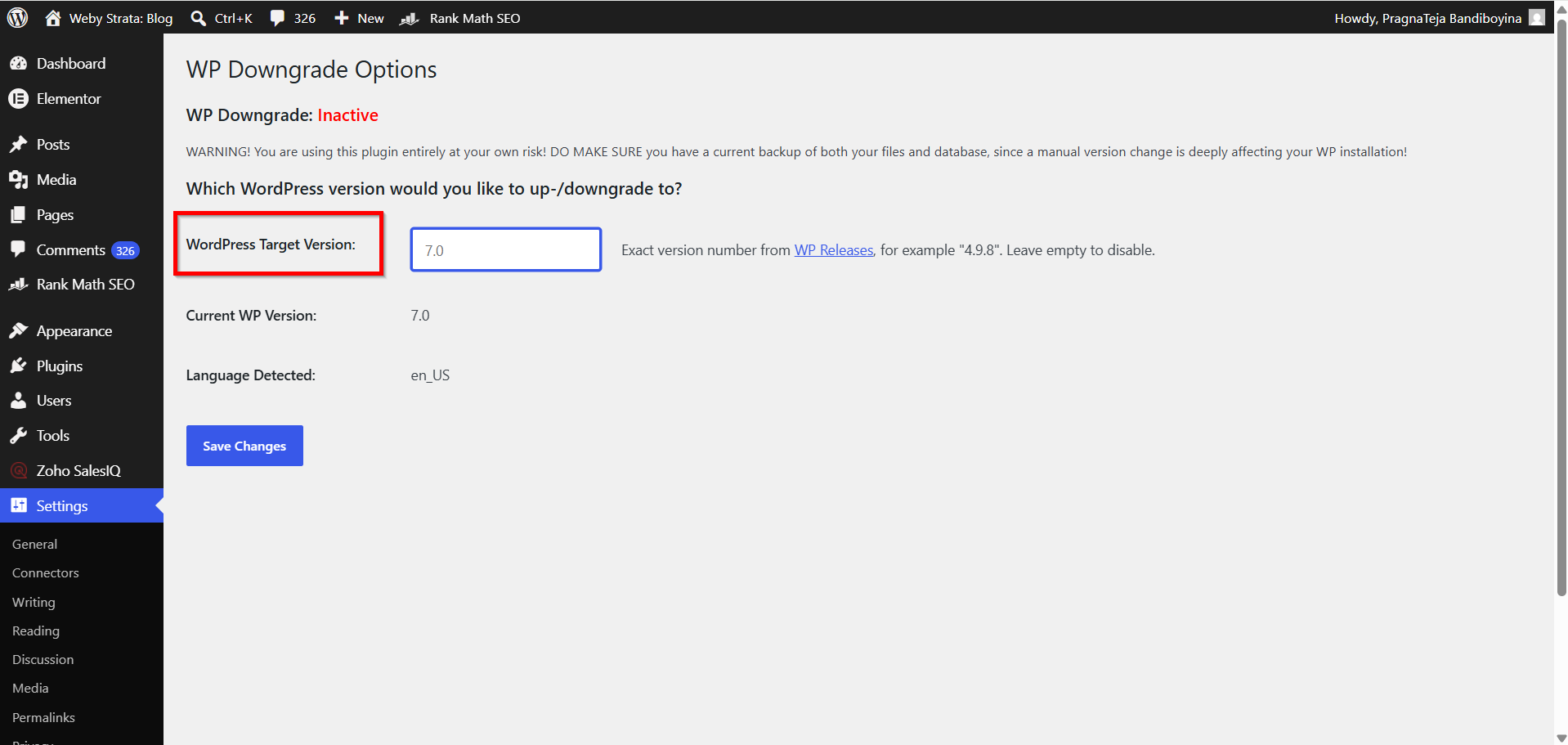
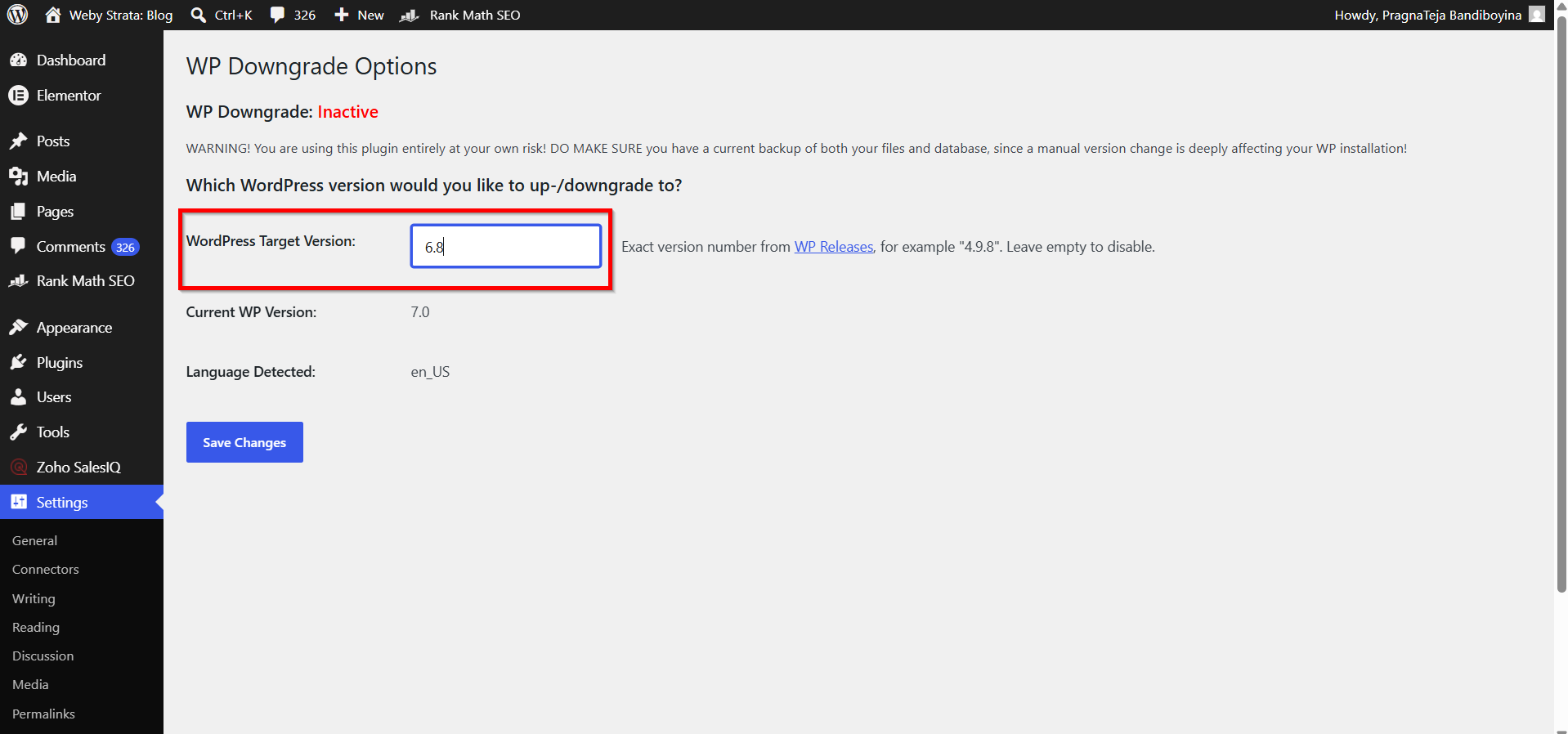
3. Enter the WordPress version you want to install.
For example:
-
6.8
-
6.7.2
-
6.6.1
Ensure that the version number is entered correctly.

-
Click Save Changes.
Step 4: Update to the Selected Version
After saving the target version:
-
Navigate to Dashboard > Updates.
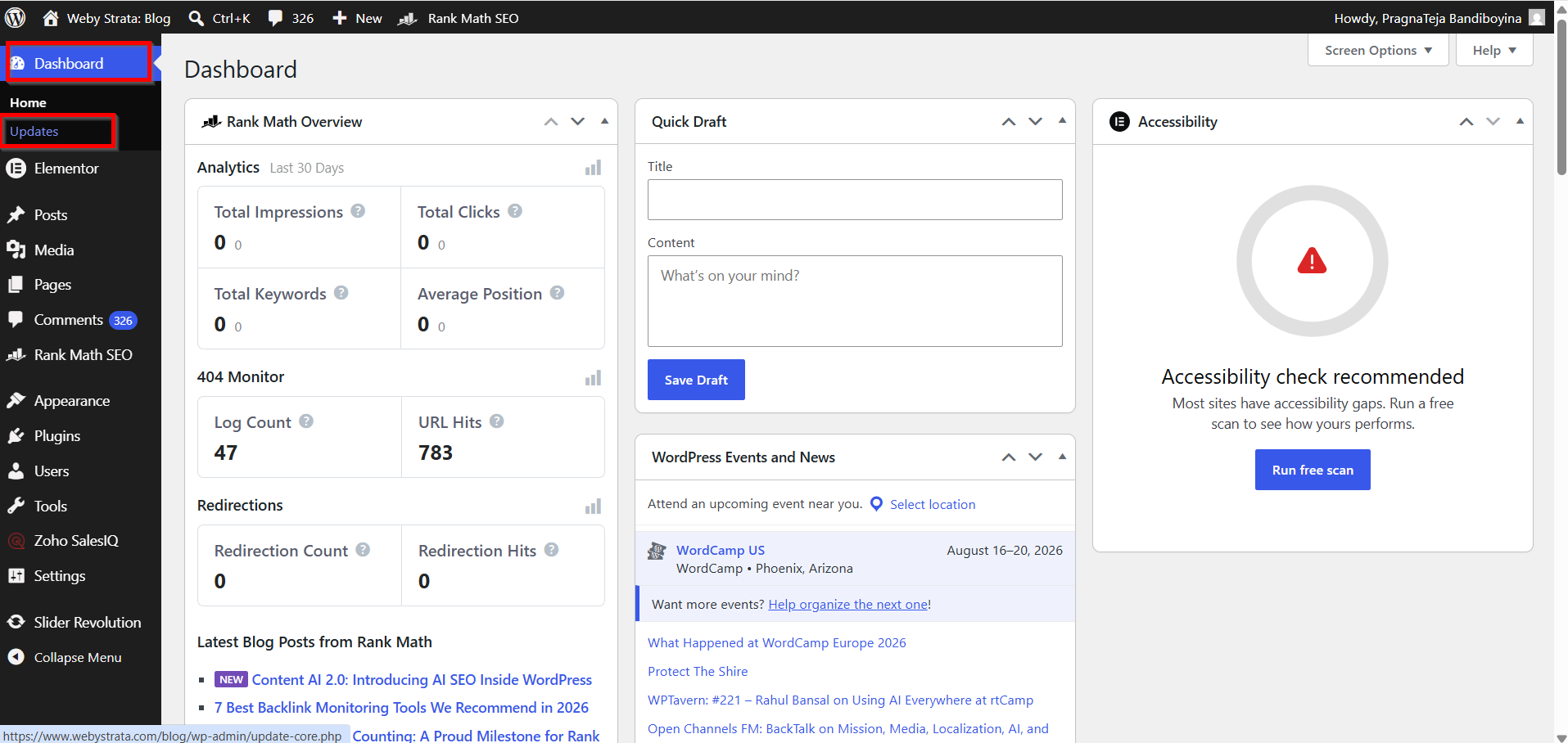
2. You will see an option to reinstall WordPress.
3. Click Re-install Now.

WordPress will download and install the version you specified in the plugin settings.
Step 5: Verify the Downgrade
Once the installation is complete:
-
Go to Dashboard > Updates.
-
Confirm that the displayed WordPress version matches the version you selected.
-
Test your website thoroughly.
Check the following:
-
Website pages
-
Contact forms
-
Plugins
-
Themes
-
User login functionality
-
Custom features
Why Downgrade Your WordPress Version?
You may need to downgrade WordPress if:
-
A plugin stops working after a WordPress update.
-
Your theme becomes incompatible with the latest release.
-
Custom code produces unexpected errors.
-
A recent update causes website functionality issues.
-
You need to test your website on a previous WordPress version.
Benefits of Using WP Downgrade
Using WP Downgrade offers several advantages:
-
No manual file uploads required.
-
Beginner-friendly interface.
-
Quick installation process.
-
Supports specific WordPress core versions.
-
Reduces the risk of file replacement errors.
Because the plugin works directly within the WordPress dashboard, it is one of the safest ways to Downgrade WordPress Version when troubleshooting compatibility problems.
Conclusion
The WP Downgrade | Specific Core Version plugin makes it easy to Downgrade WordPress Version without manually replacing WordPress files. By selecting a target version and reinstalling WordPress through the dashboard, you can quickly restore compatibility when an update causes issues.
Always create a backup before making changes and remember that downgrading should be a temporary solution while you identify and fix the root cause of the problem.
