
How To Set Frequency Of WordPress Heartbeat And Limit Executions
The WordPress Heartbeat API is a built-in feature that allows communication between your browser and the server at regular intervals. It helps WordPress perform tasks such as autosaving posts, showing real-time notifications, maintaining user sessions, and preventing content conflicts when multiple users edit the same post.
While the Heartbeat API is useful, it can also generate a large number of AJAX requests. On shared hosting or websites with multiple logged-in users, these requests may increase CPU usage and server load. By adjusting the frequency of the Heartbeat API or limiting its executions, you can improve website performance without completely disabling important functionality.
In this guide, you'll learn how to set the frequency of WordPress Heartbeat and reduce unnecessary executions.
What Is the WordPress Heartbeat API?
The WordPress Heartbeat API uses AJAX calls to communicate with the server every few seconds. By default, WordPress sends heartbeat requests approximately every 15 to 60 seconds depending on the page and activity.
Common functions include:
- Automatic post saving while editing content
- User session management
- Post locking to prevent editing conflicts
- Real-time dashboard updates
- Plugin and theme notifications
Although these features improve usability, excessive Heartbeat requests can consume server resources.
Why Limit WordPress Heartbeat Executions?
Reducing the frequency of the WordPress Heartbeat API offers several benefits:
1. Lower Server Load
2. Improved Website Performance
3. Better Shared Hosting Experience
4. Reduced Database Activity
5. Enhanced Admin Dashboard Speed
Adjust Heartbeat Frequency Using a Plugin
This is the easiest method for most WordPress users.
Step 1: Install a Heartbeat Control Plugin
- Login to WordPress Using Credentials
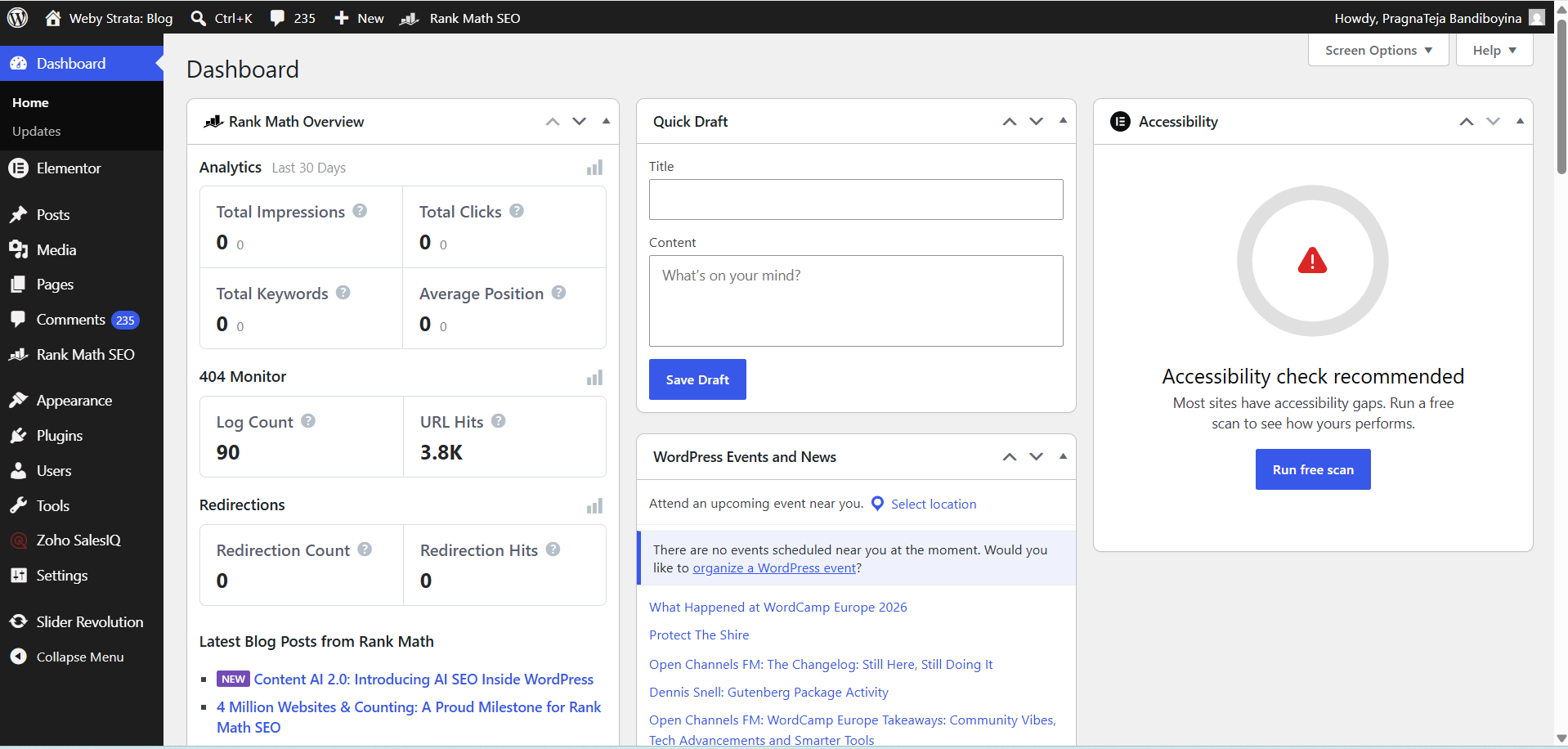
2. Select Plugins → Add Plugin

3. Search For the Plugin
Popular plugins include:
- Heartbeat Control
- Perfmatters
- WP Rocket (Heartbeat optimization feature)
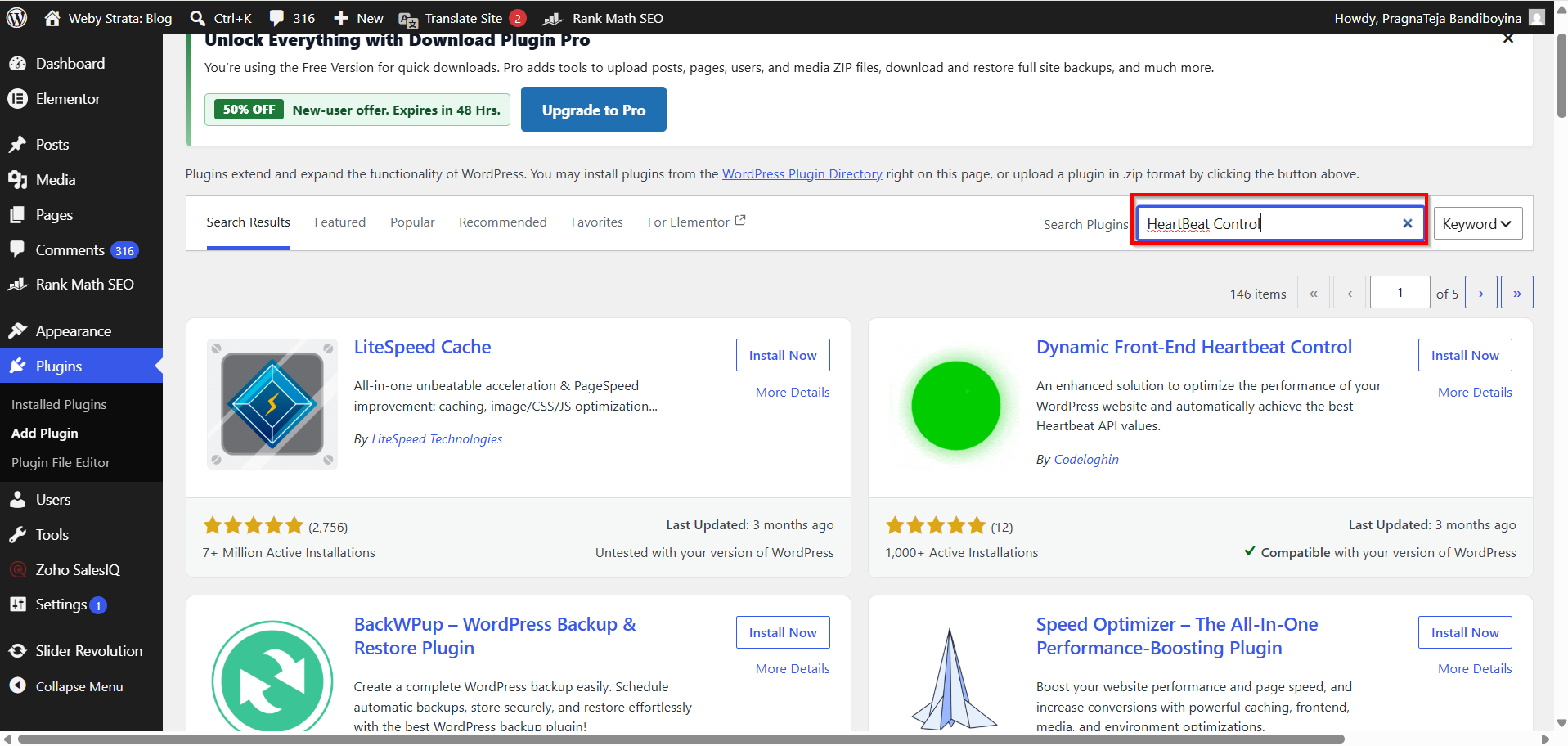
4. Click Install now

Step 2: Activate the Plugin
After installation, Activate the plugin

Step 3: Configure Heartbeat Settings
- Go to Settings Select HeartBeat Control
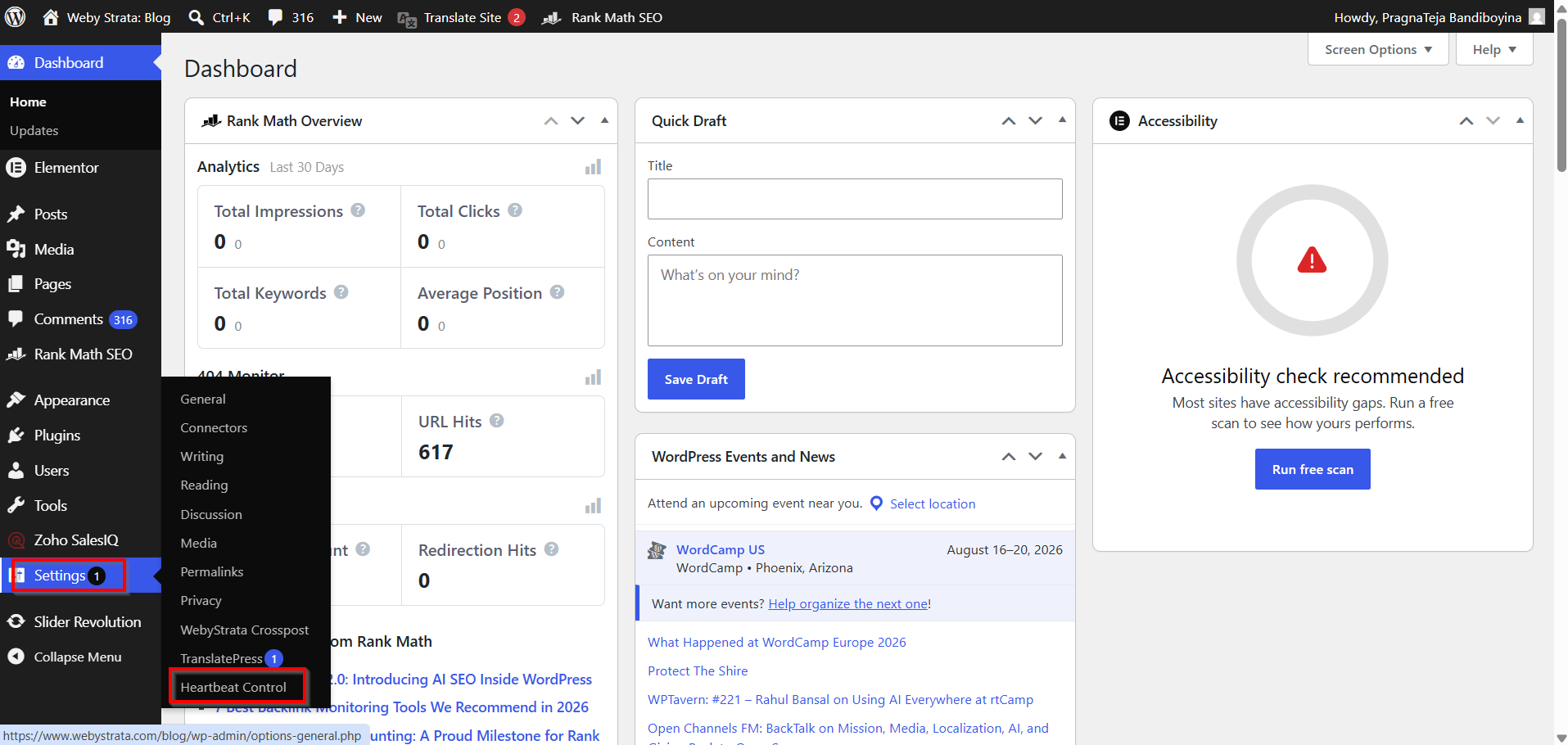
2. Most Heartbeat control plugins allow you to:
- Reduce Heartbeat frequency
- Limit Heartbeat activity in the dashboard
- Limit Heartbeat activity in the post editor
- Disable Heartbeat on specific pages

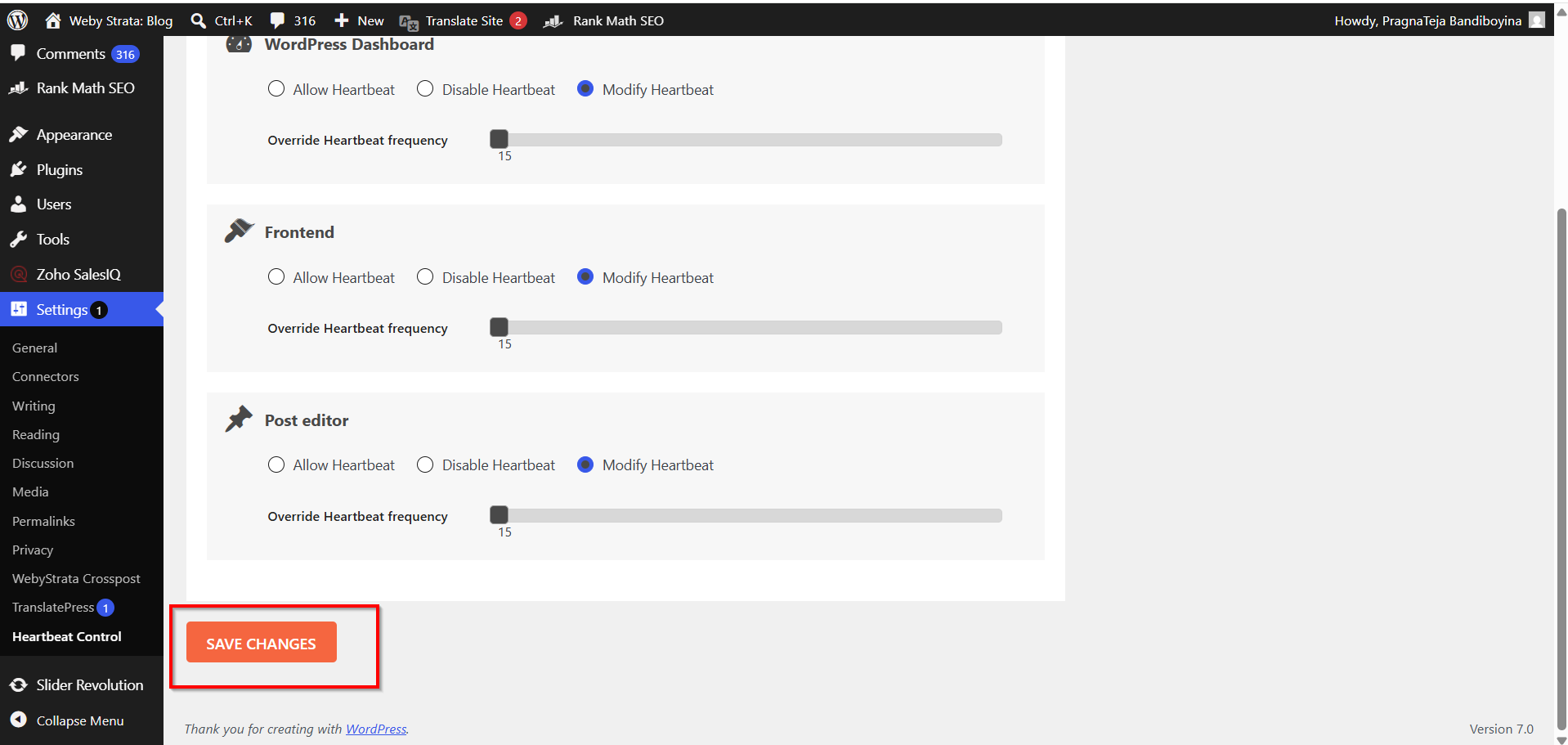
Step 4: Save Changes
Save the configuration and monitor your website performance over the next few days.
Best Practices for Optimizing WordPress Heartbeat
- Use a Heartbeat control plugin if you prefer a user-friendly solution.
- Set the interval to 60 seconds for most websites.
- Disable Heartbeat on the frontend when not needed.
- Keep Heartbeat active in the post editor for autosave protection.
- Monitor server resource usage after making changes.
- Combine Heartbeat optimization with caching and database cleanup.
Benefits of Adjusting WordPress Heartbeat Frequency Using a Plugin
- Reduces Server Load
Lowering the Heartbeat frequency decreases the number of AJAX requests sent to the server, helping reduce CPU and memory usage. - Improves Website Performance
With fewer background requests, your server can respond faster to visitors, resulting in a smoother browsing experience. - No Coding Required
Plugins provide an easy-to-use interface, allowing beginners to manage Heartbeat settings without editing WordPress files. - Prevents Resource Limit Issues
Optimizing Heartbeat activity can help websites on shared hosting avoid exceeding hosting resource limits. - Maintains Important WordPress Features
Unlike completely disabling the Heartbeat API, plugins let you limit its activity while still keeping essential functions like autosave and session management working properly.
Conclusion
The WordPress Heartbeat API is an important feature that powers autosave, session management, and real-time communication within WordPress. However, excessive Heartbeat requests can increase server load and affect website performance.
By learning how to set the frequency of WordPress Heartbeat and limit executions, you can significantly reduce unnecessary AJAX requests, improve server efficiency, and create a faster WordPress experience. Whether you use a plugin or custom code, adjusting the WordPress Heartbeat settings is a simple yet effective optimization technique that benefits both administrators and website visitors.
