
How To Automatically Delete Trash In WordPress
Have you ever noticed that your WordPress website is slowly using more storage space even after deleting unwanted posts, pages, or comments? The reason could be the Trash folder in WordPress. When you delete content in WordPress, it is not permanently removed immediately. Instead, WordPress moves it to the Trash section, where it remains stored for a specific period.
By default, WordPress keeps deleted items in the Trash for 30 days before automatically removing them permanently. During this time, you can restore deleted posts, pages, or comments if needed. However, for websites with limited hosting storage or websites that frequently publish and remove content, keeping unnecessary trash data can increase database size.
In this article, we will explain how to automatically delete trash in WordPress using different methods.
Why Should You Automatically Delete Trash In WordPress?
Managing your WordPress Trash regularly helps maintain a clean and optimized website. Some important benefits include:
1. Saves Hosting Storage Space
2. Improves Website Performance
3. Keeps Website Database Clean
4. Reduces Manual Maintenance
Important Things To Remember Before Automatically Deleting Trash
Before enabling automatic deletion, consider the following:
-
Deleted content cannot be recovered after permanent deletion.
-
Take a complete website backup before making changes.
-
Make sure important content is not accidentally moved to Trash.
-
Test the settings on a staging website if possible.
Method 1: Automatically Delete Trash Using wp-config.php
The easiest way to change the automatic trash deletion period is by editing the wp-config.php file. This file contains important WordPress configuration settings.
Follow these steps:
Step 1: Access Your Website Files
Login to your hosting account and open:
- After logging into cPanel , you will see the cPanel dadhboard
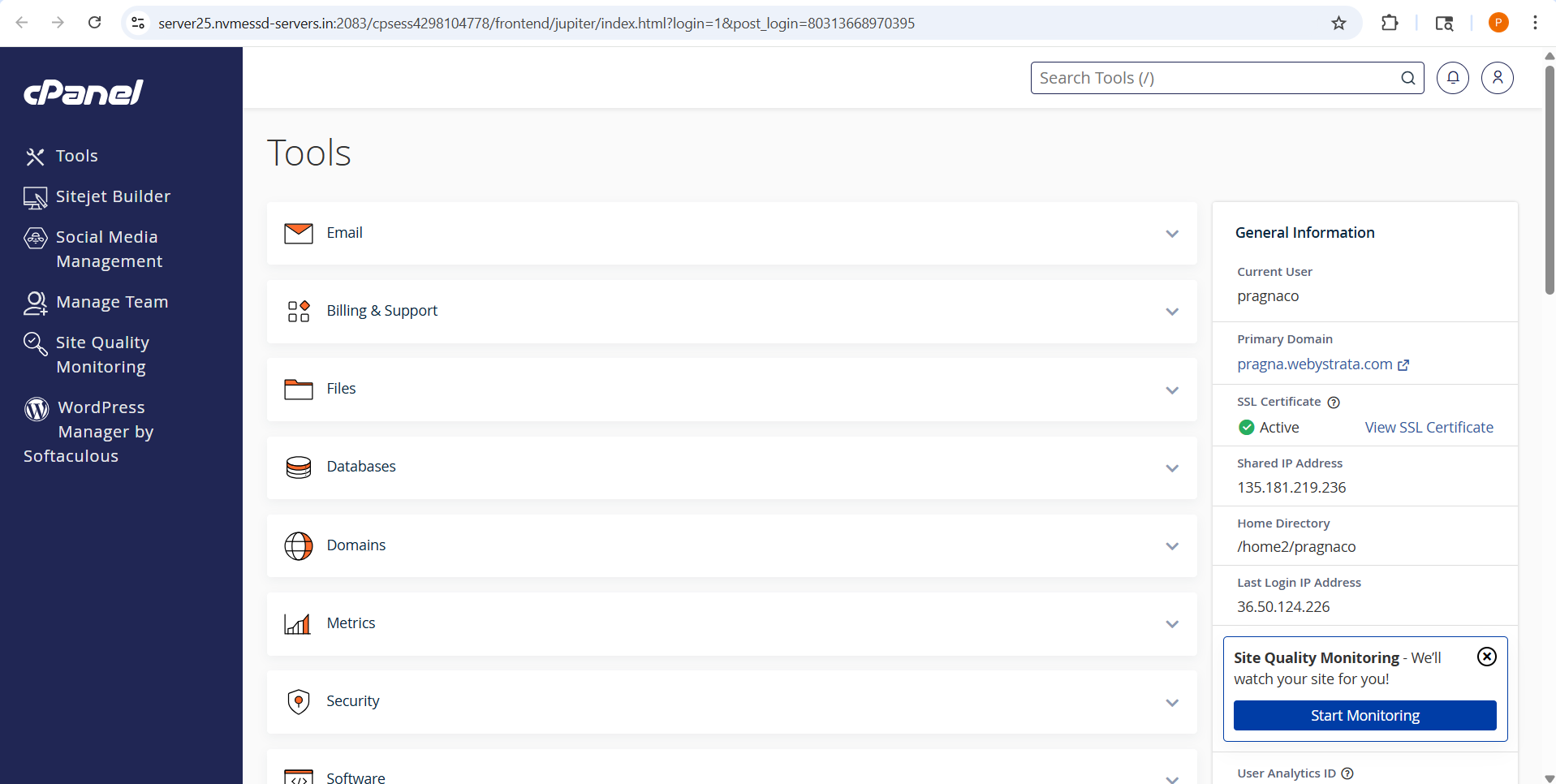
- Under Tools Select Files → File Manager

- Select public_html

- Locate the wp-config.php file.

Step 2: Edit wp-config.php File
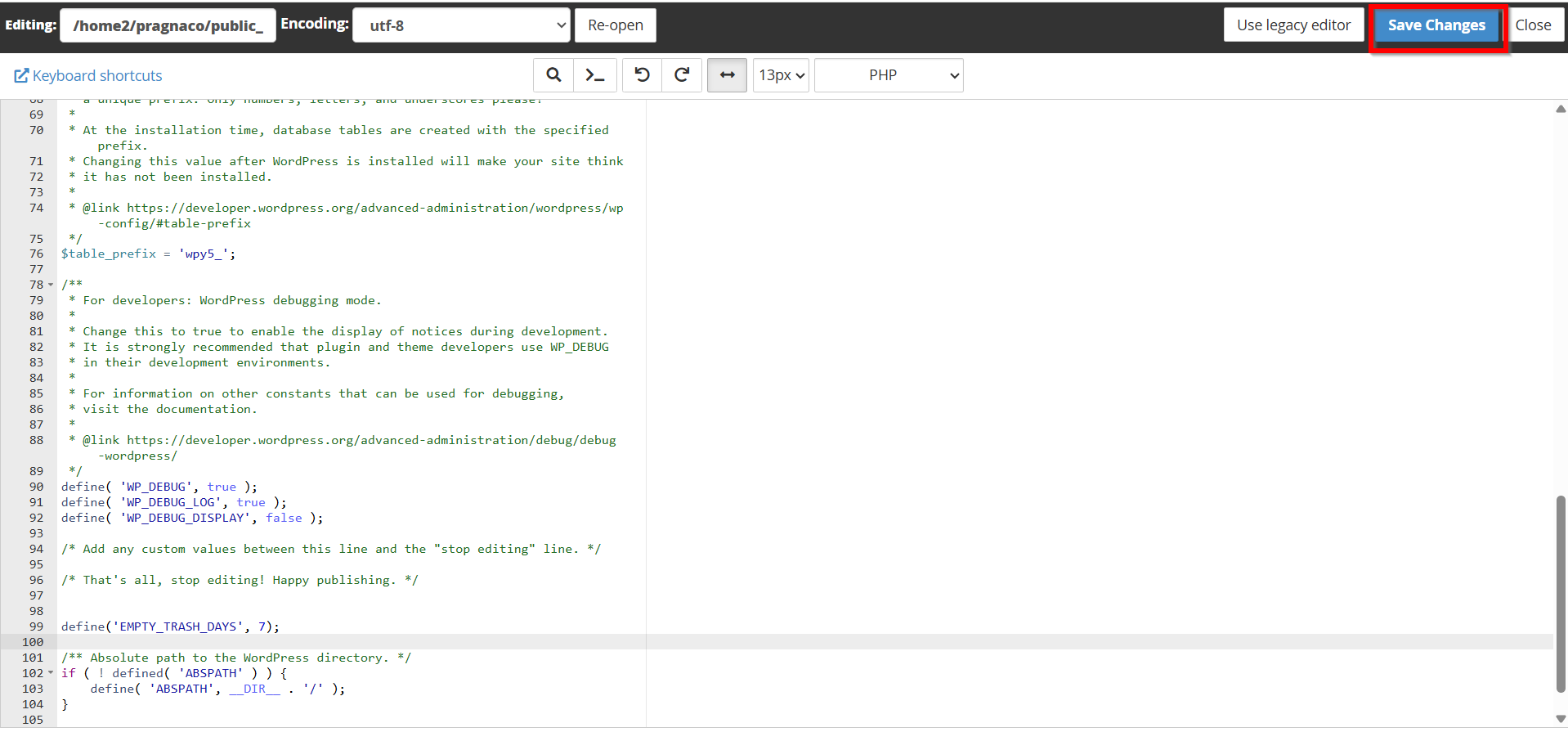
- Right-click on the file and select Edit.

- Again Click Edit

- Add the following code before the line:
/* That's all, stop editing! Happy publishing. */
Add:
define('EMPTY_TRASH_DAYS', 7);
This will automatically delete all trash items after 7 days.
You can change the number according to your requirement.
Examples:
Delete trash after 1 day:
define('EMPTY_TRASH_DAYS', 1);
Delete trash after 14 days:
define('EMPTY_TRASH_DAYS', 14);
Disable the Trash feature completely:
define('EMPTY_TRASH_DAYS', 0);
- After adding the code, Save changes.
Your WordPress website will now automatically remove trash items after the selected number of days.
Method 2: Empty Trash Manually In WordPress
You can also delete trash manually whenever required.
Steps:
-
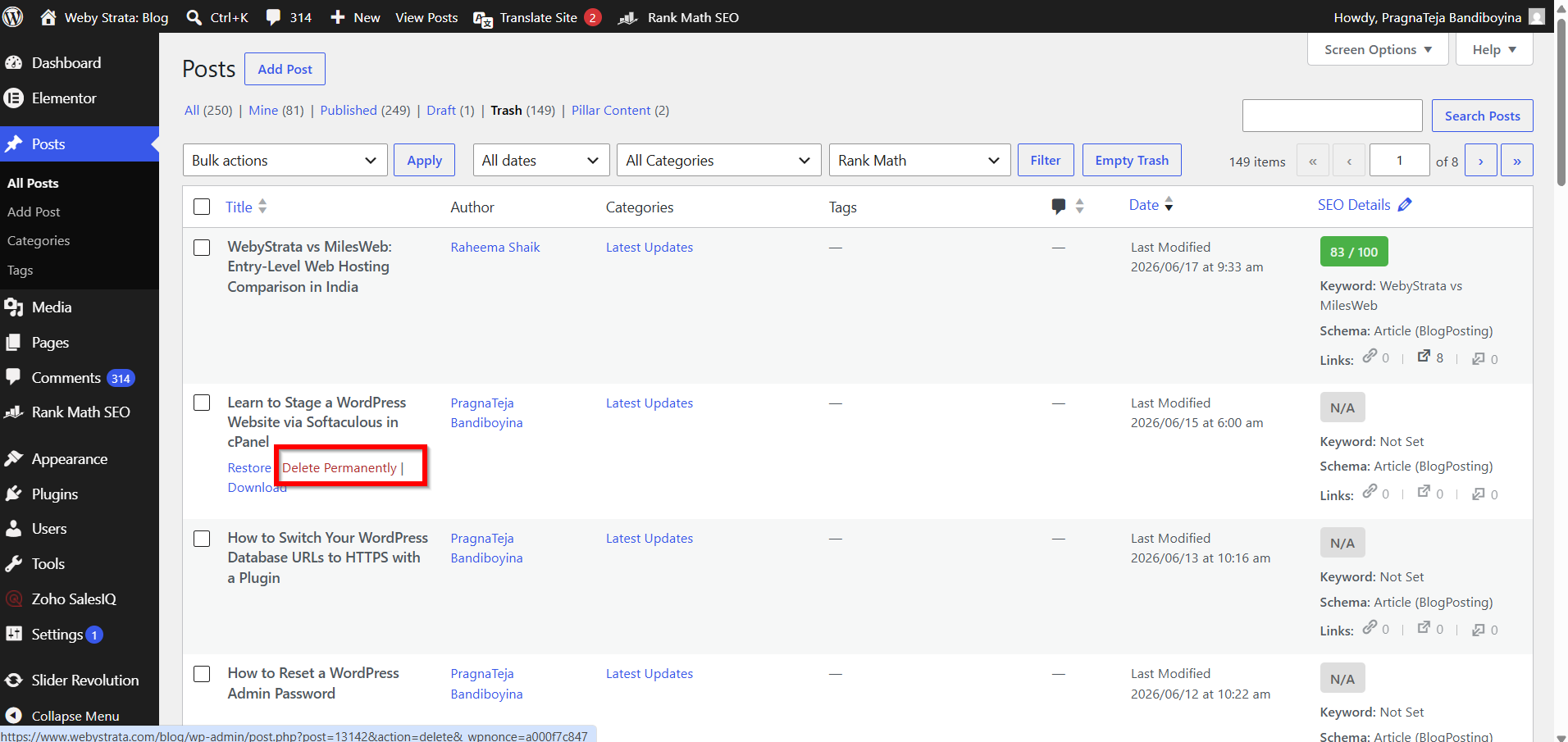
Login to WordPress Dashboard.

2. Go to Posts → Trash.

3. Click Delete Permanently.
Benefits of Automatically Deleting Trash in WordPress
1. Improves Website Performance
Removing unnecessary trash data keeps your WordPress database smaller, helping your website load and perform more efficiently.
2. Saves Disk Space
Deleted posts, pages, and comments can occupy valuable hosting storage. Automatic trash cleanup frees up space for important website files.
3. Reduces Database Clutter
Regular trash removal prevents the database from filling up with unused content, making it easier to manage and maintain.
4. Minimizes Manual Work
Once configured, WordPress automatically clears trash items, saving you time and eliminating the need for frequent manual cleanup.
5. Enhances Website Maintenance
A clean database contributes to better website health, easier backups, faster optimization tasks, and smoother overall site management.
Conclusion
Automatically deleting Trash in WordPress is a simple way to keep your website clean and optimized. By modifying the wp-config.php file or using a suitable plugin, you can control how long deleted items remain on your website.
Regular cleanup helps reduce database size, improves website performance, saves hosting resources, and makes website management easier. Setting up automatic trash deletion is a useful maintenance step for every WordPress website owner.
