
How to Delete a Plugin in WordPress
WordPress plugins add extra functionality to your website, such as contact forms, SEO tools, security features, and more. However, over time you may no longer need certain plugins, or you may want to remove outdated plugins to improve website performance and security.
This guide explains how to safely delete a plugin from your WordPress website.
Prerequisites
Before deleting a plugin:
-
Ensure you have administrator access to WordPress.
-
Create a website backup if the plugin stores important data.
-
Confirm the plugin is no longer required by your website.
Delete a Plugin from the WordPress Dashboard
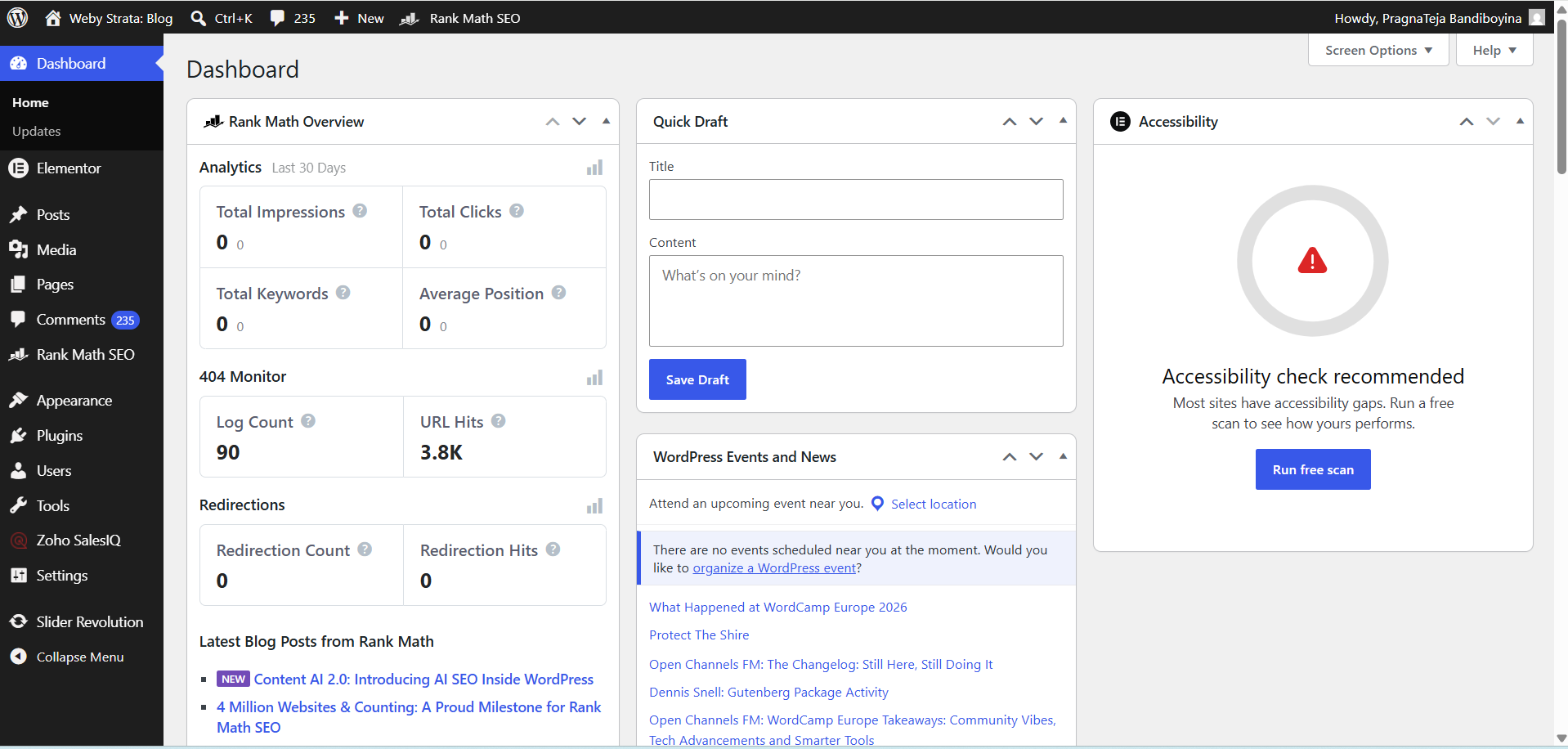
Step 1: Log in to WordPress
Sign in to your WordPress Admin Dashboard using an administrator account.
Step 2: Navigate to Installed Plugins
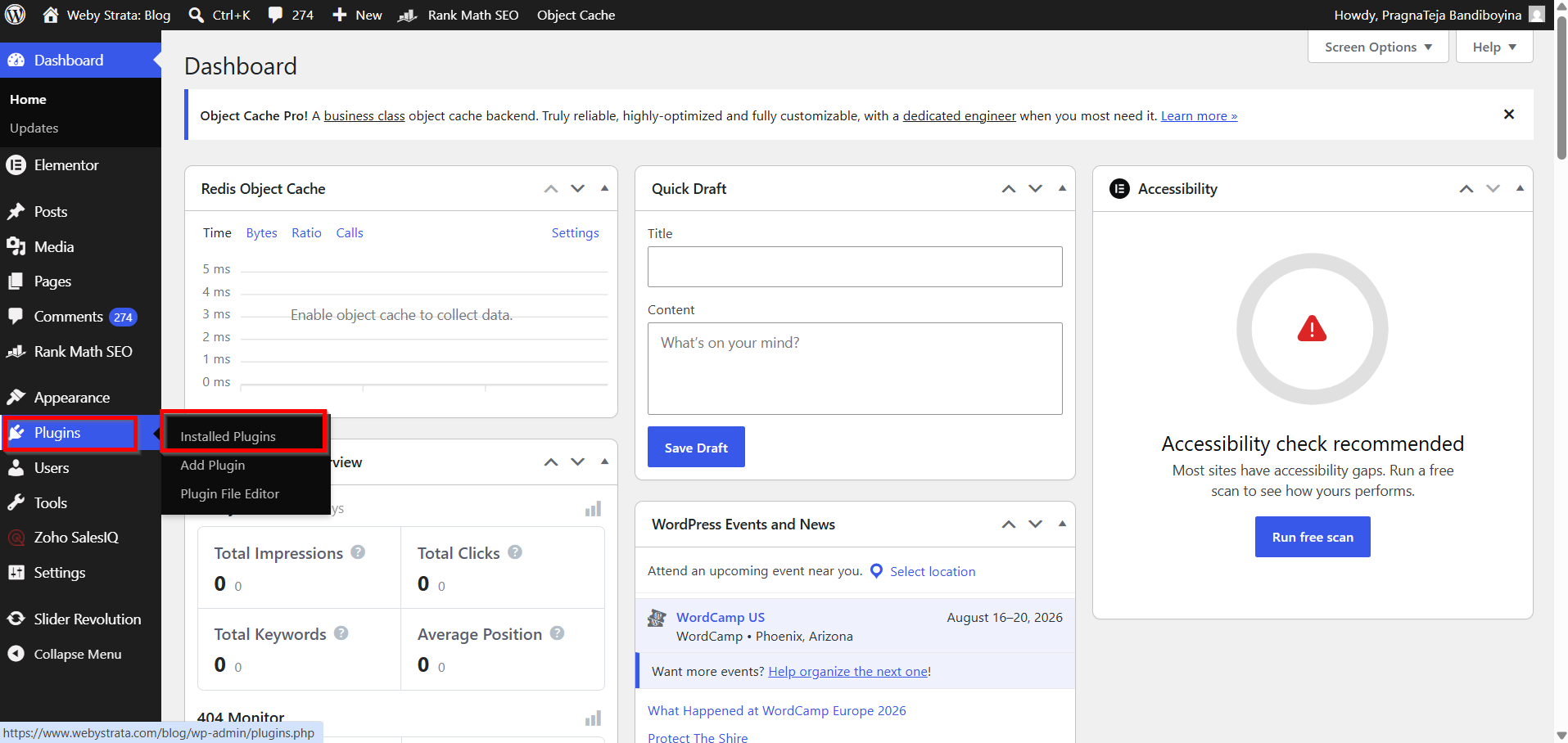
From the left-hand menu, click:
Plugins → Installed Plugins
You will see a list of all installed plugins on your website.
Step 3: Deactivate the Plugin
WordPress requires a plugin to be deactivated before it can be deleted.
-
Locate the plugin you want to remove.
-
Click Deactivate beneath the plugin name.
-
Wait for the page to refresh.

Step 4: Delete the Plugin
After deactivation:
-
Click the Delete link that appears below the plugin name.

2. A confirmation message will appear.
3. Click OK to confirm the deletion.

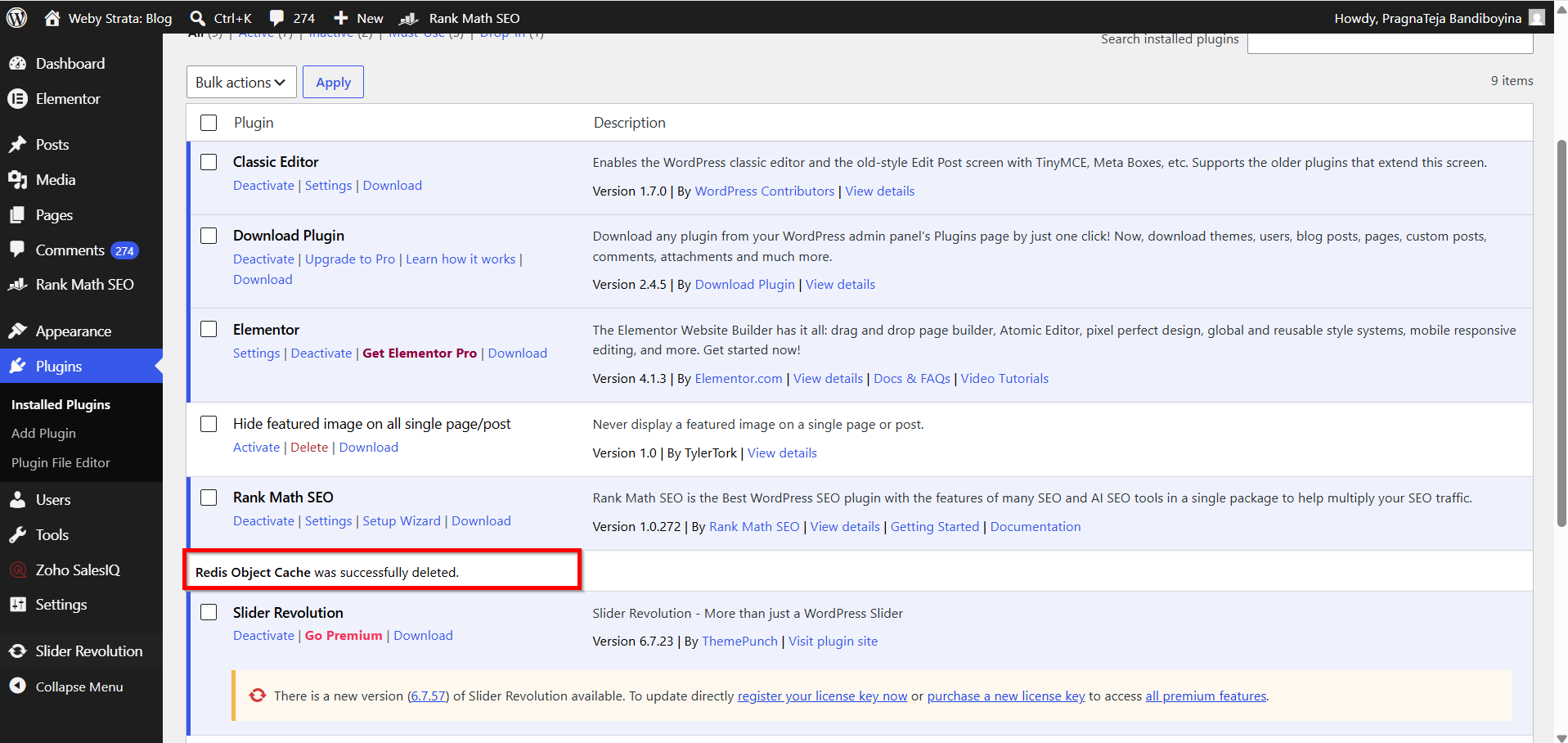
WordPress will remove the plugin files from your website.
Step 5: Verify Removal
Return to the Installed Plugins page and confirm that the plugin no longer appears in the list.
What Happens When a Plugin Is Deleted?
When a plugin is deleted:
-
Plugin files are removed from the server.
-
The plugin becomes unavailable in WordPress.
-
Some plugin settings and database entries may remain depending on the plugin.
-
Any features provided by that plugin will stop working.
Best Practices Before Deleting Plugins
-
Take a full website backup.
-
Check whether the plugin is actively used.
-
Test your website after deletion.
-
Remove only plugins you no longer need.
-
Keep remaining plugins updated to the latest version.
Benefits of Deleting Unused Plugins
- Improved Security
- Better Website Performance
- Reduced Plugin Conflicts
- Easier Website Management
- Optimized Resource Usage
Conclusion
Deleting unused plugins is an important part of WordPress maintenance. By regularly reviewing and removing plugins you no longer need, you can improve your website's security, performance, and overall manageability. Always deactivate the plugin first, create a backup, and test your website after making changes to ensure everything continues to function correctly.
