How to Change the WordPress Password
Changing your WordPress password is an essential security measure that helps protect your website from unauthorized access. Whether you want to update your password regularly for security purposes or suspect that your account credentials may have been compromised, WordPress makes it easy to change your password directly from the admin dashboard.
Follow the detailed steps below to update your WordPress password.
Step 1: Log in to Your WordPress Dashboard
Open your web browser and navigate to your WordPress login page. Typically, the login URL is:
https://yourdomain.com/wp-admin
or
https://yourdomain.com/wp-login.php
Enter your WordPress username or email address along with your current password, then click Log In.
Once logged in, you will be redirected to the WordPress Admin Dashboard.

Step 2: Access Your User Profile
From the left-side navigation menu within the WordPress dashboard, locate and click Users.
A submenu will appear. Click Profile to open your personal user profile settings.

If you are an administrator managing multiple users, you can also select All Users and choose a specific user account to edit.
Step 3: Locate the Account Management Section
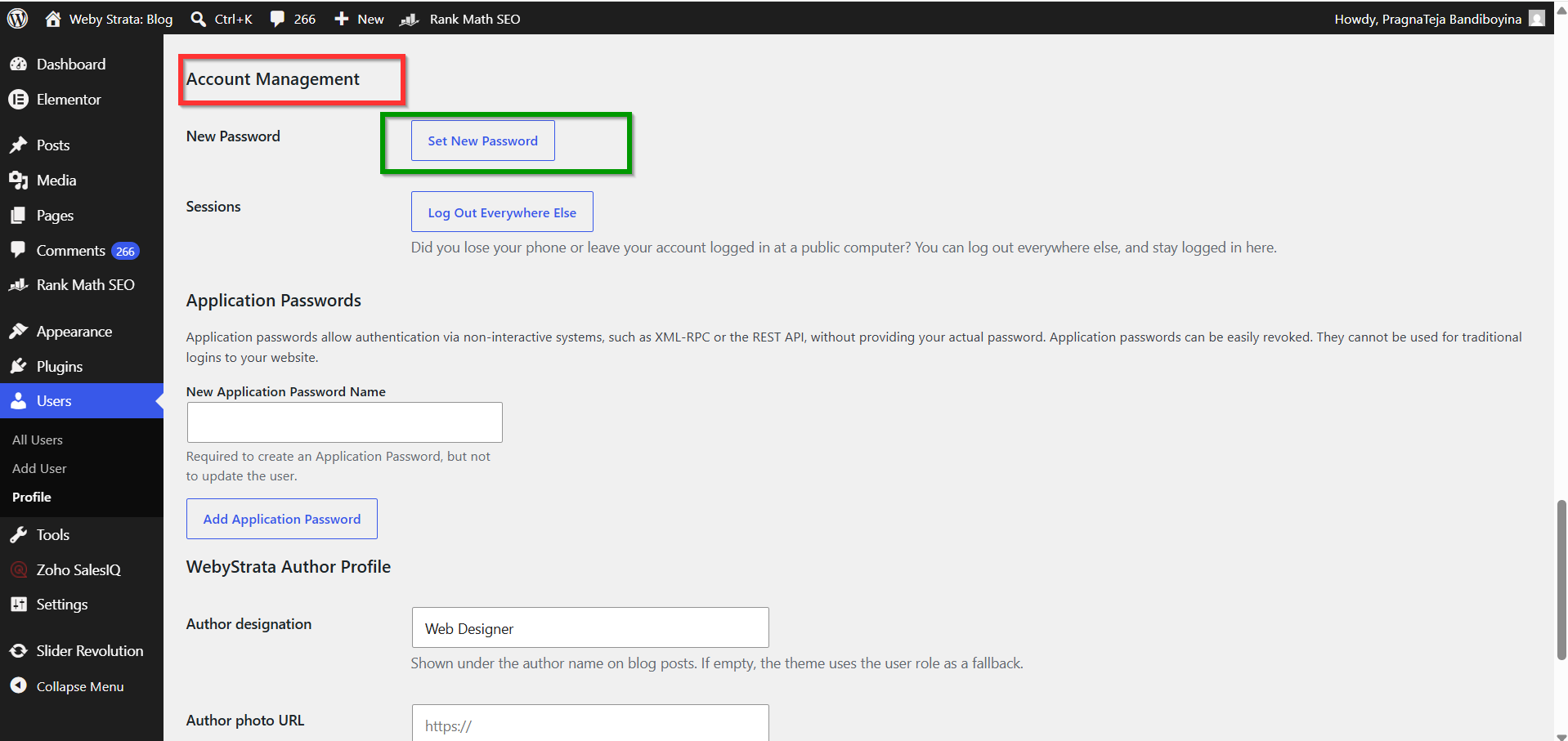
After opening the Profile page, scroll down until you find the Account Management section.
This section contains important account-related settings, including password management options.
You will see a button labeled Set New Password.
Step 4: Generate or Enter a New Password
Click the Set New Password button.
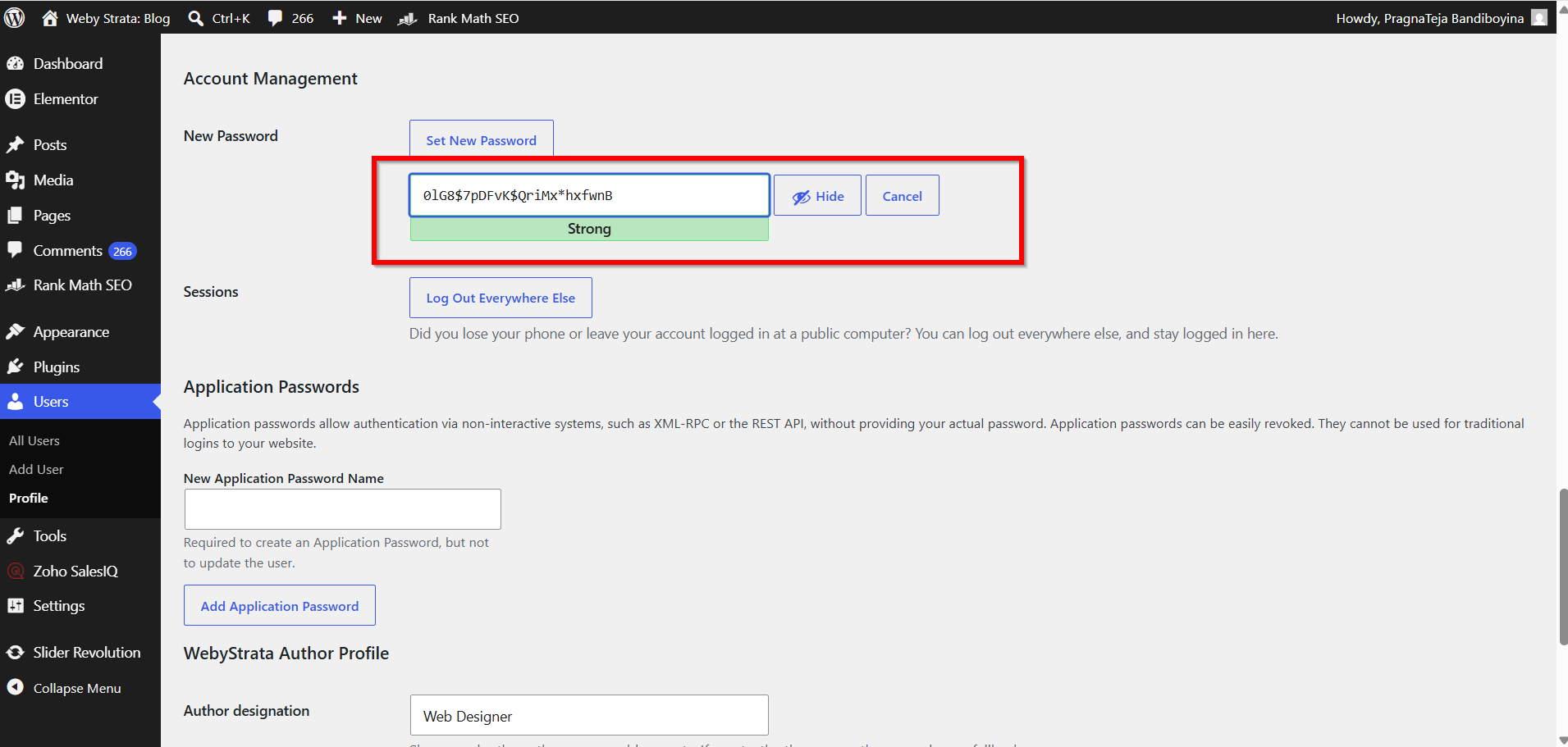
WordPress will automatically generate a strong password consisting of letters, numbers, and special characters. This generated password is designed to provide maximum security for your account.
You can either:
-
Use the password suggested by WordPress.
-
Delete the suggested password and enter your own custom password.
When creating your own password, ensure that it contains:
-
Uppercase letters (A-Z)
-
Lowercase letters (a-z)
-
Numbers (0-9)
-
Special characters (!, @, #, $, %, etc.)
A stronger password significantly reduces the chances of unauthorized access.
Step 5: Review Password Strength
As you type your new password, WordPress automatically evaluates its strength.
A password strength indicator will appear below the password field, displaying ratings such as:
-
Weak
-
Medium
-
Strong
For optimal security, use a password that receives a Strong rating.
Avoid using:
-
Your name
-
Website name
-
Birth dates
-
Common dictionary words
-
Simple sequences such as "123456" or "password"
Step 6: Save the New Password
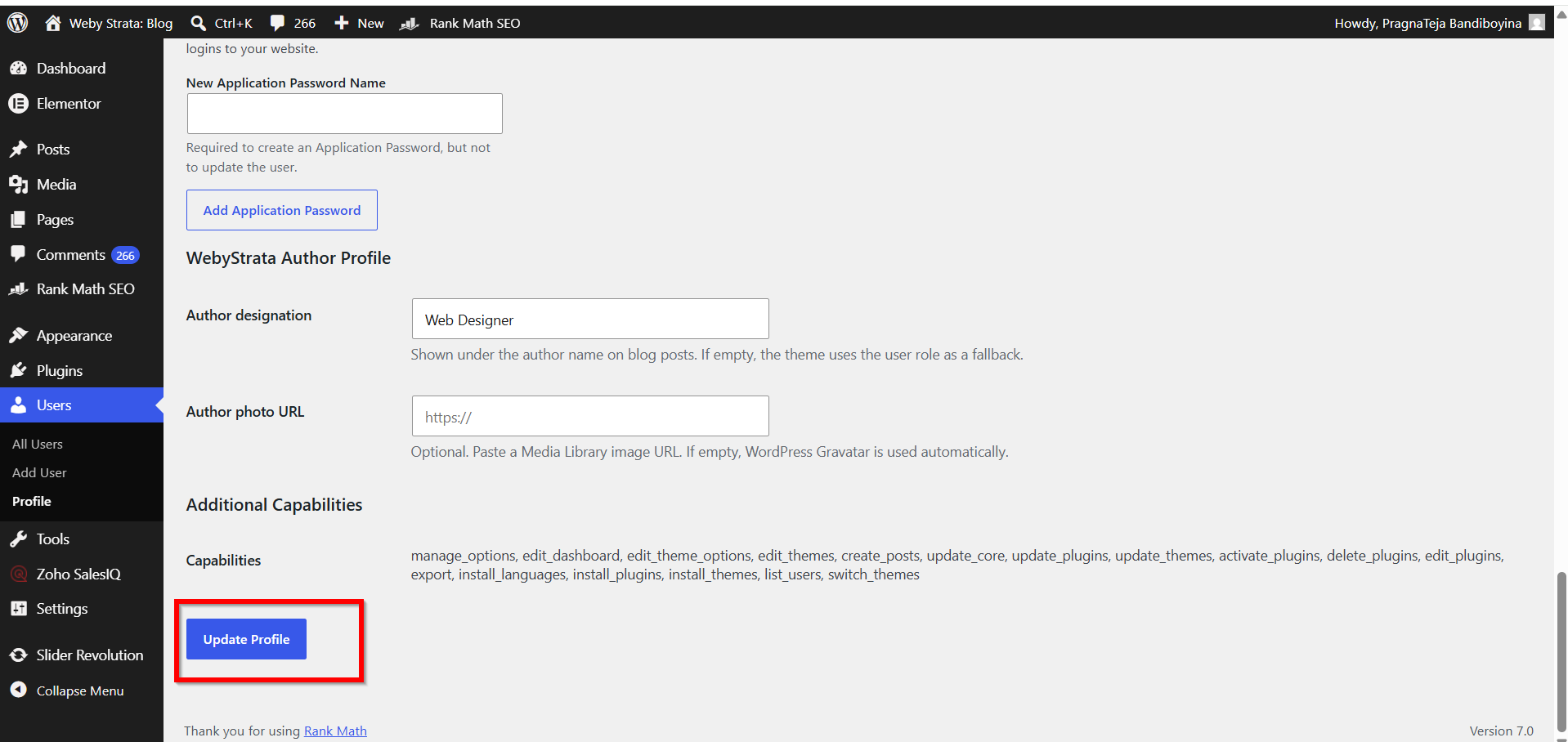
After entering your new password, scroll to the bottom of the Profile page.
Click the Update Profile button to save your changes.
WordPress will display a confirmation message indicating that your profile has been updated successfully.
Your new password is now active.
Step 7: Verify the Password Change
To confirm that the password update was successful:
-
Log out of the WordPress dashboard.
-
Return to the WordPress login page.
-
Enter your username and newly created password.
-
Click Log In.
If you can access the dashboard successfully, the password change has been completed correctly.
Best Practices for WordPress Password Security
To keep your WordPress website secure, consider the following recommendations:
-
Change your password periodically.
-
Use a unique password that is not used on other websites.
-
Enable Two-Factor Authentication (2FA) whenever possible.
-
Avoid sharing administrator credentials with multiple users.
-
Store passwords securely using a trusted password manager.
-
Remove unused user accounts from your WordPress website.
Conclusion
Changing your WordPress password through the admin dashboard is a quick and effective way to improve website security. By following the steps outlined above, you can update your credentials in just a few minutes and help protect your website from unauthorized access and potential security threats.