
Where Is My WordPress Configuration File Stored?
WordPress relies on several core files to operate correctly, and one of the most important among them is the wp-config.php file. This file contains essential configuration settings that allow WordPress to connect to your database and function properly. If you ever need to troubleshoot your website, move your WordPress installation, update database credentials, or enable advanced features, you may need to locate and access this file.
In this guide, you will learn where the WordPress configuration file is stored, why it is important, and how you can safely access and edit it.
What Is the wp-config.php File?
The wp-config.php file is the primary configuration file used by WordPress. It contains critical information such as:
- Database name
- Database username
- Database password
- Database host
- Authentication keys and salts
- Table prefix settings
- Debugging options
- Security and performance configurations
Without this file, WordPress cannot establish a connection with its database, making the website inaccessible.
Because it contains sensitive information, the wp-config.php file should always be protected and edited carefully.
Locate wp-config.php Using cPanel
Follow the steps below to find your WordPress configuration file.
Step 1: Log in to cPanel
Access your hosting account and log in to your cPanel dashboard using your hosting credentials.

Step 2: Open File Manager
From the cPanel home screen, navigate to:
Files → File Manager

This tool allows you to browse and manage all files stored in your hosting account.
Step 3: Open the Document Root Directory
If WordPress is installed on your primary domain, open the public_html directory.
Example:
public_htmlIf WordPress is installed in a subdirectory, navigate to the folder where the installation exists.
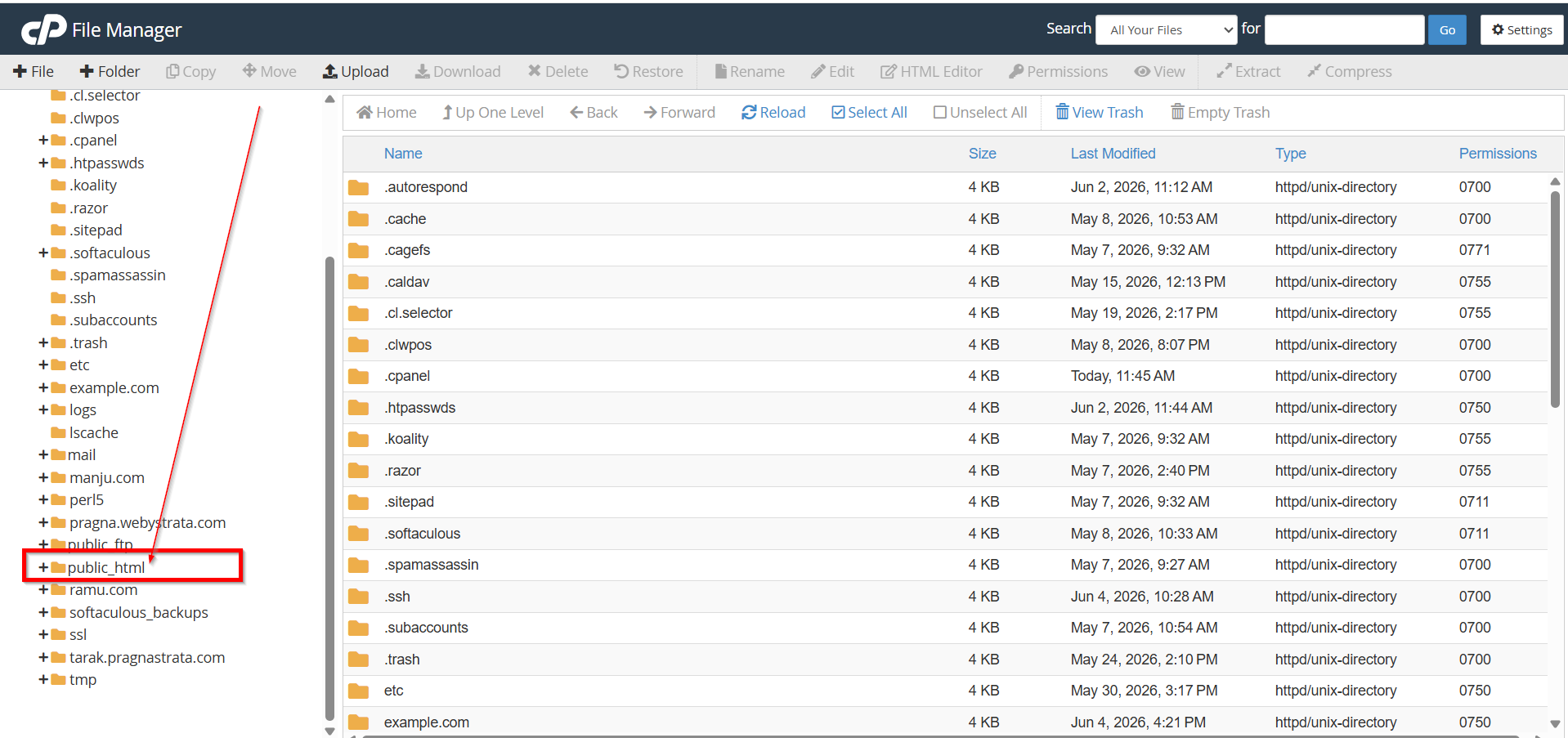
Step 4: Locate the wp-config.php File
Inside the WordPress root directory, you will find several folders and files, including:
wp-admin
wp-content
wp-includes
wp-config.php
The wp-config.php file is usually located in the same directory as these WordPress folders.
Step 5: View or Edit the File
Right-click on wp-config.php and select Edit or Code Edit.
You can now view the configuration settings stored within the file.
Important: Always create a backup before making any modifications to the wp-config.php file.

Common Uses of the wp-config.php File
Website administrators often access the configuration file to:
- Verify database connection details
- Fix database connection errors
- Enable WordPress debugging
- Modify security settings
- Update configuration values after a website migration
- Adjust WordPress memory limits
Why Is the wp-config.php File Important?
The wp-config.php file is one of the most critical files in a WordPress installation. It stores:
- Database name
- Database username
- Database password
- Database host information
- WordPress table prefix
- Authentication keys and salts
- Debugging settings
Without this file, WordPress cannot connect to its database, and your website will not function correctly.
Benefits of Locating the WordPress Configuration File
- Easy Database Management
- Faster Troubleshooting
- Simplified Website Migration
- Enhanced Security Management
- Access to Advanced WordPress Settings
- Helps Recover Website Access
- Supports Plugin and Theme Troubleshooting
- Allows Custom WordPress Configuration
- Improves Website Maintenance Efficiency
- Provides Better Understanding of Your WordPress Setup
Conclusion
The WordPress configuration file, wp-config.php, is typically stored in the root directory of your WordPress installation, most commonly inside the public_html folder. The easiest way to locate it is through cPanel File Manager, where you can view and manage the file whenever necessary. Understanding where this file is stored can help you troubleshoot issues, manage database settings, improve security, and maintain your WordPress website more effectively.
