
How to Manage Users in WordPress
Managing users is an essential part of running a WordPress website. Whether you operate a blog, business website, membership portal, or online store, controlling who can access your site and what actions they can perform is crucial for security and efficient website management.
WordPress includes a built-in user management system that allows administrators to create, edit, remove, and assign roles to users. This guide explains everything you need to know about managing users in WordPress.
Why User Management is Important
Proper user management helps you:
-
Control access to your website.
-
Assign specific responsibilities to team members.
-
Improve website security.
-
Prevent unauthorized changes.
-
Manage content contributors efficiently.
-
Maintain accountability among website users.
For websites with multiple authors, editors, developers, or support staff, user management becomes especially important.
Understanding WordPress User Roles
Before managing users, it's important to understand the default WordPress user roles.
Administrator
Administrators have full access to the WordPress website. They can:
-
Install and remove plugins.
-
Change themes.
-
Manage all users.
-
Edit any content.
-
Access website settings.
This role should only be assigned to trusted individuals.
Editor
Editors can:
-
Create, edit, publish, and delete posts.
-
Manage content created by other users.
-
Moderate comments.
They cannot modify website settings or install plugins.
Author
Authors can:
-
Create, edit, publish, and delete their own posts.
-
Upload media files.
They cannot edit content created by other users.
Contributor
Contributors can:
-
Write and edit their own posts.
-
Submit content for review.
They cannot publish posts themselves.
Subscriber
Subscribers have the most limited permissions.
They can:
-
Log in to the website.
-
Manage their profile.
-
Access subscriber-only content if available.
How to Add a New User
Follow these steps to create a new user account:
Step 1: Open the Users Section
From the WordPress Dashboard, go to:
Users → Add New User

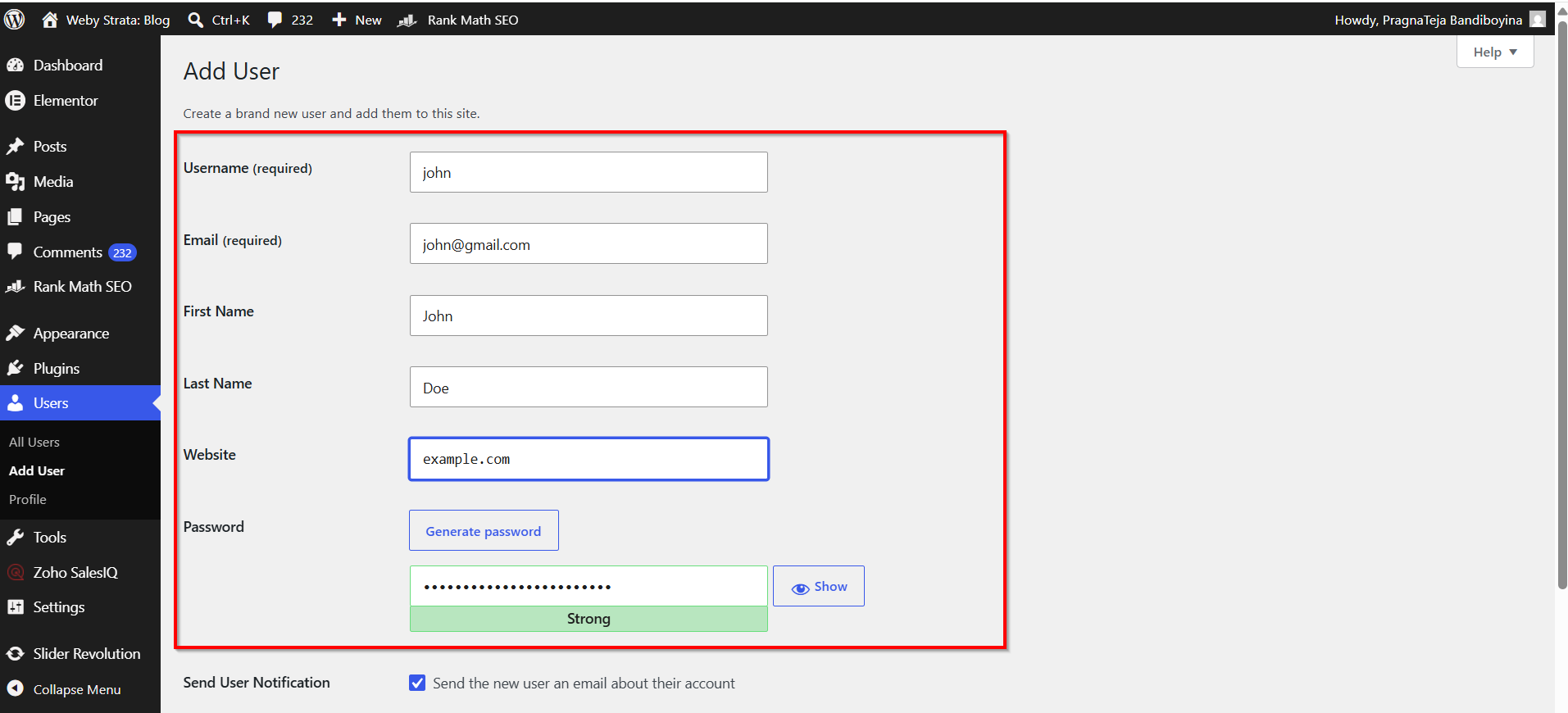
Step 2: Enter User Information
Provide the following details:
-
Username
-
Email Address
-
First Name
-
Last Name
-
Website (optional)
- Password
Step 3: Select a User Role
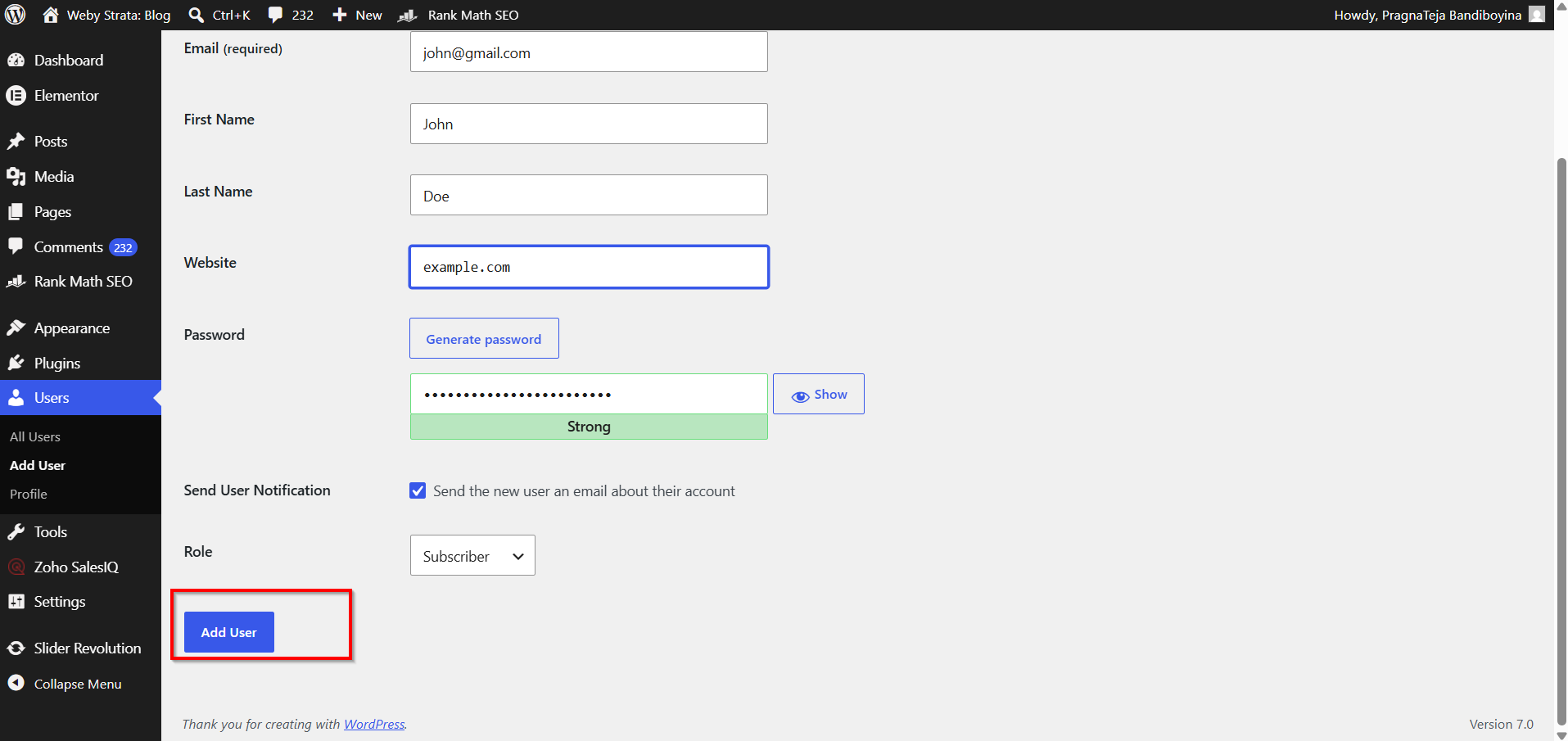
Choose the appropriate role:
-
Administrator
-
Editor
-
Author
-
Contributor
-
Subscriber

Step 4: Create the User
Click Add New User.
The new user can now log in using their credentials.
How to Edit a User Account
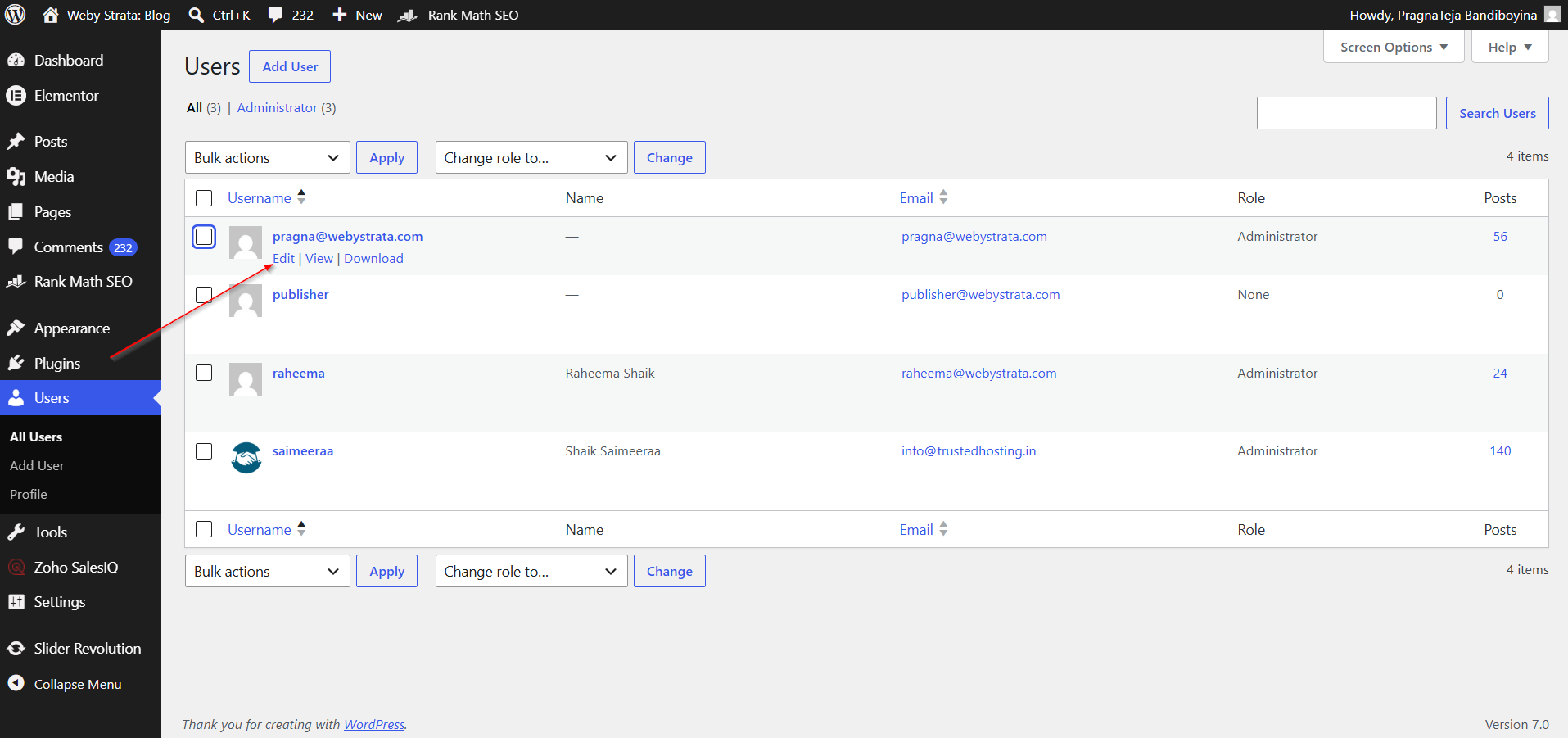
If you need to modify user information:
-
Go to Users → All Users.

2. Locate the user account.
3. Click Edit beneath the username.
You can modify:
-
Name
-
Email address
-
Password
-
Website URL
-
Biography
-
Profile settings
-
User role

- After making changes, click Update Profile.

How to Delete a User
If an account is no longer needed, it can be removed.
Step 1: Access All Users
Go to:
Users → All Users
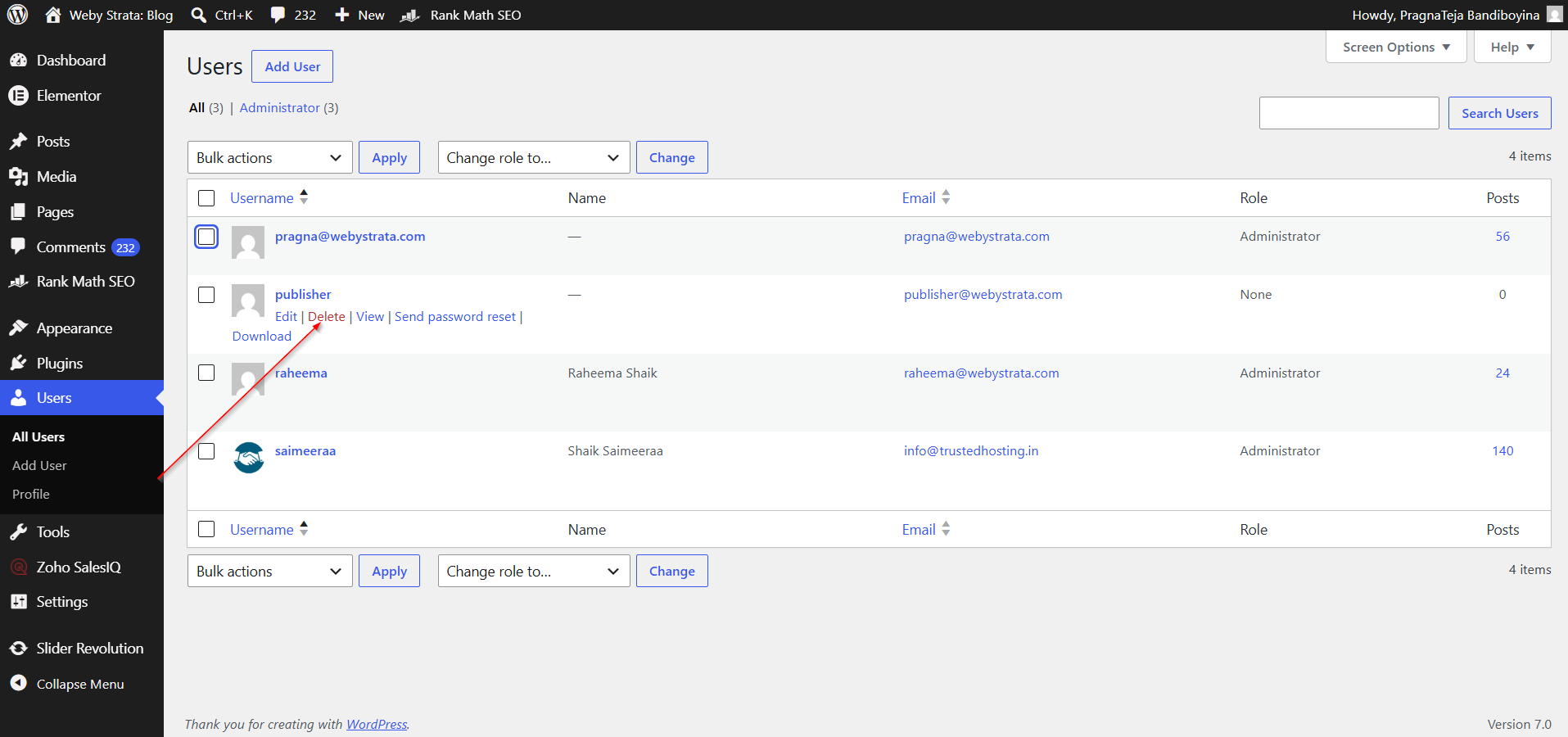
Step 2: Select the User
Hover over the username and click Delete.
Step 3: Choose Content Handling
WordPress provides two options:
-
Delete all content created by the user.
-
Assign content to another user.
Choose the appropriate option.
Step 4: Confirm Deletion
Click Confirm Deletion.
The user account will be permanently removed.

User Management Best Practices
Follow these best practices for better security and administration:
- Use Strong Passwords
- Limit Administrator Accounts
- Remove Inactive Users
- Enable Two-Factor Authentication
- Review User Roles Regularly
- Keep WordPress Updated
Common User Management Issues
User Cannot Log In
Possible causes:
-
Incorrect password
-
Disabled account
-
Plugin conflicts
Try resetting the password or disabling problematic plugins.
Missing User Role Options
Some membership or role-management plugins modify available roles.
Check installed plugins and their settings.
User Not Receiving Password Reset Emails
Verify:
-
Email server configuration
-
SMTP settings
-
Spam or junk folders
Using an SMTP plugin can improve email delivery.
Conclusion
WordPress makes user management simple and efficient. By understanding user roles and permissions, administrators can securely manage access to their websites while ensuring that team members have the appropriate level of control.
Whether you need to add new users, edit profiles, assign roles, reset passwords, or remove inactive accounts, the built-in WordPress user management system provides all the tools necessary to maintain a secure and organized website.
