How to Reset a WordPress Admin Password
Forgetting your WordPress administrator password can be frustrating, especially when you need immediate access to your website. Fortunately, WordPress provides several methods to reset the admin password and regain control of your website. Whether you have access to your email account, cPanel, database, or server terminal, there is a solution available.
In this guide, we'll explain multiple ways to reset a WordPress admin password safely and efficiently.
Why You Might Need to Reset Your WordPress Password
There are several situations where resetting the admin password becomes necessary:
-
Forgotten login credentials
-
Website migration issues
-
Security concerns after a suspected hack
-
Multiple administrators managing the site
-
Password reset emails not being received
-
Lost access to the registered email address
No matter the reason, WordPress offers several reliable recovery methods.
Method 1: Reset Password from the WordPress Login Page
This is the easiest method if you still have access to the email address associated with your administrator account.
Step 1: Open the Login Page
Visit:
https://yourdomain.com/wp-admin
or
https://yourdomain.com/wp-login.php
Step 2: Click "Lost your password?"
Below the login form, click the Lost your password? link.

Step 3: Enter Your Username or Email Address
Provide the username or email address associated with your WordPress account.

Step 4: Check Your Email
WordPress will send a password reset link to the registered email address.
Step 5: Create a New Password
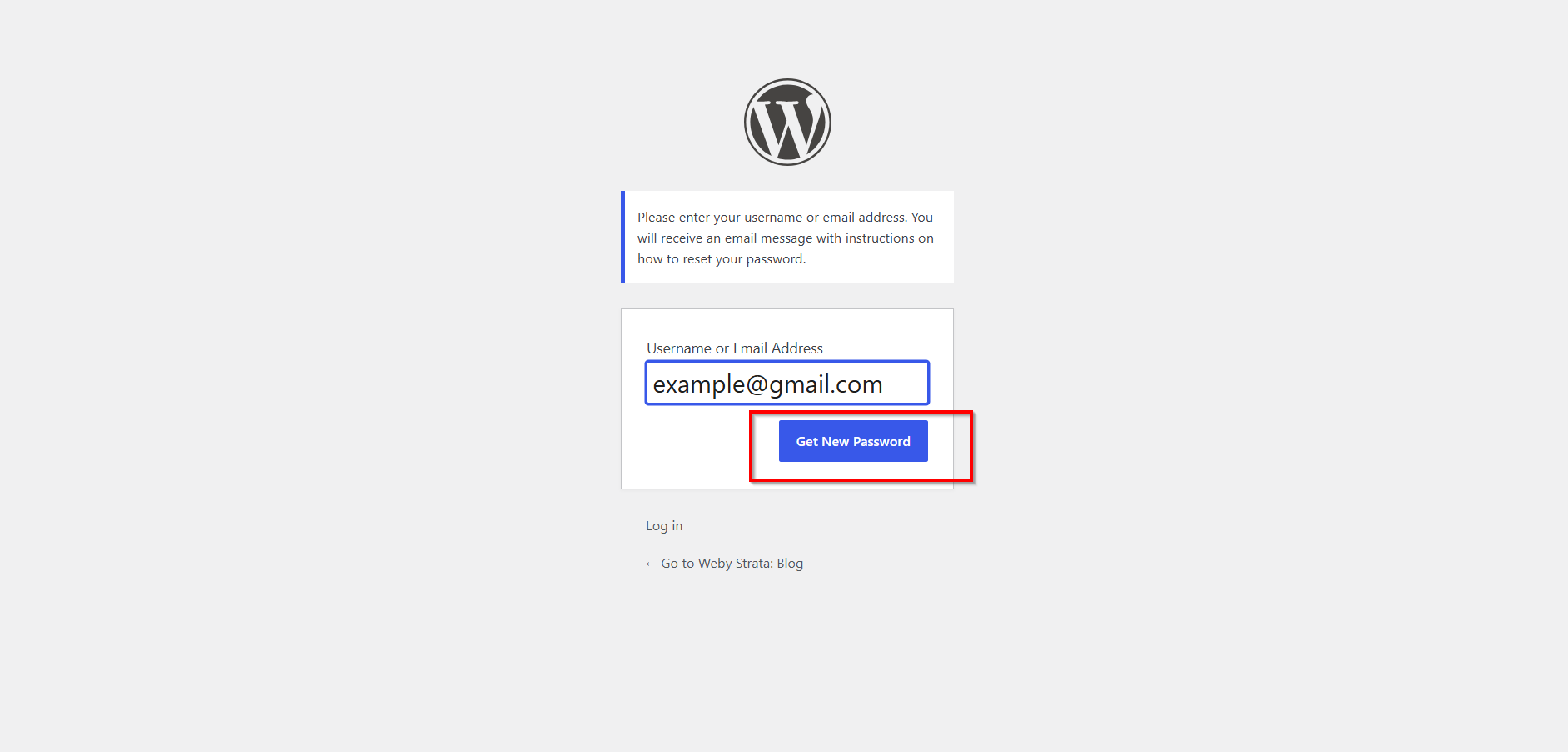
Click the reset link and Click Get new Password
Benefits of This Method
-
Fast and simple
-
No technical knowledge required
-
Recommended by WordPress
Method 2: Reset Password Using phpMyAdmin
If you cannot access the registered email account, you can reset the password directly through the database.
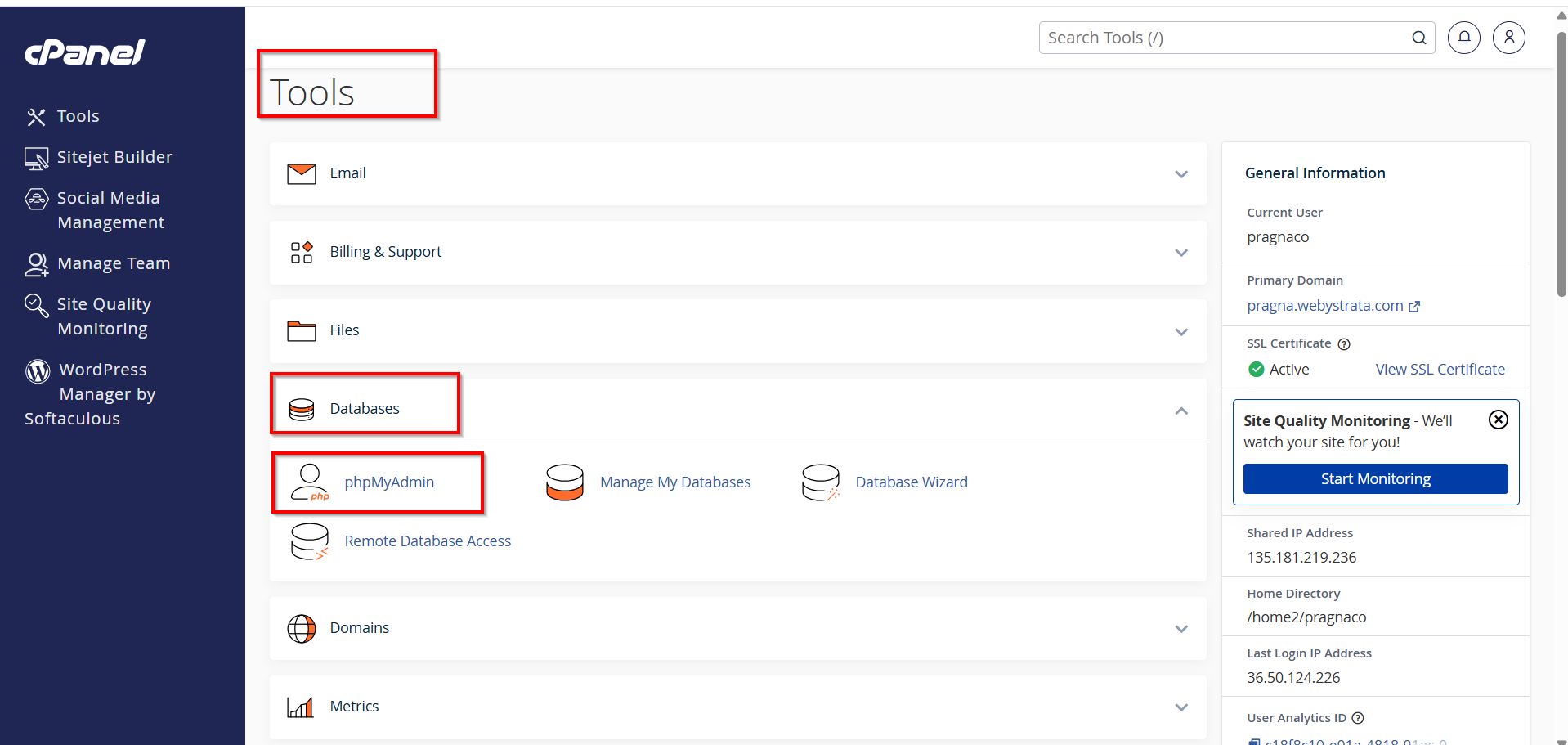
Step 1: Log in to cPanel
Access your hosting control panel and locate phpMyAdmin under the Databases section.
Step 2: Open Your WordPress Database
Select the database used by your WordPress installation.

Step 3: Open the Users Table
Find and open:
wp_users
Note: Some websites use a custom table prefix instead of "wp_".

Step 4: Edit the Administrator User
Locate the admin account and click Edit.

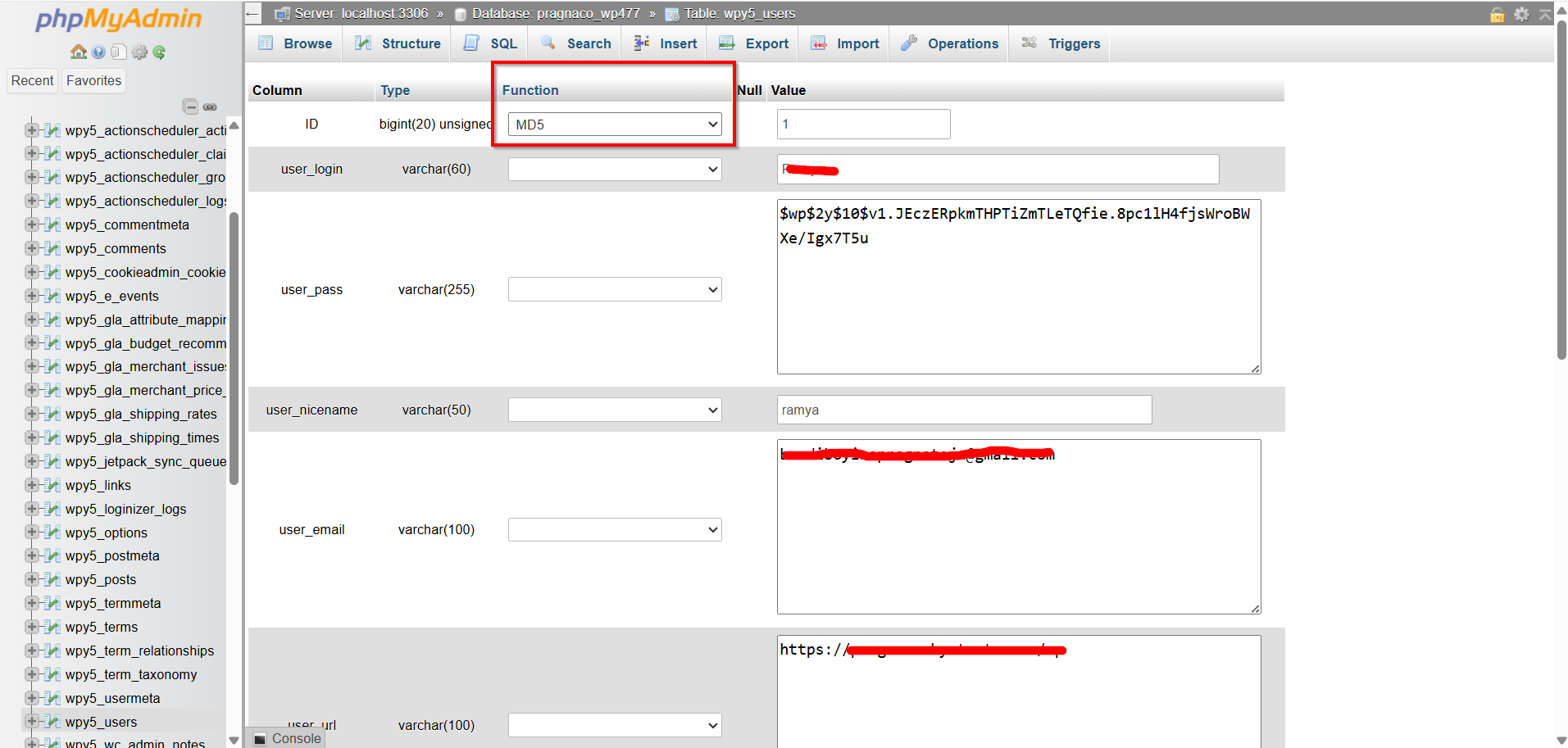
Step 5: Update the Password
In the user_pass field:
-
Delete the existing value.
-
Enter your new password.
-
Select MD5 from the Function dropdown menu.
Step 6: Save Changes
Click Go or Save.
You can now log in using the new password.

Advantages of phpMyAdmin Method
-
Works even when email access is unavailable
-
Fast and reliable
-
Available on most hosting accounts
Conclusion
Resetting a WordPress admin password is a straightforward process when you know the available recovery methods. The easiest option is using the built-in password recovery feature. However, if email access is unavailable, tools such as phpMyAdmin, cPanel, or WP-CLI can help you regain access quickly.
Always use strong passwords and follow WordPress security best practices to keep your website safe and accessible.