
How to Remove WordPress from cPanel Softaculous
Softaculous is a popular auto-installer available in cPanel that makes it easy to install, manage, and remove WordPress websites. If you no longer need a WordPress installation, want to start fresh, or need to remove an outdated website, Softaculous provides a quick and safe way to uninstall WordPress.
This guide explains how to remove a WordPress installation using Softaculous in cPanel.
Before You Begin
Before removing WordPress, keep the following points in mind:
-
The removal process is permanent.
-
All website files, themes, plugins, and settings associated with the installation may be deleted.
-
The WordPress database can also be removed during the uninstall process.
-
Create a full backup of your website if you may need the data later.
Steps to Remove WordPress from cPanel Softaculous
Step 1: Log in to cPanel
-
Open your web browser.
-
Visit your cPanel login URL.
-
Enter your cPanel username and password.
-
Click Log In.
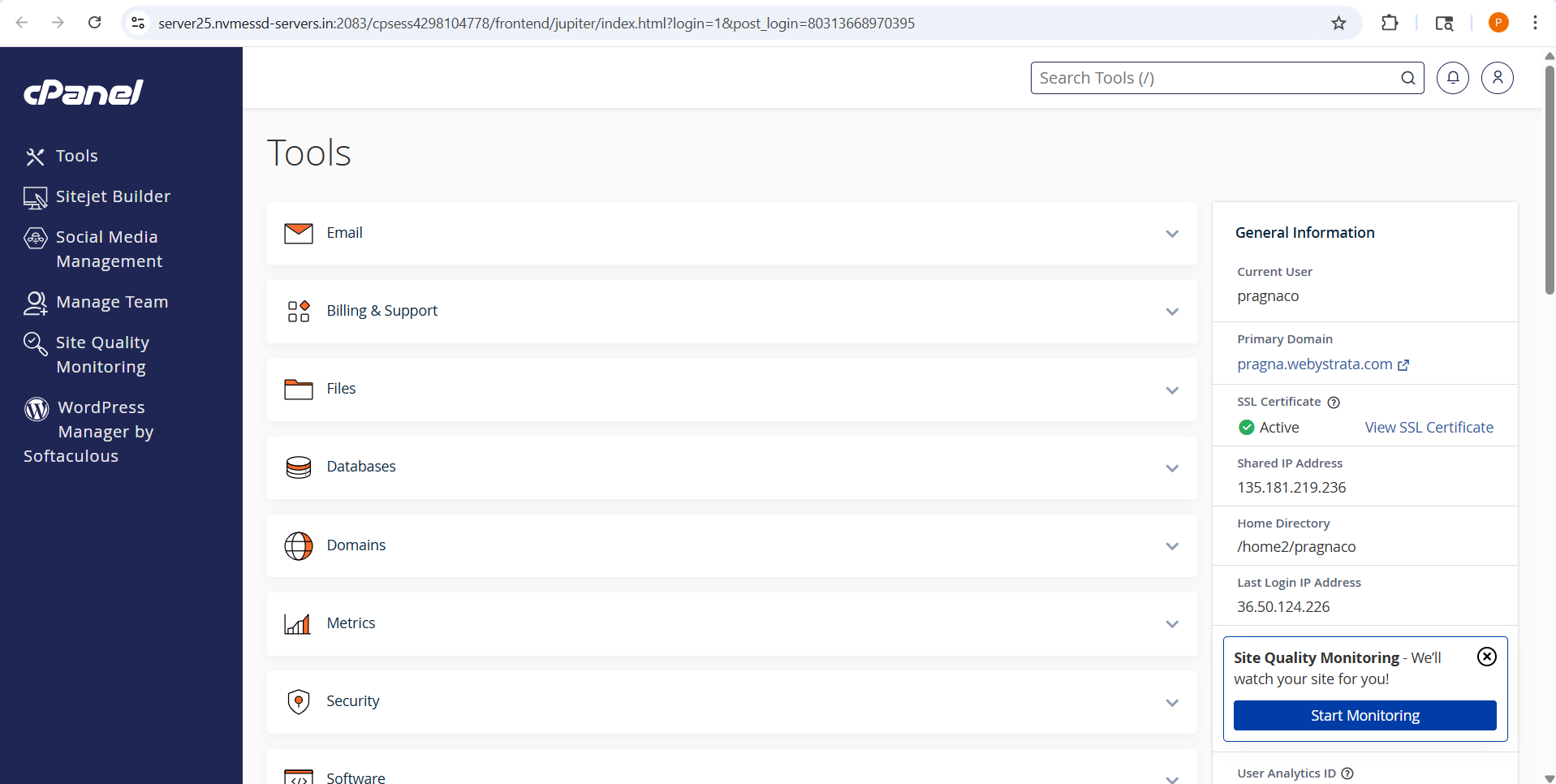
Step 2: Open Softaculous Apps Installer
-
Scroll to the Software section.
-
Click WordPress Manager by Softaculous.

3. The Softaculous dashboard will open, displaying available applications and your current installations.

Step 3: Access Installed Applications
-
Click the Installations icon located in the top menu.
-
Alternatively, click All Installations.

You will see a list of applications installed through Softaculous, including WordPress websites.
Step 4: Locate the WordPress Installation
-
Find the WordPress installation you want to remove.
-
Verify the domain name and installation directory to ensure you select the correct website.
If you manage multiple websites, double-check the installation details before proceeding.
Step 5: Start the Uninstall Process
-
Click the Remove (X) icon next to the WordPress installation.
-
Softaculous will display the uninstall options page.

Step 6: Select Removal Options
You may see the following options:
Remove Directory
Deletes all WordPress files and folders from the installation directory.
Remove Database
Deletes the MySQL database associated with the WordPress website.
For a complete removal, select both options.
Important: Once the files and database are removed, they cannot be recovered unless a backup exists.

Step 7: Confirm the Removal
-
Review the installation details carefully.
-
Click Remove Installation.
-
Confirm the action when prompted.
Softaculous will begin uninstalling WordPress.

Step 8: Verify the Removal
After the process completes:
-
Return to the Installations page.
-
Confirm that the WordPress installation no longer appears in the list.
-
Visit the website URL to verify that the site has been removed.

Conclusion
Removing WordPress from cPanel using Softaculous is a straightforward process that requires only a few clicks. By accessing your Softaculous installations, selecting the correct WordPress site, and confirming the uninstall options, you can safely remove an unwanted WordPress installation and free up hosting resources. Always create a backup before proceeding to avoid accidental data loss.
