
How to Create Email Accounts in cPanel
Creating a professional email account using your domain name is simple with cPanel. Follow the steps below to create a new email account for your website.
Step 1: Login to cPanel from Client Area
First, login to your client area account.
After logging in:
- Go to Services
- Click on My Services
- Select your active hosting service
- Click on Login to cPanel

Step 2: Open Email Section
Inside cPanel, you will see Email section.
Click on Email .

Step 2: Open Email Accounts
Inside cPanel, scroll down to the Email section.
Click on Email Accounts.

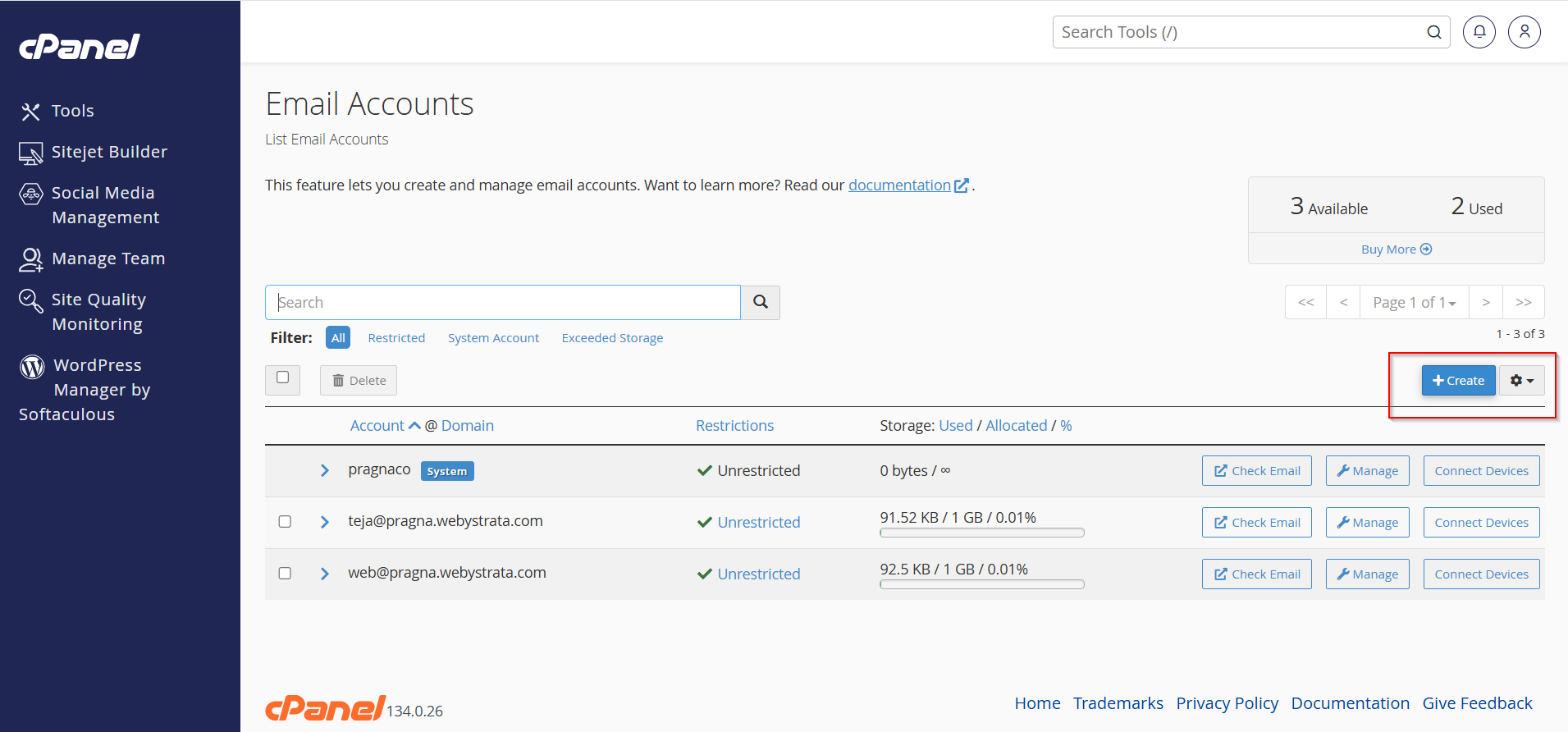
Step 3: Click on Create
On the Email Accounts page, click on the Create button.
Step 4: Enter Email Details
Now enter the required details:
- Domain – Select your domain name
- Username – Enter the email name you want
Example:info,support,admin - Password – Enter a strong password
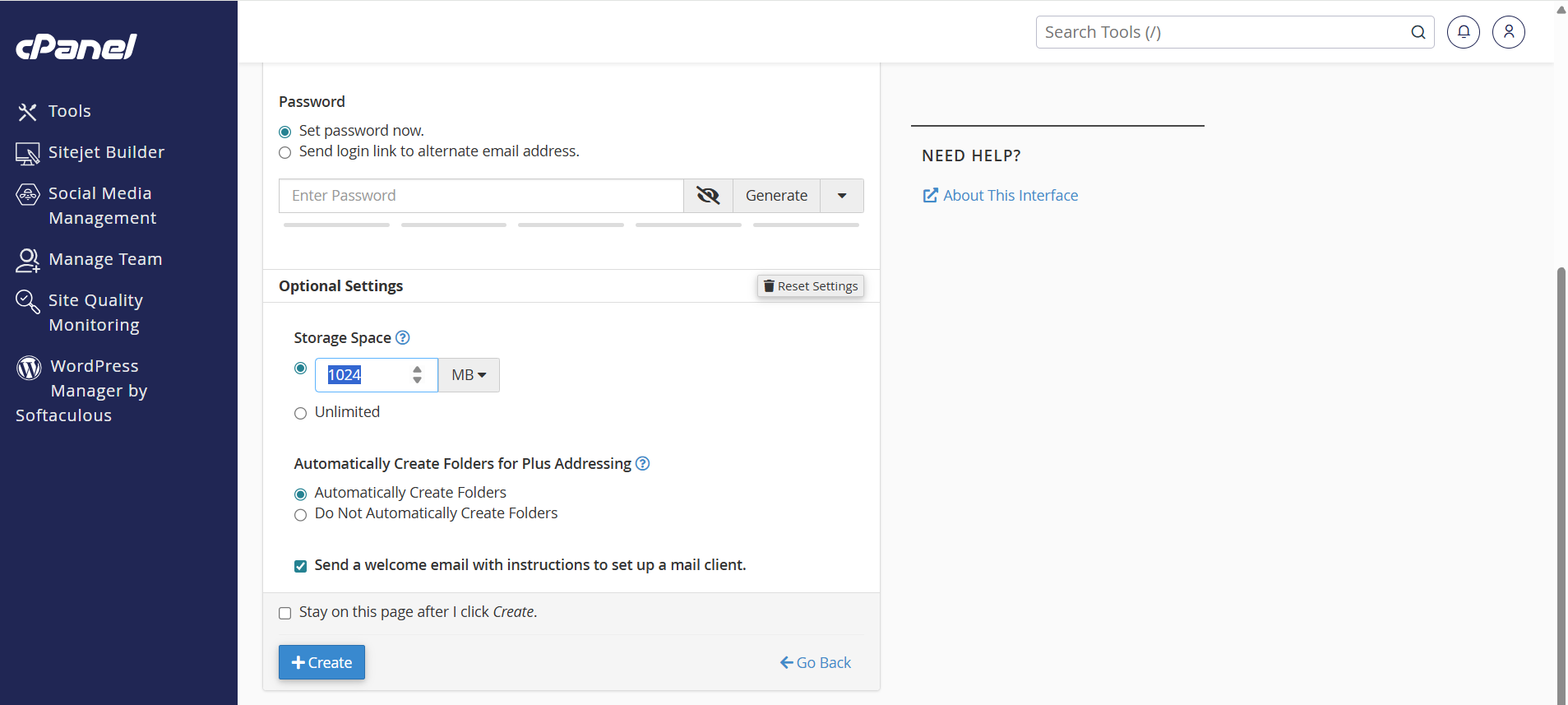
OR click on Generate to create a secure password automatically.

Step 5: Configure Storage Space
You can set mailbox storage size if required.
- Select Unlimited Storage
OR - Enter a custom storage limit
Step 6: Create the Email Account
After entering all details, click on Create.
Your new email account will now be created successfully.

Conclusion
Creating an email account in cPanel is quick and easy. A professional email address using your domain helps improve brand trust and business communication.
