
How to Reset Email Account Password from cPanel
If you forgot your email password or want to change it for security reasons, you can easily reset it from cPanel. Follow the steps below carefully.
Step 1: Login to cPanel from Client Area
First, login to your client area account.
After logging in:
- Go to Services
- Select My Services
- Select your active hosting service
- Click on Login to cPanel

Step 2: Open Email Section
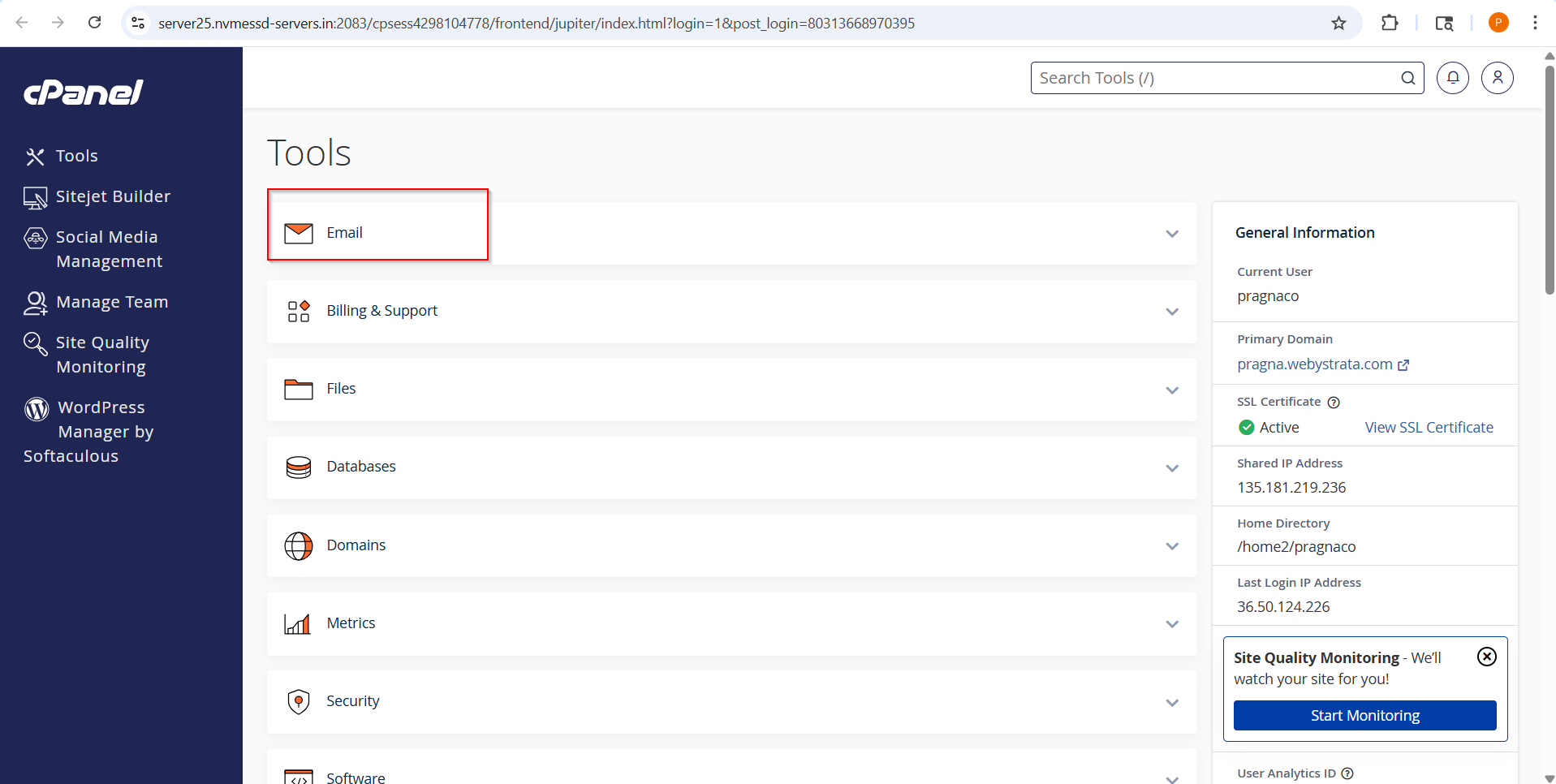
After logging into cPanel, you will see Email section.
Click on Email .
Step 2: Open Email Accounts
Under Email Section you will see Email Accounts.
Click on Email Accounts.

Step 3: Select the Email Account
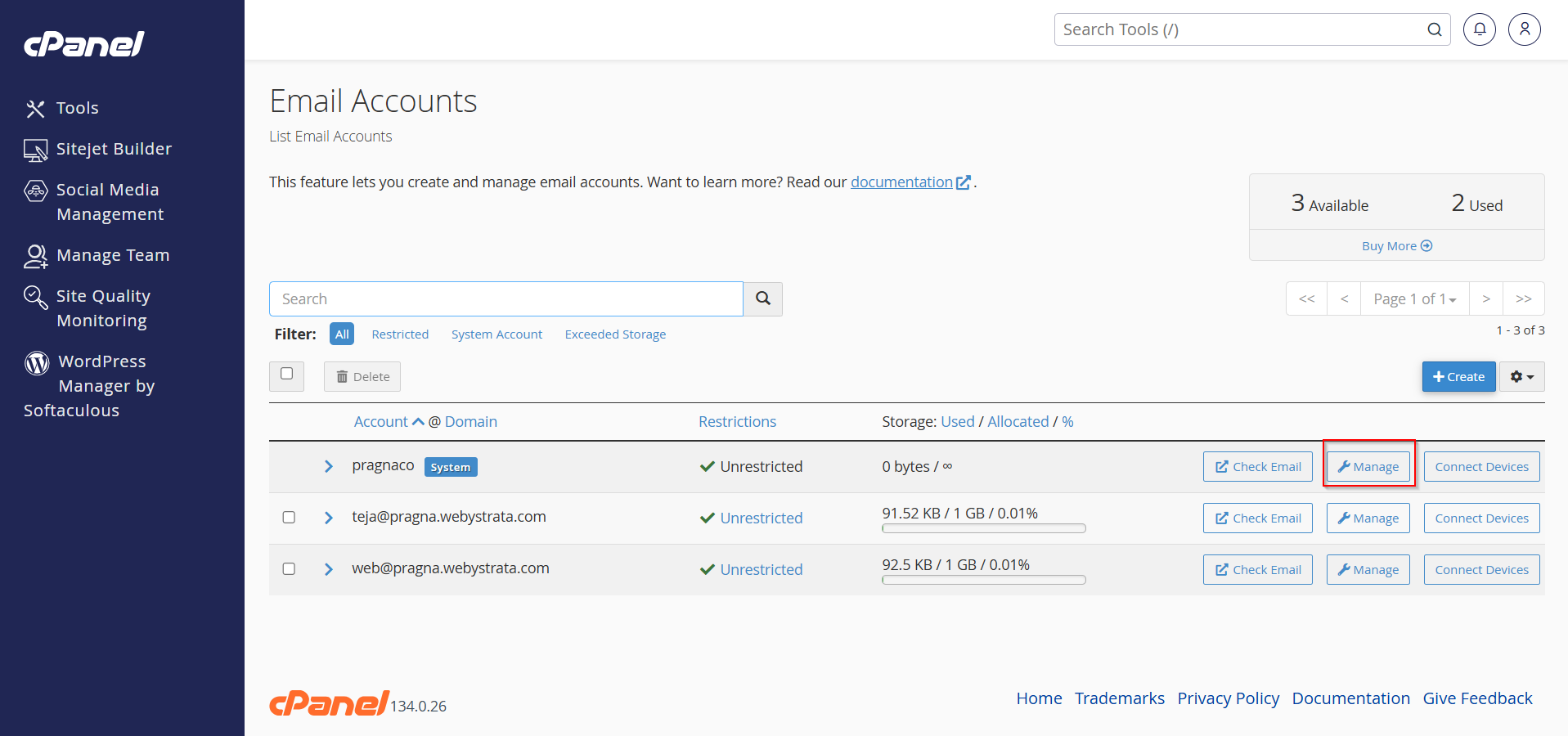
You will now see all email accounts created under your hosting account.
Find the email address for which you want to reset the password.
Click on the Manage button next to that email account.
Step 4: Enter a New Password
Inside the Manage Email Account page:
- Enter a new strong password in the password field
OR - Click on Generate to create a strong password automatically.

Step 5: Save the Changes
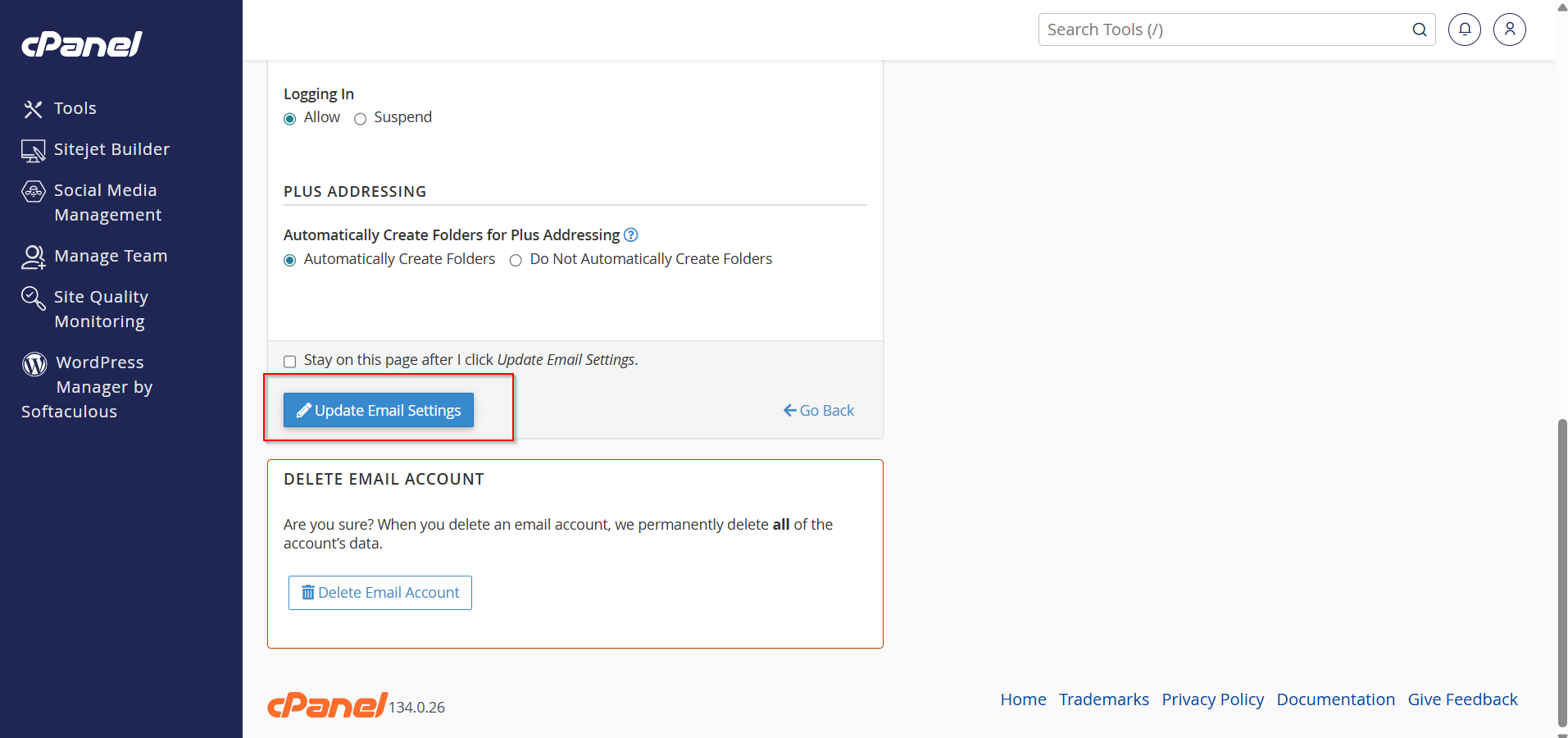
After entering the new password, scroll down and click on Update Email Settings.
Your email account password will now be successfully changed.
Conclusion
Resetting an email account password from cPanel is a quick and simple process. By following the above steps, you can secure your email account and regain access within minutes.
