
How to Check Website Traffic Statistics Using cPanel
Monitoring website traffic is important for understanding how visitors interact with your website and measuring its overall performance. cPanel includes built-in analytics tools such as AWStats, Webalizer, and Raw Access Logs that allow you to track visitor activity, page views, bandwidth usage, referral sources, and more. In this guide, you'll learn how to check website traffic statistics using cPanel and gain valuable insights into your site's performance.
Step 1: Login to cPanel from Client Area
First, login to your client area account.
After logging in:
- Go to Services
- Click on My Services
- Select your active hosting service
- Click on Login to cPanel

Step 2: Locate the Metrics Section
- Scroll down to the Metrics section on the cPanel home page.
- Here you will find several tools that provide website traffic and visitor information.

Step 3: Open AWStats
- Click AWStats under the Metrics section.

2. Select the domain you want to analyze.
3. AWStats will generate a detailed traffic report.

Step 4: Review Website Traffic Data
AWStats provides various statistics, including:
- Total visits
- Unique visitors
- Number of pages viewed
- Hits received
- Bandwidth usage
- Visitor countries
- Operating systems used
- Web browsers used
- Referring websites
- Search engine keywords
- Most visited pages
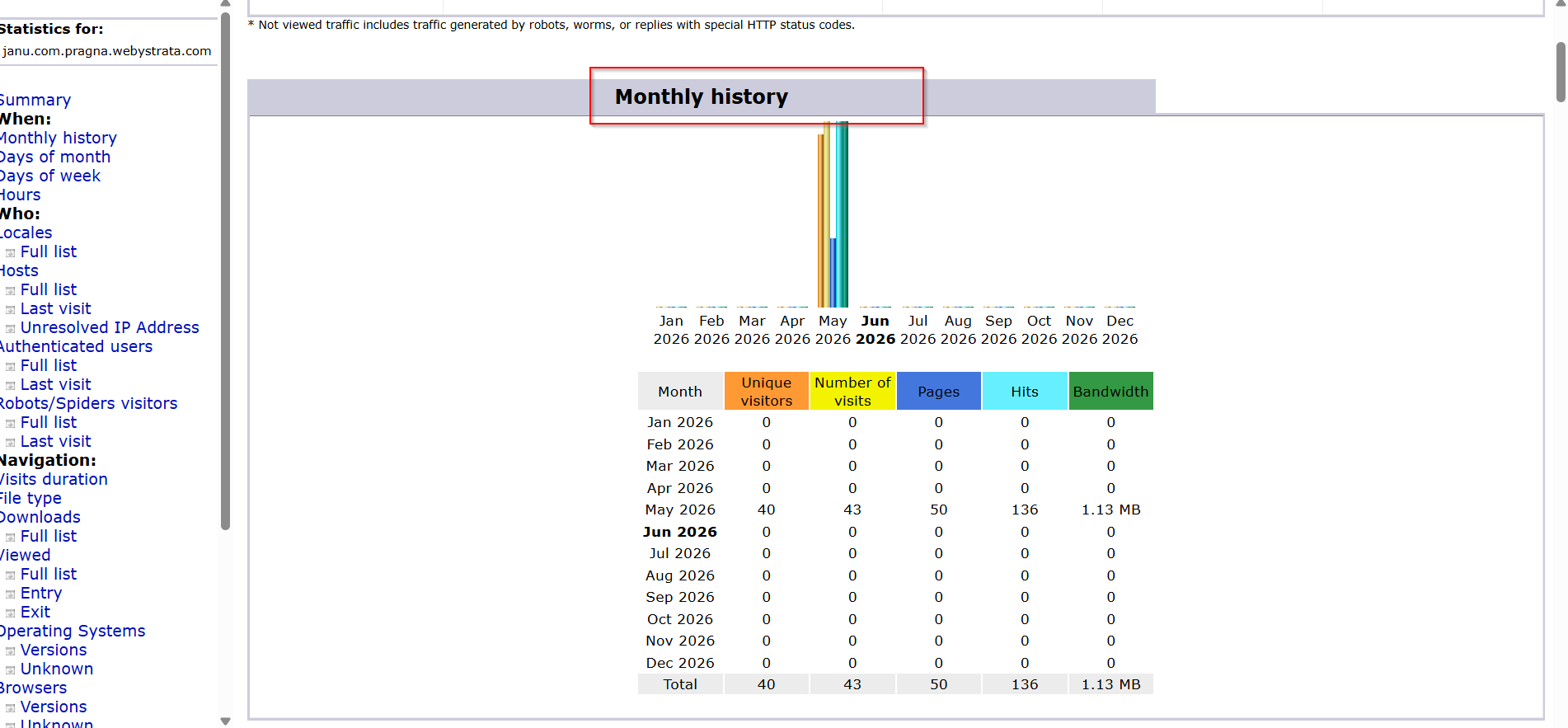
Step 5: Analyze Monthly Statistics
- Scroll through the AWStats report.
- View traffic summaries by month.
- Compare visitor trends over different periods.
- Identify peak traffic days and months.
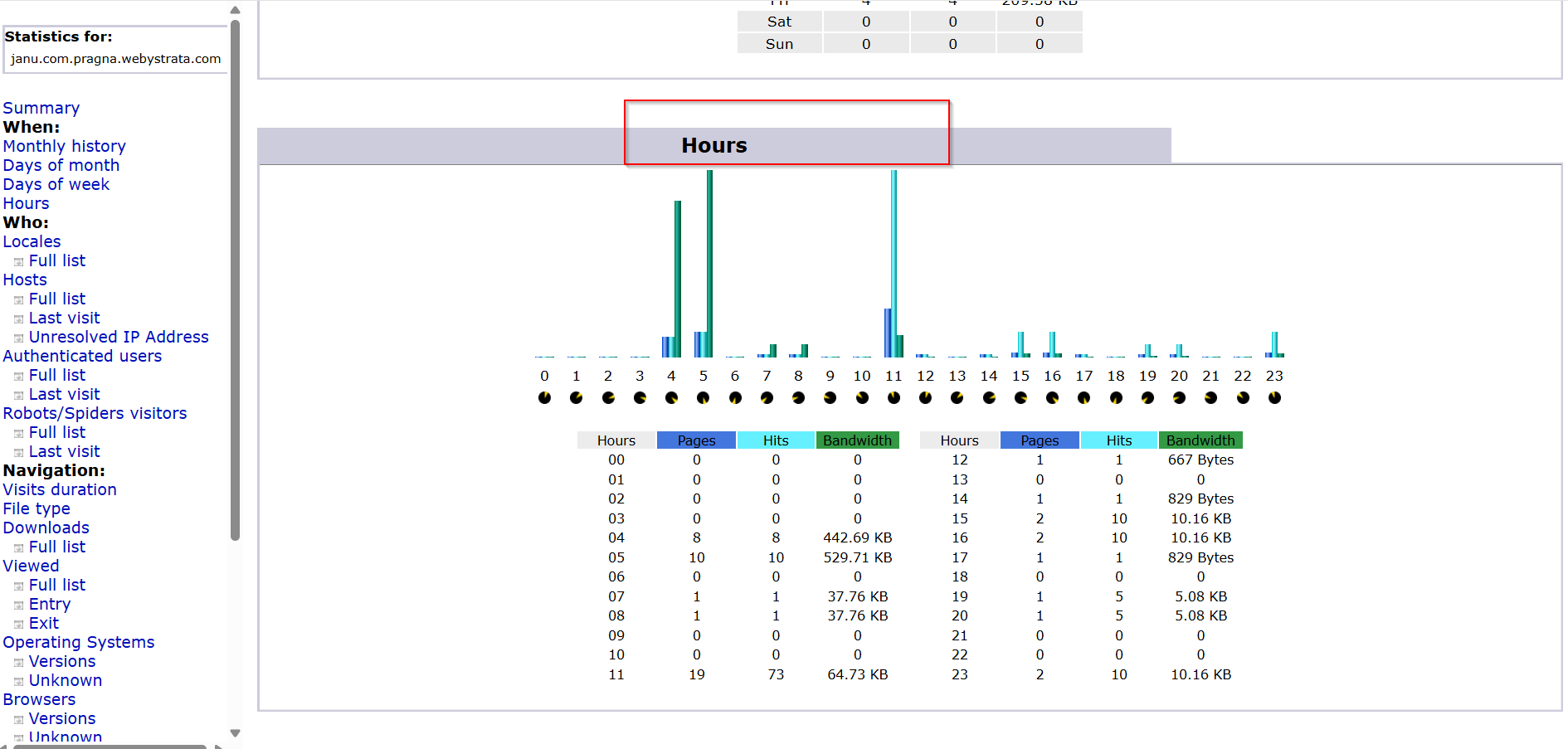
Step 6: Check Daily and Hourly Visitor Activity
- In AWStats, locate the Days of Month section.
- Review daily traffic numbers.
- Open the Hours section.
- Analyze the hours when visitors are most active on your website.
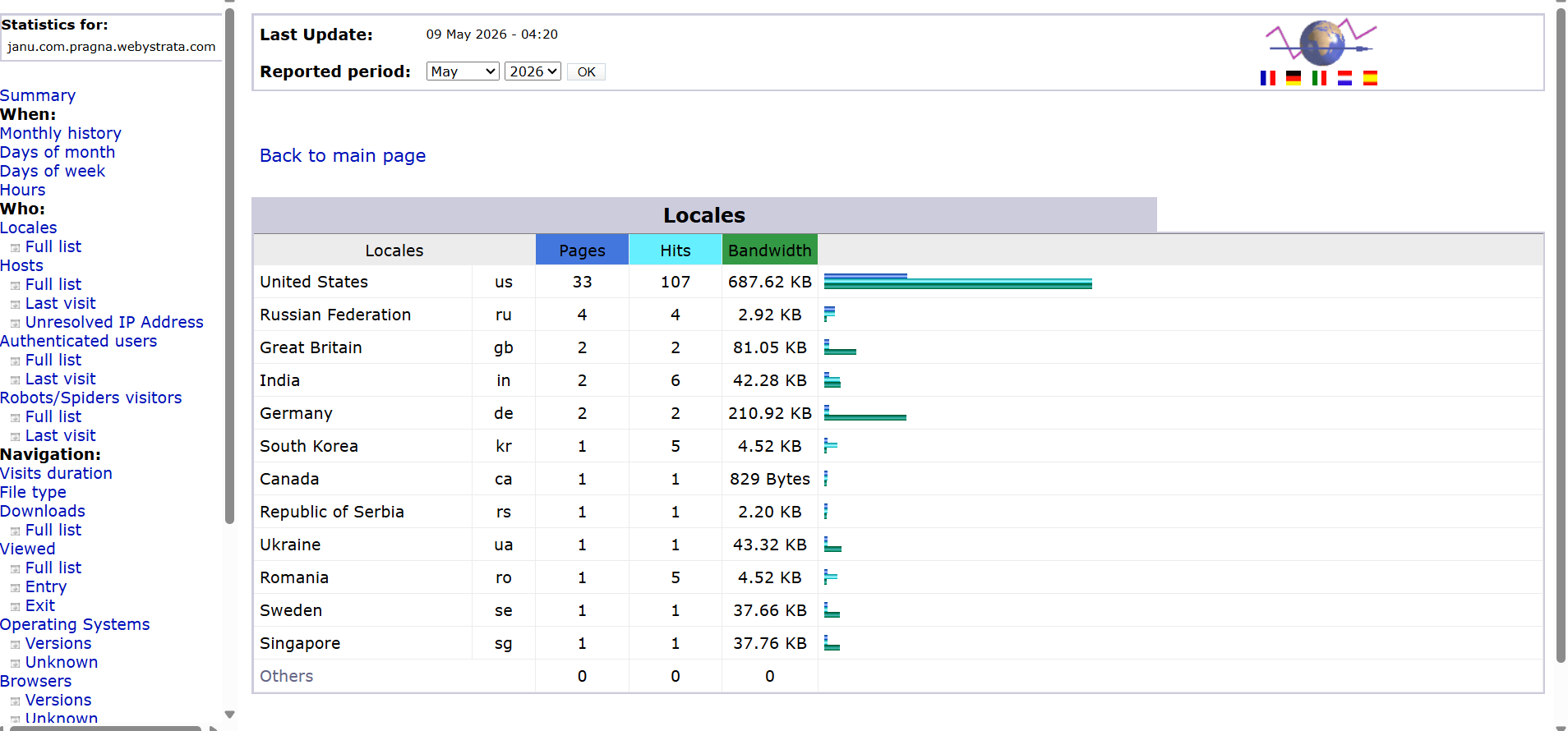
Step 7: Check Visitor Locations
- Locate the Countries section.
- View the countries from which your visitors originate.
- Use geographic data to better target your audience.
Conclusion
cPanel provides multiple tools for monitoring website traffic, with AWStats being the most comprehensive option. By regularly reviewing visitor statistics, page views, traffic sources, bandwidth usage, and visitor locations, you can gain valuable insights into your website's performance and make informed decisions to improve user engagement and SEO results.
