
How to Create a Mailing List in cPanel
Email remains one of the most effective ways to communicate with groups of people, whether for business announcements, newsletters, team updates, or customer communications. cPanel includes a built-in Mailing Lists feature that allows you to send a single email to multiple recipients through one email address.
In this guide, you'll learn how to create and manage a mailing list in cPanel.
What Is a Mailing List?
A mailing list is a single email address that automatically forwards messages to multiple subscribers. Instead of sending individual emails to each recipient, you can send one message to the mailing list address, and all subscribed members will receive it.
Prerequisites
Before creating a mailing list, ensure that:
-
You have access to your cPanel account.
-
Your domain is properly configured.
-
Email services are active on your hosting account.
How to Create a Mailing List in cPanel
Step 1: Login to cPanel from Client Area
First, login to your client area account.
After logging in:
- Go to Services
- Click on My Services
- Select your active hosting service
- Click on Login to cPanel

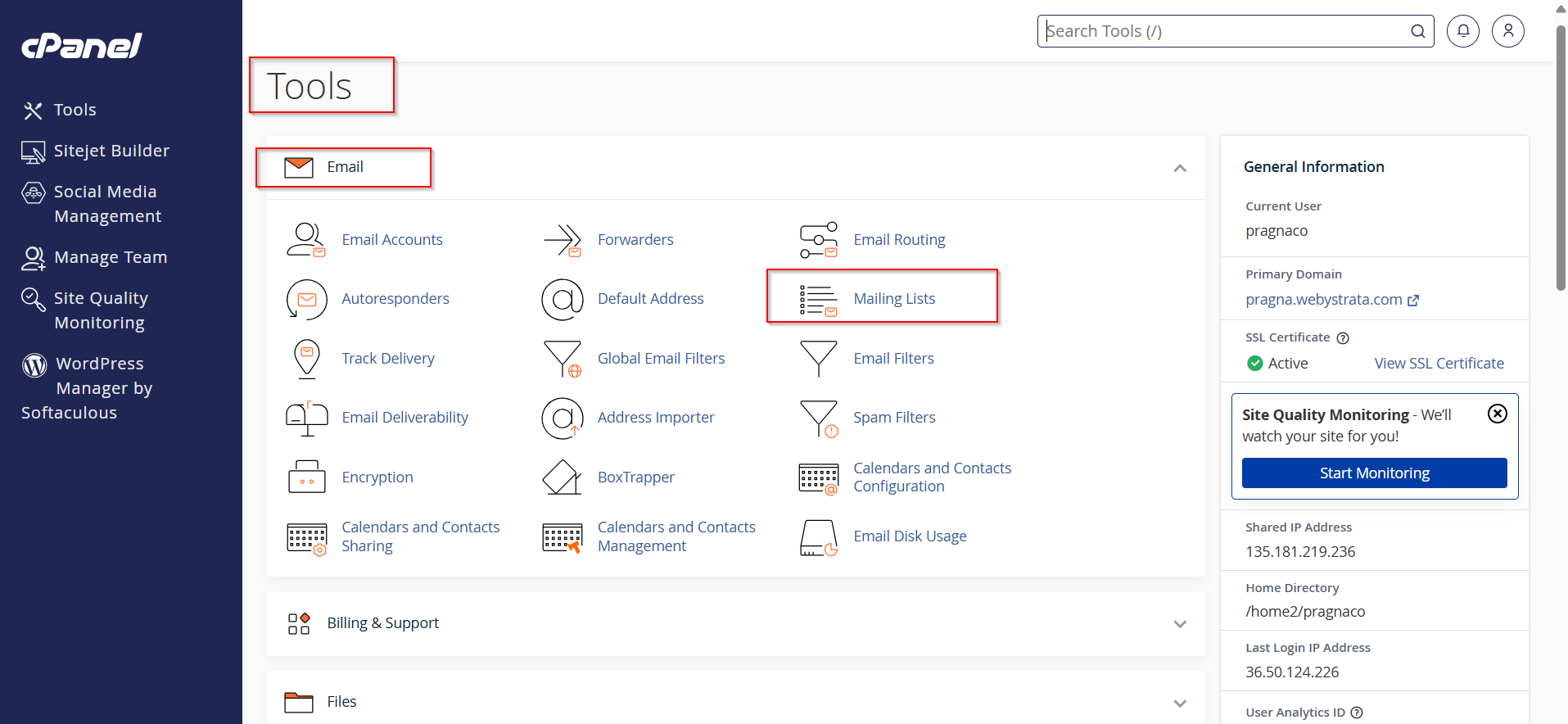
Step 2: Open the Mailing Lists Feature
-
Navigate to the Email section.
-
Click Mailing Lists.
The Mailing Lists interface will open.
Step 3: Create a New Mailing List
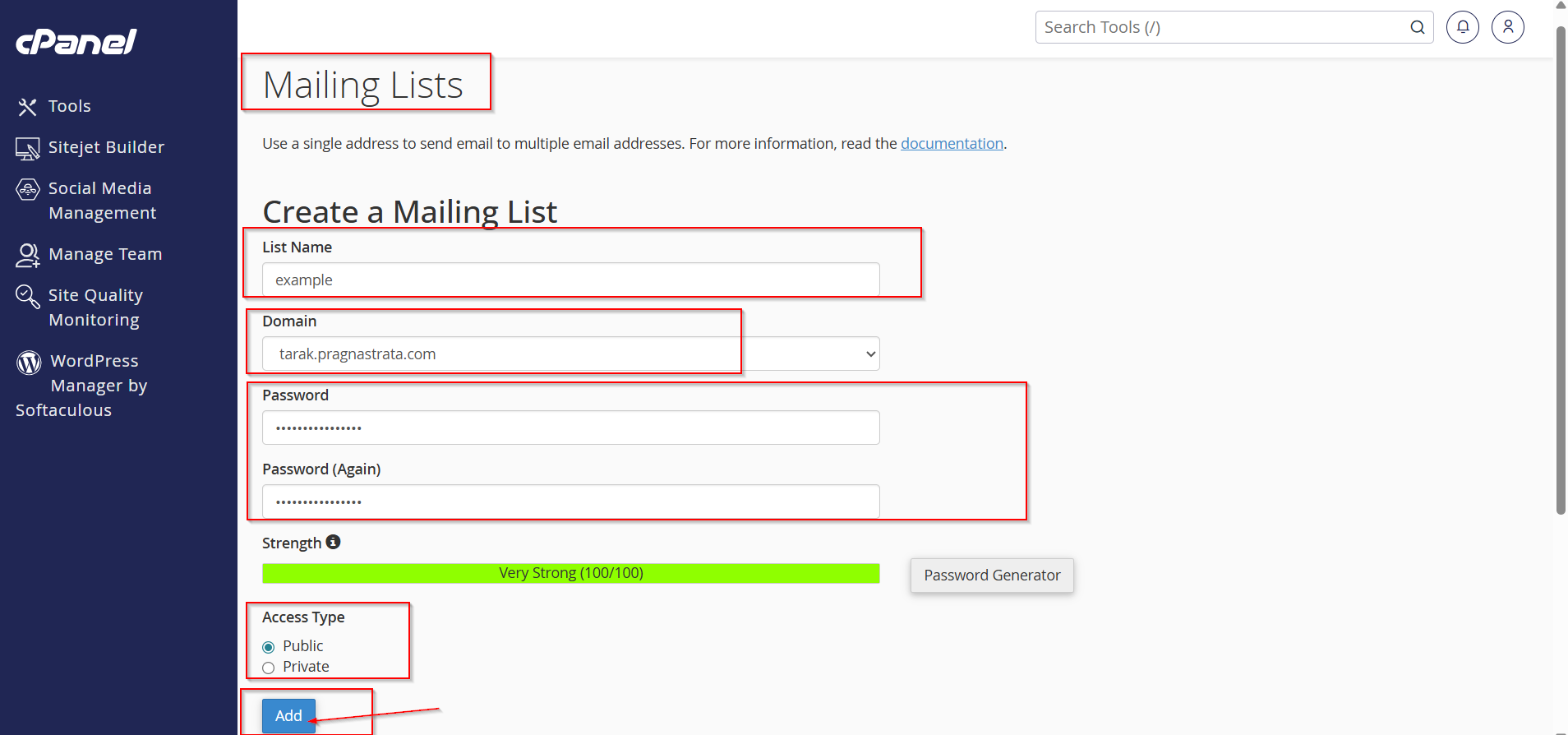
Under the Create a Mailing List section:
-
Enter a name for the mailing list.
-
Example:
newsletter -
Example:
teamupdates
-
-
Select the domain associated with the mailing list.
-
Set a password for the mailing list administrator.
-
Confirm the password.
-
Choose an access type if available.
-
Click Add Mailing List.
Your mailing list will be created successfully.
Step 4: Access the Mailing List Management Page
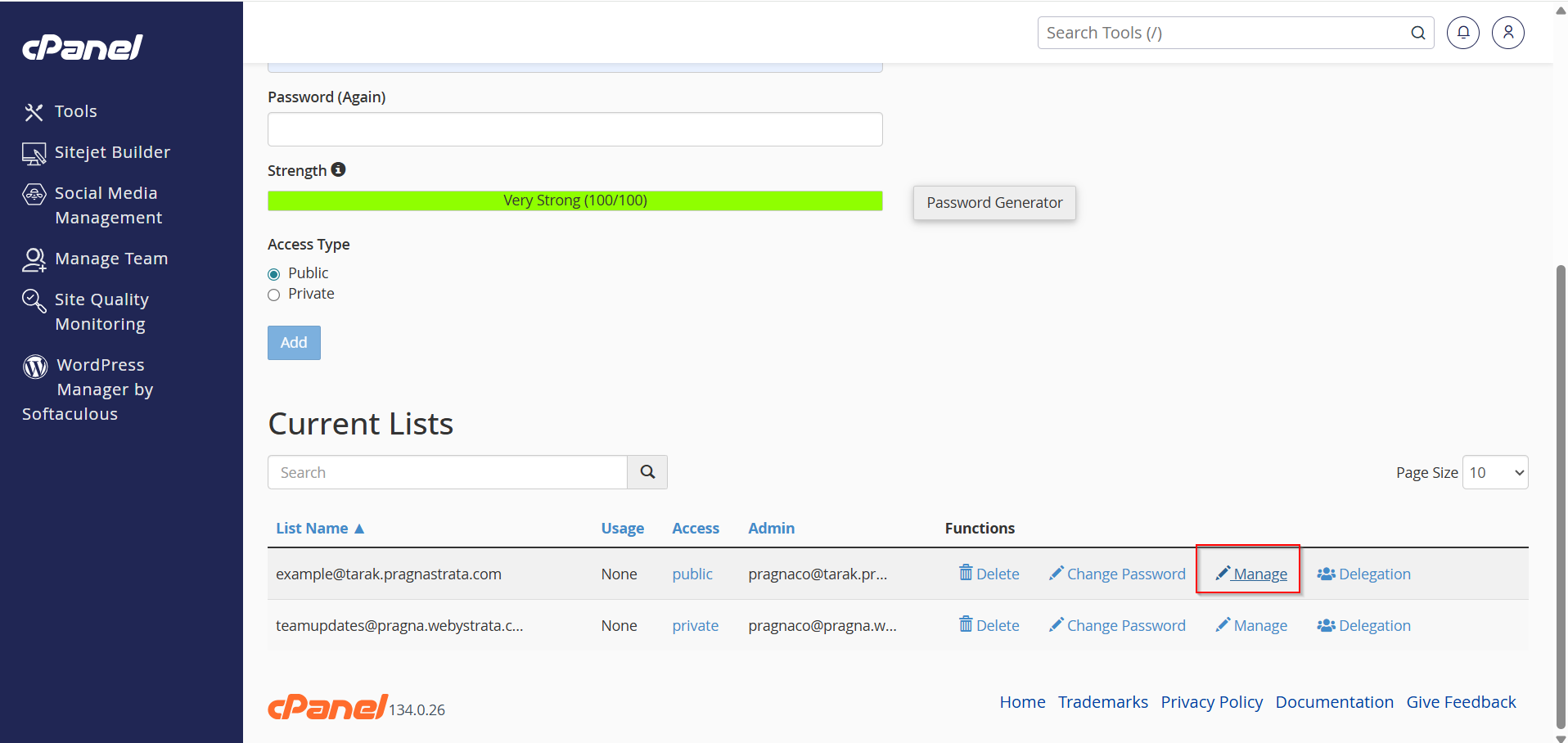
After creation, cPanel will display the mailing list details.
Click on Manage
Step 5: Add Subscribers
Inside the mailing list management panel:
-
Locate the Membership Management section.
- Click on Mass Subscription.

3. Add individual email addresses manually.
4. Submit Your Changes .
The subscribers will now receive messages sent to the mailing list address.

How to Send an Email to the Mailing List
Once your mailing list is configured:
-
Open your preferred email client.
For example, you can use Webmail, Outlook, Gmail, Thunderbird, or any email client authorized to send messages to the mailing list.
2. Create a new email.
3. Enter the mailing list address in the recipient field.
4. Compose your message.
5. Click Send.
The mailing list server will automatically distribute the message to all subscribed members.
Managing Your Mailing List
You can perform several administrative tasks, including:
- Add New Members
- Remove Subscribers
- Moderate Messages
- Configure Privacy Settings
- Update List Preferences
Common Uses for Mailing Lists
Businesses and organizations use mailing lists for:
-
Company announcements
-
Marketing campaigns
-
Product updates
-
Customer newsletters
-
Employee communications
-
Educational groups
-
Community organizations
Benefits of Using a Mailing List
-
Send emails to multiple recipients at once.
-
Simplify team and customer communication.
-
Manage subscriber groups efficiently.
-
Reduce the time spent sending bulk messages.
-
Useful for newsletters, announcements, and internal communications.
Conclusion
Creating a mailing list in cPanel is a convenient way to communicate with multiple recipients using a single email address. Whether you're managing a business newsletter, team communications, or customer updates, cPanel's Mailing Lists feature makes group email management simple and efficient.
By following the steps outlined above, you can create, manage, and maintain a mailing list that helps streamline your communication efforts and keeps your audience informed.
