
How to Create and Manage MySQL Databases and Users in cPanel
Managing MySQL databases and users in cPanel is an essential task for website and application management. With cPanel, you can easily create databases, add users, assign permissions, and delete unused databases or users through a simple interface.
Step 1: Login to cPanel from Client Area
First, login to your client area account.
After logging in:
- Go to Services
- Click on My Services
- Select your active hosting service
- Click on Login to cPanel

Step 2: Open MySQL® Databases
After logging in to cPanel:
- Scroll down to the Databases section.
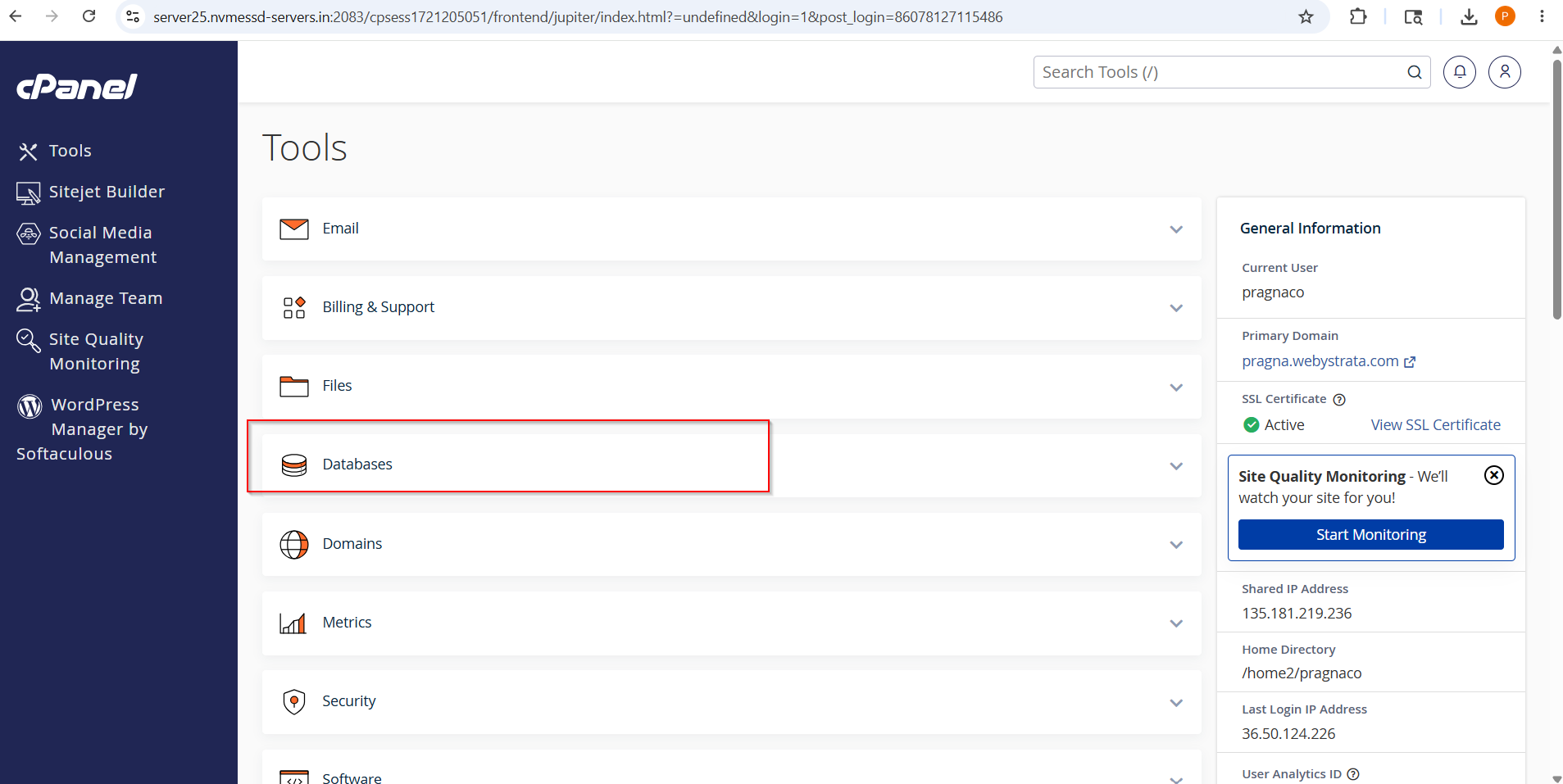
- Click on Manage My Databases

Step 3: Create a New Database
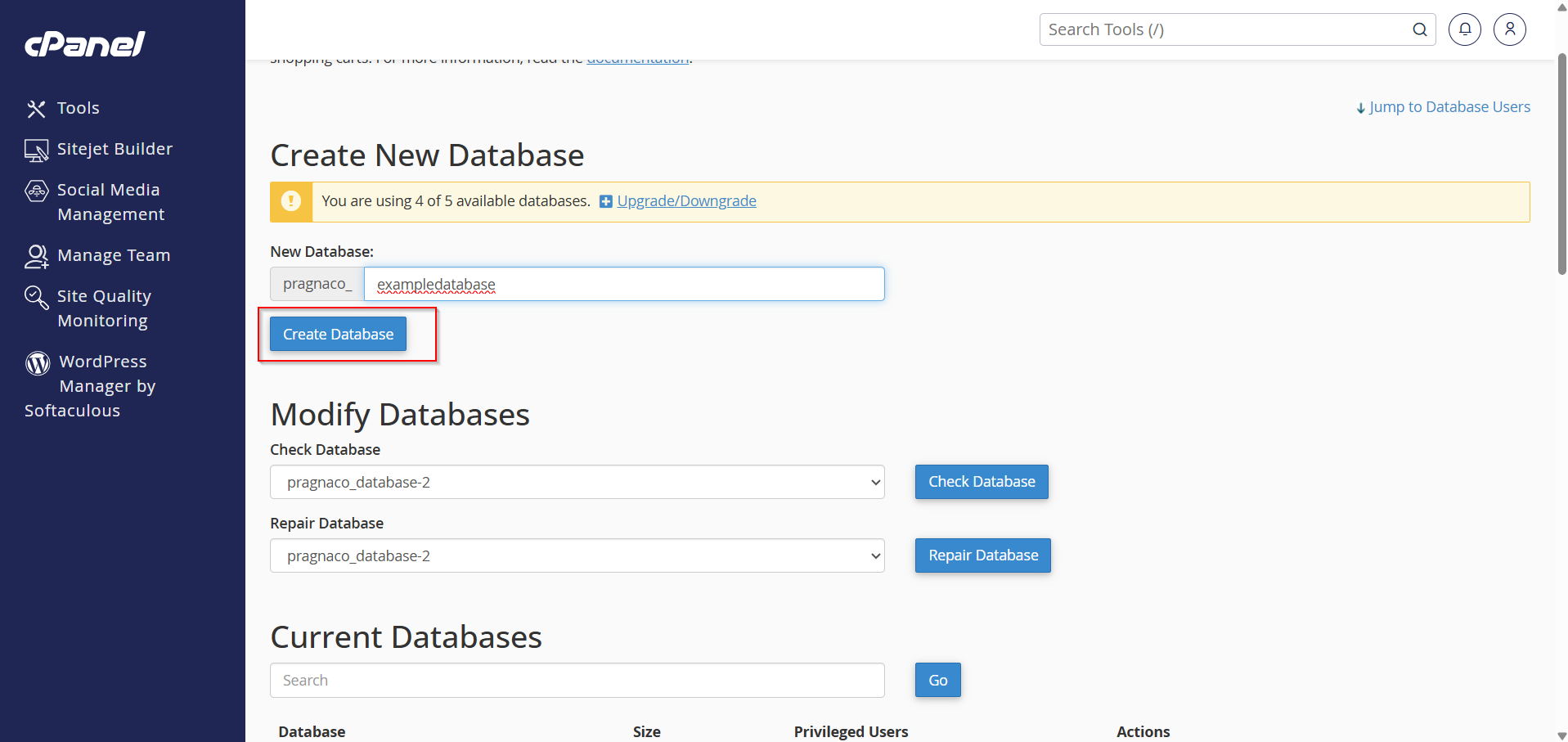
Under the Create New Database section:
- Enter your database name in the text box.
- Click on Create Database.
Example:
- Database Name:
mywebsite_db
Note: cPanel automatically adds your account username as a prefix to the database name.
Step 4: Database Created Successfully
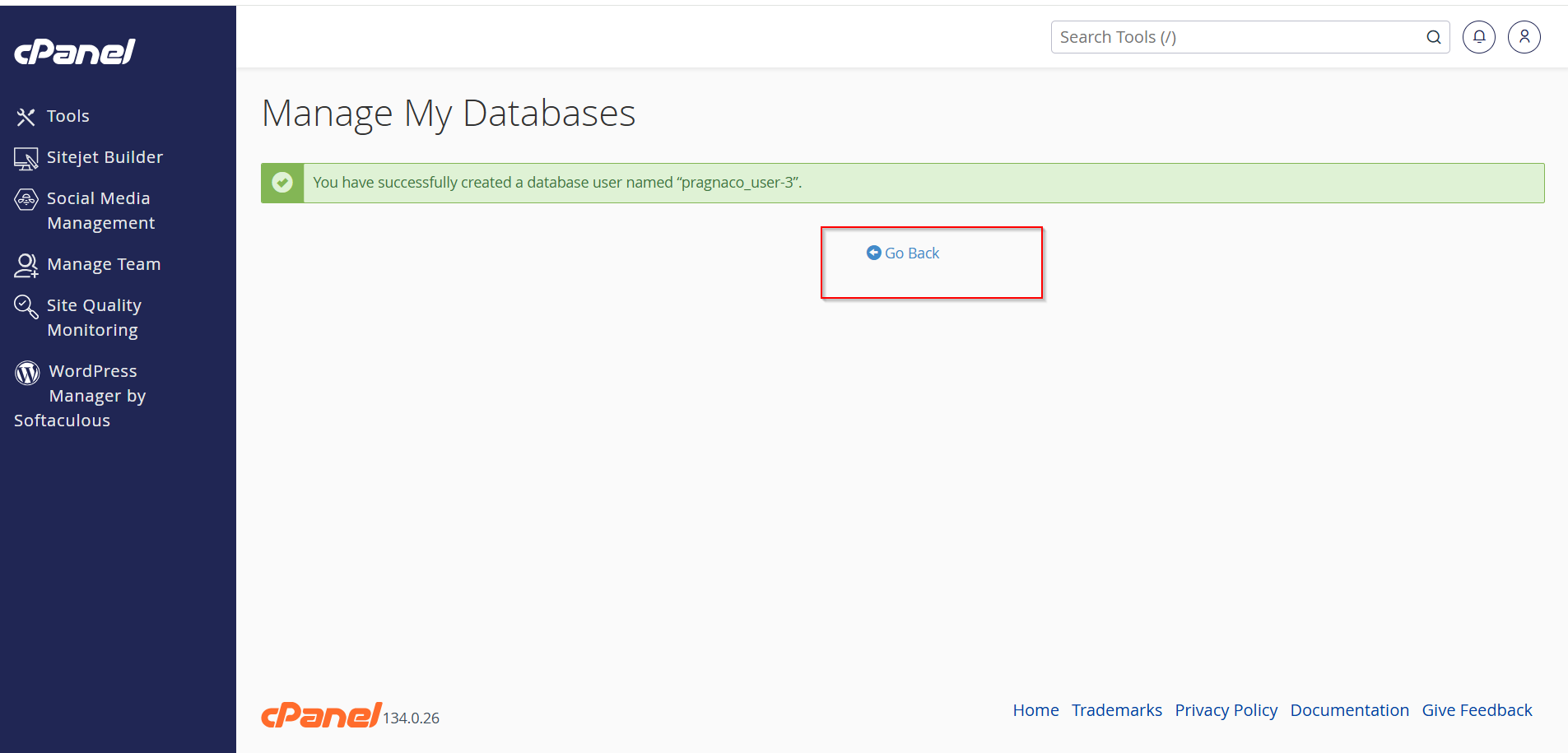
After clicking the button, you will see a success message confirming that the database has been created.
Click Go Back to return to the MySQL Databases page
How to Create a MySQL User in cPanel
Step 5: Create a New Database User
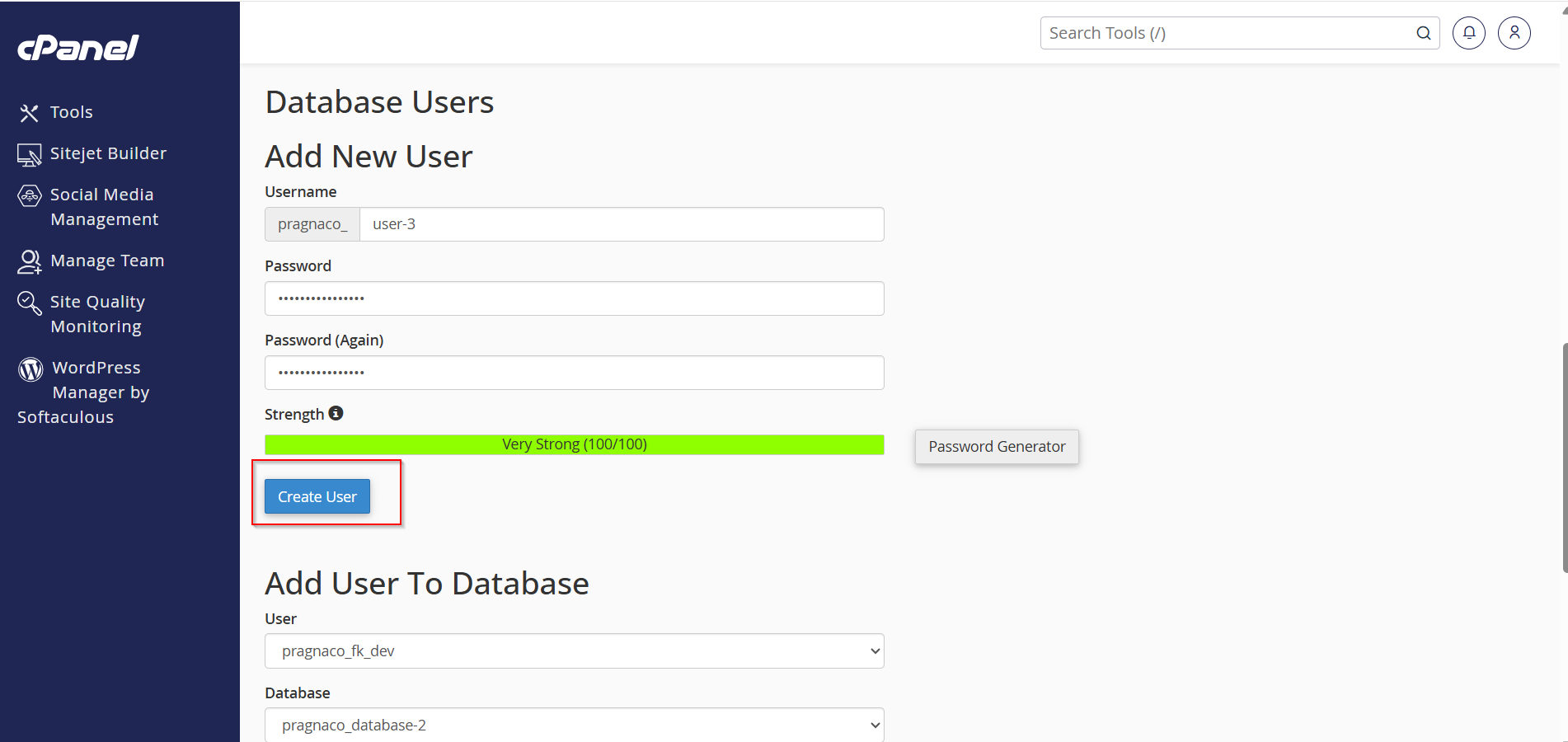
Scroll down to the MySQL Users section.
- Enter a username in the Username field.
- Enter a strong password.
- Re-enter the password for confirmation.
- Click on Create User.
You can also use the Password Generator option to create a secure password.
Step 6: User Created Successfully
After clicking Create User, a success message will appear confirming that the MySQL user has been created.
Click Go Back to continue.

How to Assign a User to a Database
Step 7: Add User to Database
Scroll to the Add User To Database section.
- Select the database user from the User dropdown menu.
- Select the database from the Database dropdown menu.
- Click on Add.

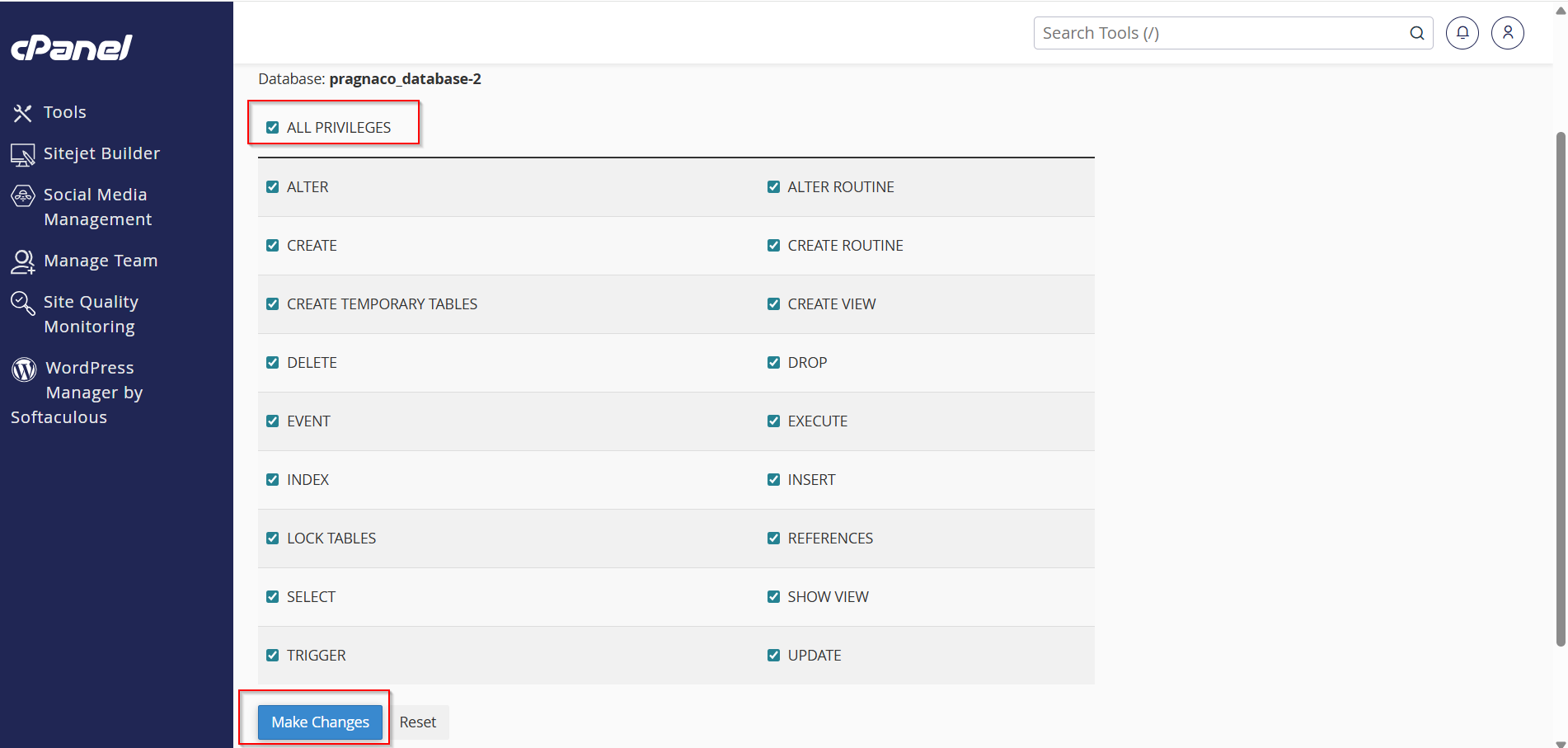
Step 8: Assign Database Privileges
On the next page:
- Select ALL PRIVILEGES if you want the user to have full access.
- Or select specific permissions as required.
- Click on Make Changes.
The database user is now successfully assigned to the database.
How to Delete a MySQL Database
Step 9: Open Current Databases Section
Scroll down to the Current Databases section.
Here you will see all databases available in your cPanel account.
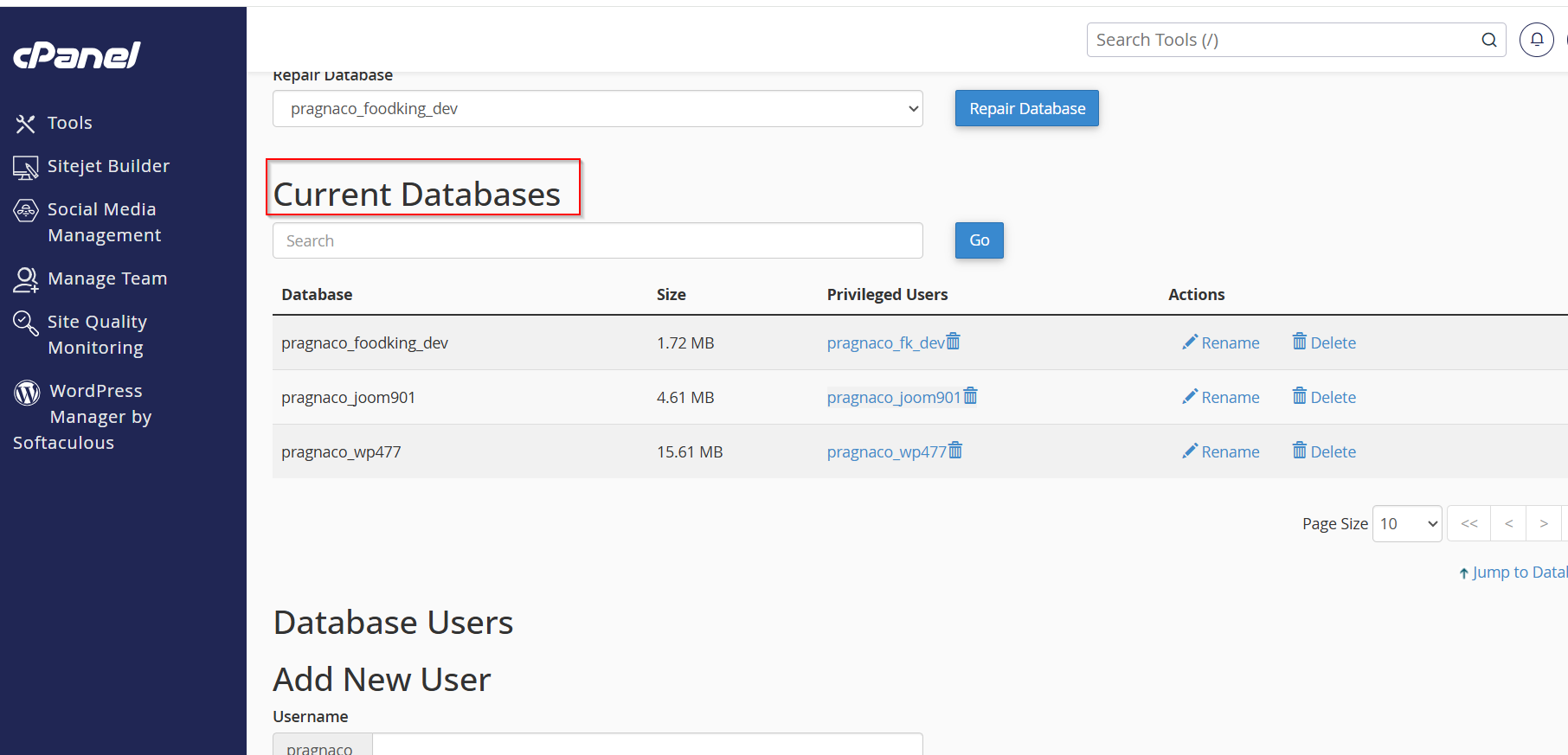
Step 10: Delete the Database
- Find the database you want to remove.
- Click on the Delete option beside the database name.

3. A confirmation popup will appear.
4. Click Delete Database to confirm.

Warning: Deleting a database permanently removes all data stored inside it.
- Database deleted Successfully

