
How to Configure Currency Settings in WHMCS
Currency Settings in WHMCS allow you to configure the currencies your clients can use when ordering products and services. You can set a default currency, add multiple currencies, define exchange rates, and enable automatic currency updates.
What are Currency Settings in WHMCS?
Currency Settings in WHMCS allow you to manage the currencies used for pricing, billing, invoicing, and payments. These settings enable you to define a default currency, add additional currencies, configure exchange rates, and display prices in the currency preferred by your clients.
With Currency Settings, WHMCS can automatically convert product and service prices based on the configured exchange rates, making it easier to sell to customers in different countries.
Why Configure Currency Settings in WHMCS?
Configuring Currency Settings is important for businesses that serve customers from multiple regions or countries. Proper currency configuration helps ensure accurate pricing and a better customer experience.
-
Display prices in customers' preferred currencies.
-
Support international clients and global sales.
-
Automatically calculate prices using exchange rates.
-
Generate invoices in the selected currency.
By configuring Currency Settings correctly, you can provide a seamless purchasing experience while maintaining accurate and consistent billing across different currencies.
How to Configure Currency Settings in WHMCS
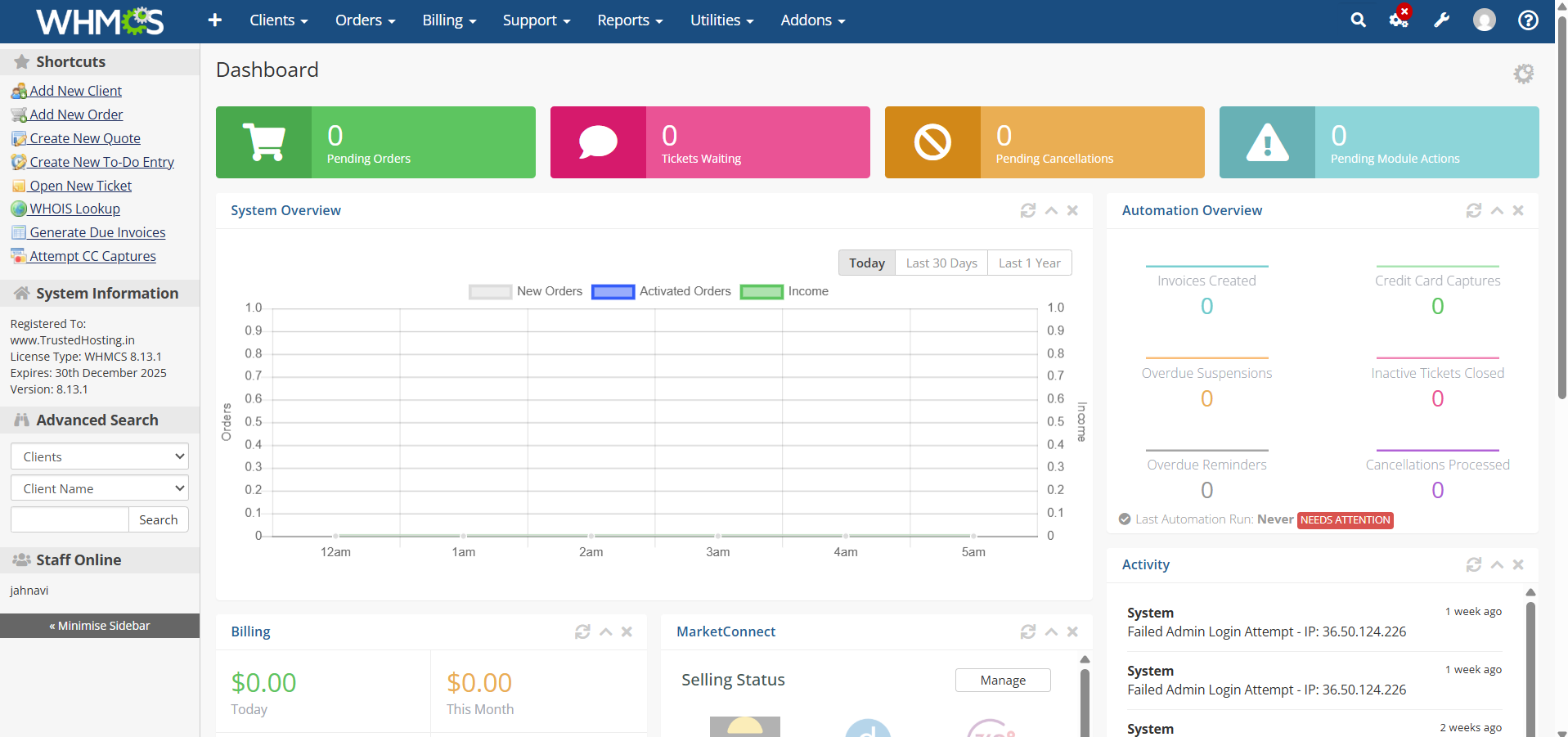
Step 1: Log in to WHMCS Admin Area
- Access your WHMCS admin panel.
- Enter your administrator credentials.
- Click Login.
- You will Navigate to WHMCS Dashboard.
Step 2: Open Currency Settings
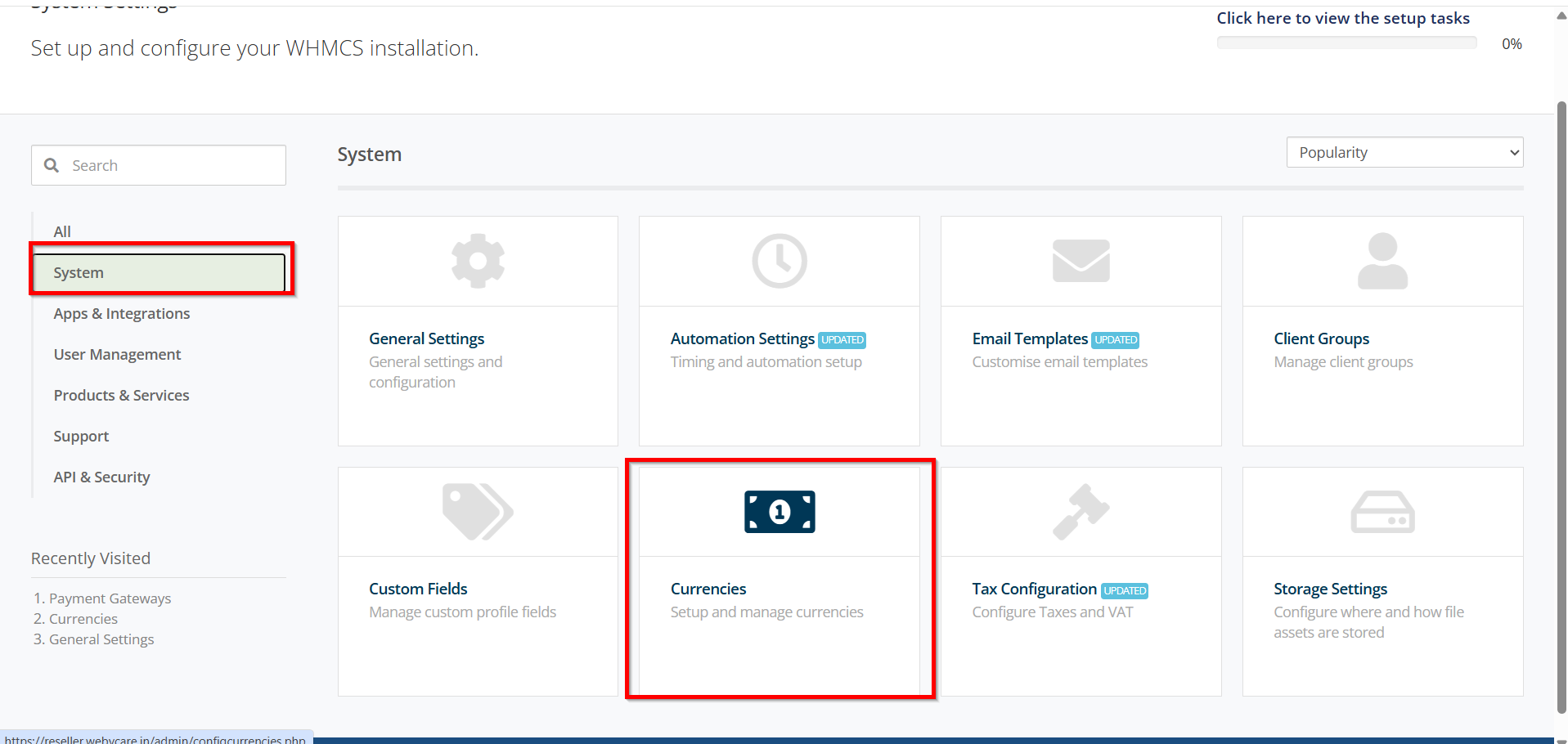
- Navigate to Configuration Icon.
- Click System Settings.

3. Select Currencies.
Step 3: Review the Default Currency
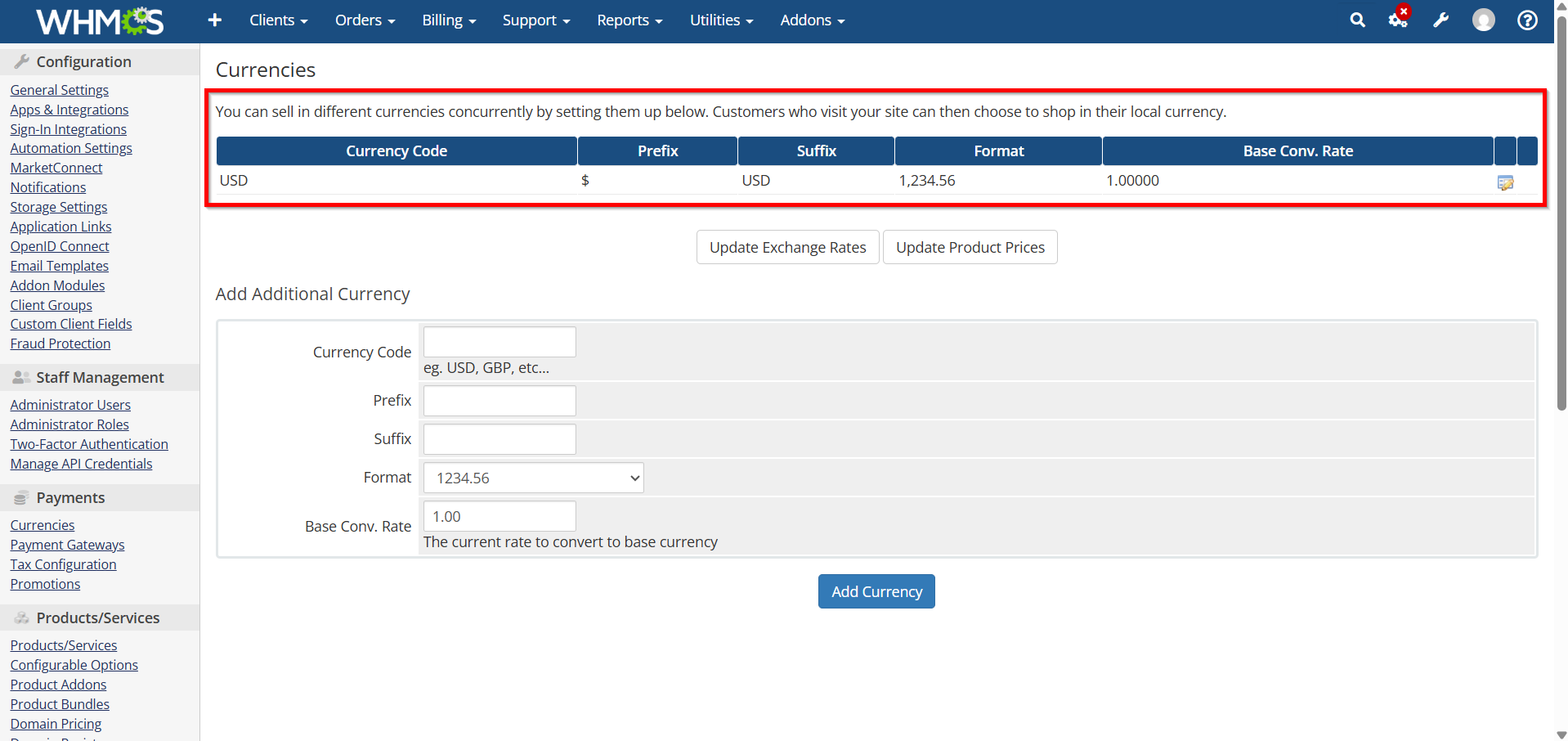
- Locate the default currency already configured during WHMCS installation.
- Verify the currency code, prefix, suffix, and formatting options.
- Ensure it matches your primary billing currency.
Step 4: Add a New Currency
- Under Add Additional Currency.
2. Enter the following details:
- Currency Code (e.g., USD, EUR, GBP)
- Currency Prefix (e.g., $, €, £)
- Currency Suffix (optional)
- Format
- Exchange Rate.

3. Click Add Currency.

Step 5: Configure Exchange Rates
- Click on Update Exchange Rates , You will See the List.

2. Click the Edit Icon in which you want to Edit.

3. Enter the appropriate exchange rate relative to the default currency.
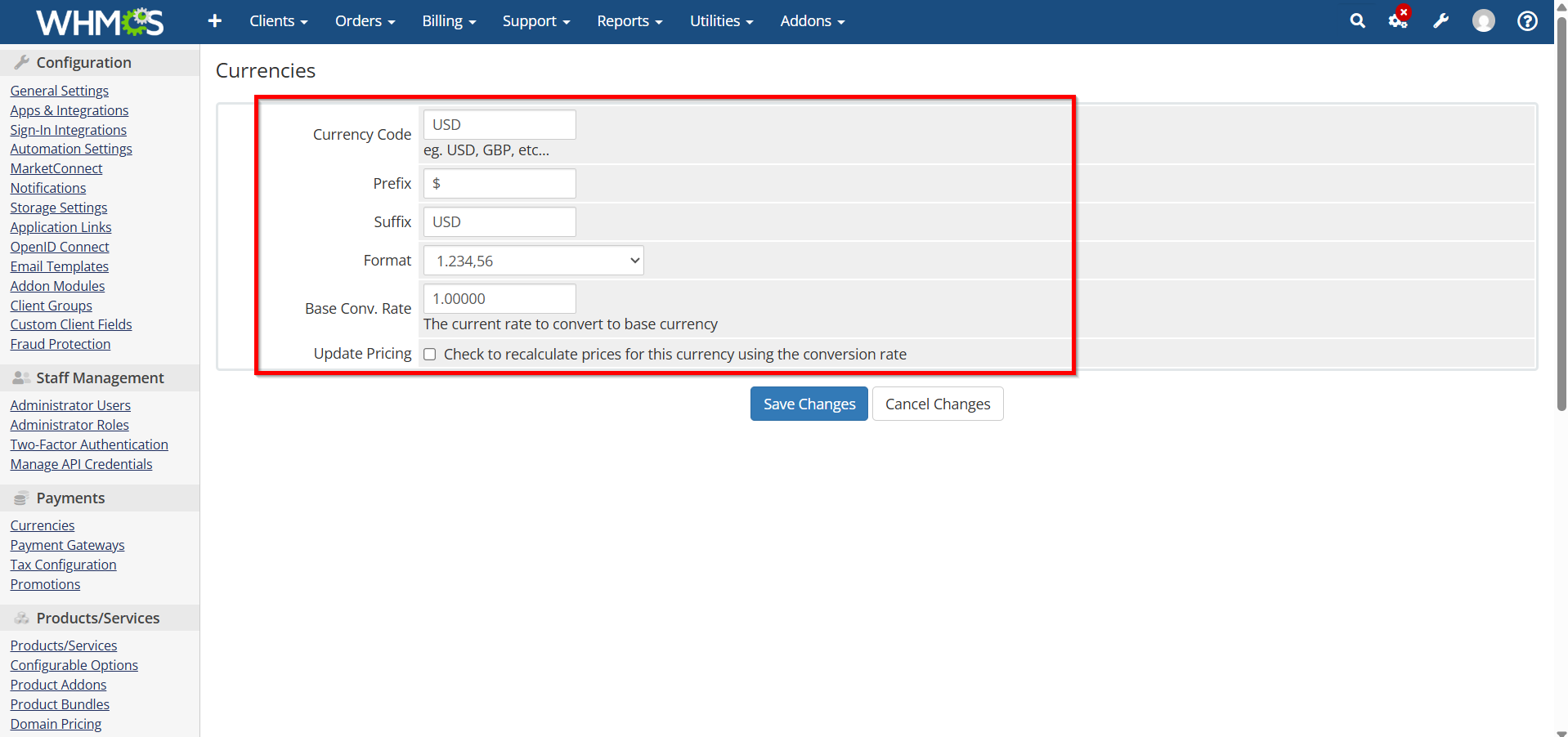
4. Save the changes.

Step 6: Test an Order
- Place a test order using a secondary currency.
- Verify:
- Product pricing
- Invoice generation
- Payment gateway compatibility
- Confirm that currency conversion works correctly.
Benefits of Configuring Currency Settings
- Supports international customers.
- Displays prices in local currencies.
- Improves customer experience.
- Simplifies global billing management.
- Reduces manual currency conversion work.
Conclusion
Properly configuring Currency Settings in WHMCS helps businesses sell products and services globally while providing customers with accurate pricing in their preferred currency. Regularly reviewing exchange rates and currency configurations ensures smooth billing and a better client experience.
