
How to Configure WHMCS General Settings
WHMCS General Settings allow you to configure the core functionality of your WHMCS installation. These settings control how your billing platform operates, including company information, localization, ordering, invoicing, email delivery, security, and support preferences.
Properly configuring WHMCS General Settings helps ensure smooth automation, accurate billing, reliable client communication, and a professional experience for your customers.
Why Configure WHMCS General Settings?
Configuring General Settings is important because it:
- Ensures your company information appears correctly on invoices and emails.
- Sets the default language, currency, and regional preferences for clients.
- Controls how customers place orders and register domains.
- Configures email delivery for invoices, reminders, and notifications.
- Improves security through password policies and authentication settings.
- Customizes invoice generation and payment-related options.
- Optimizes support ticket functionality and client communication.
- Helps maintain consistency across your WHMCS installation.
How to Configure WHMCS General Settings
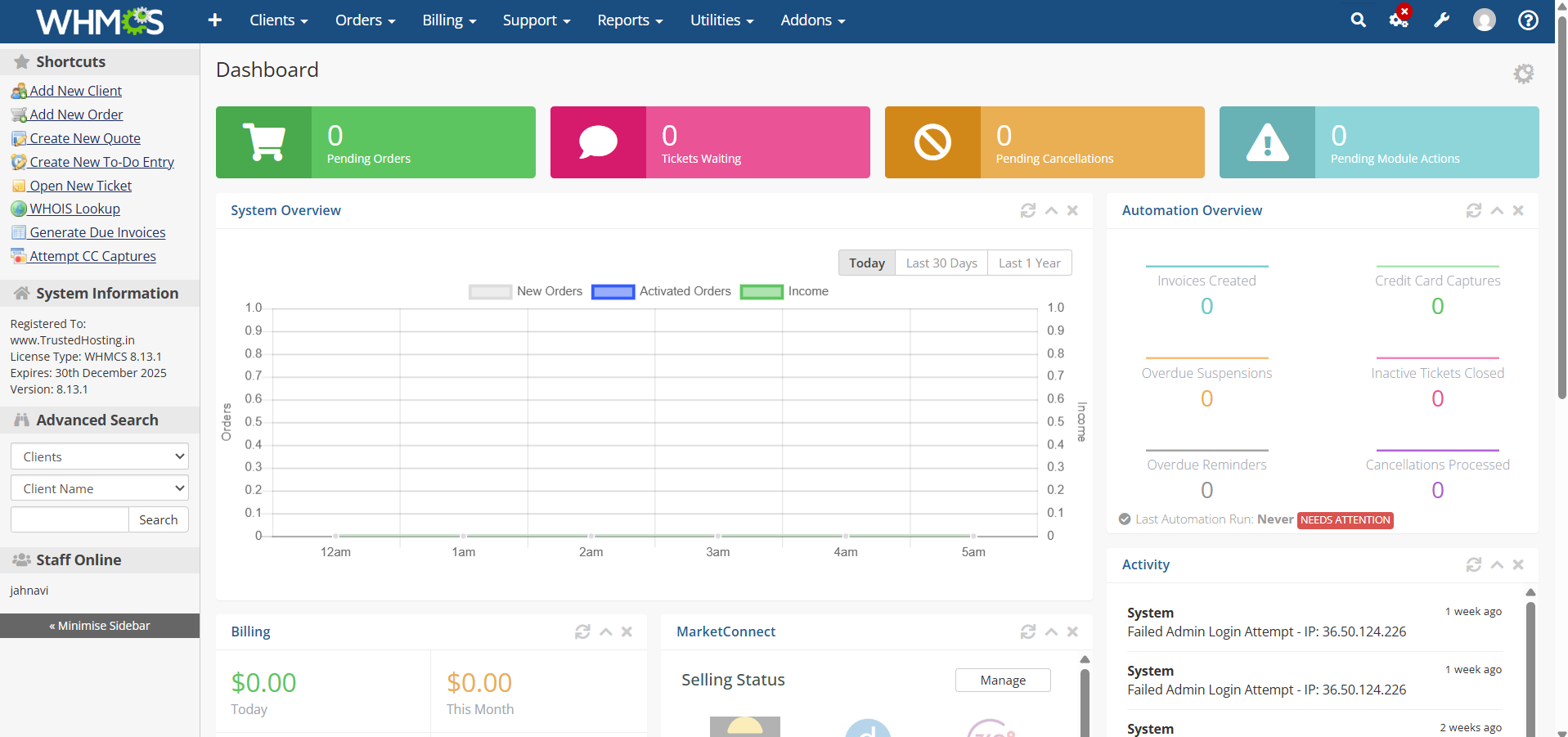
Step 1: Log in to the WHMCS Admin Area
Access your WHMCS administration panel using your administrator credentials.
Step 2: Open General Settings
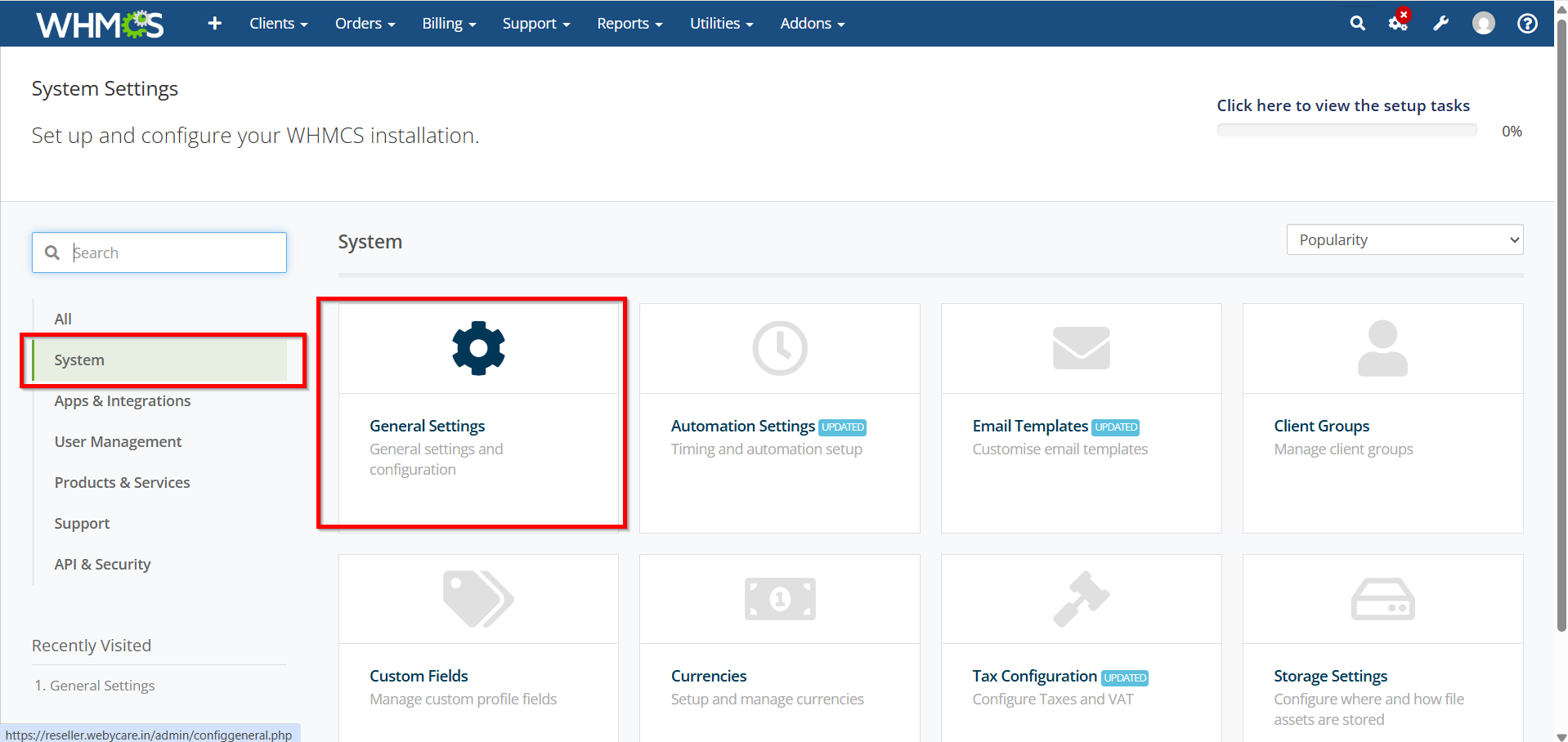
Navigate to:
Configuration Icon > System Settings

- General Settings
Step 3: Configure Company Information
Under the General tab:
-
Enter your company name.
-
Add your company email address.
-
Enter your company address and contact details.
-
Verify the WHMCS System URL.

- Click Save Changes when finished.

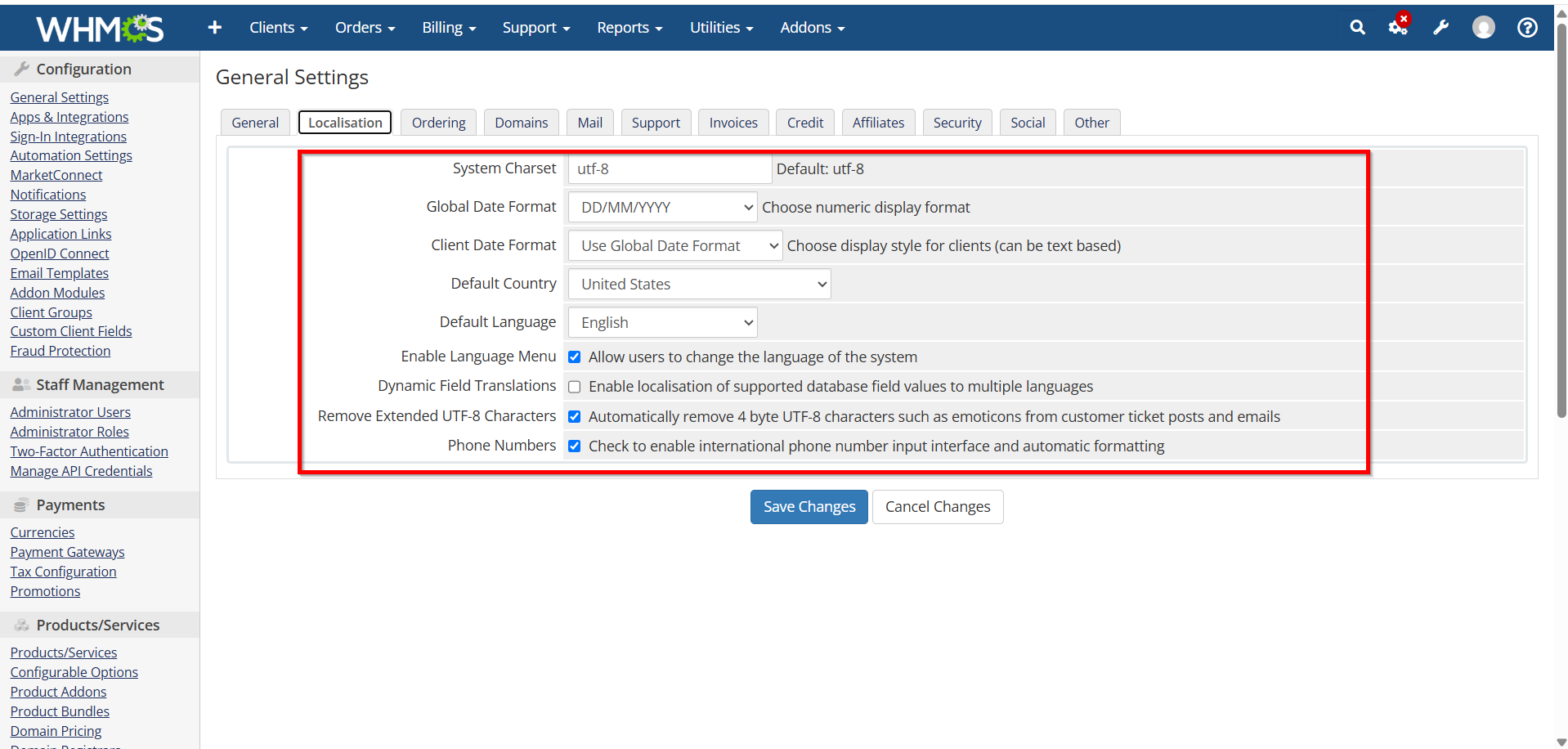
Step 4: Configure Localization Settings
- Select the Localization tab.

Set:
-
Default language
-
Default country
-
Date format
-
Time zone
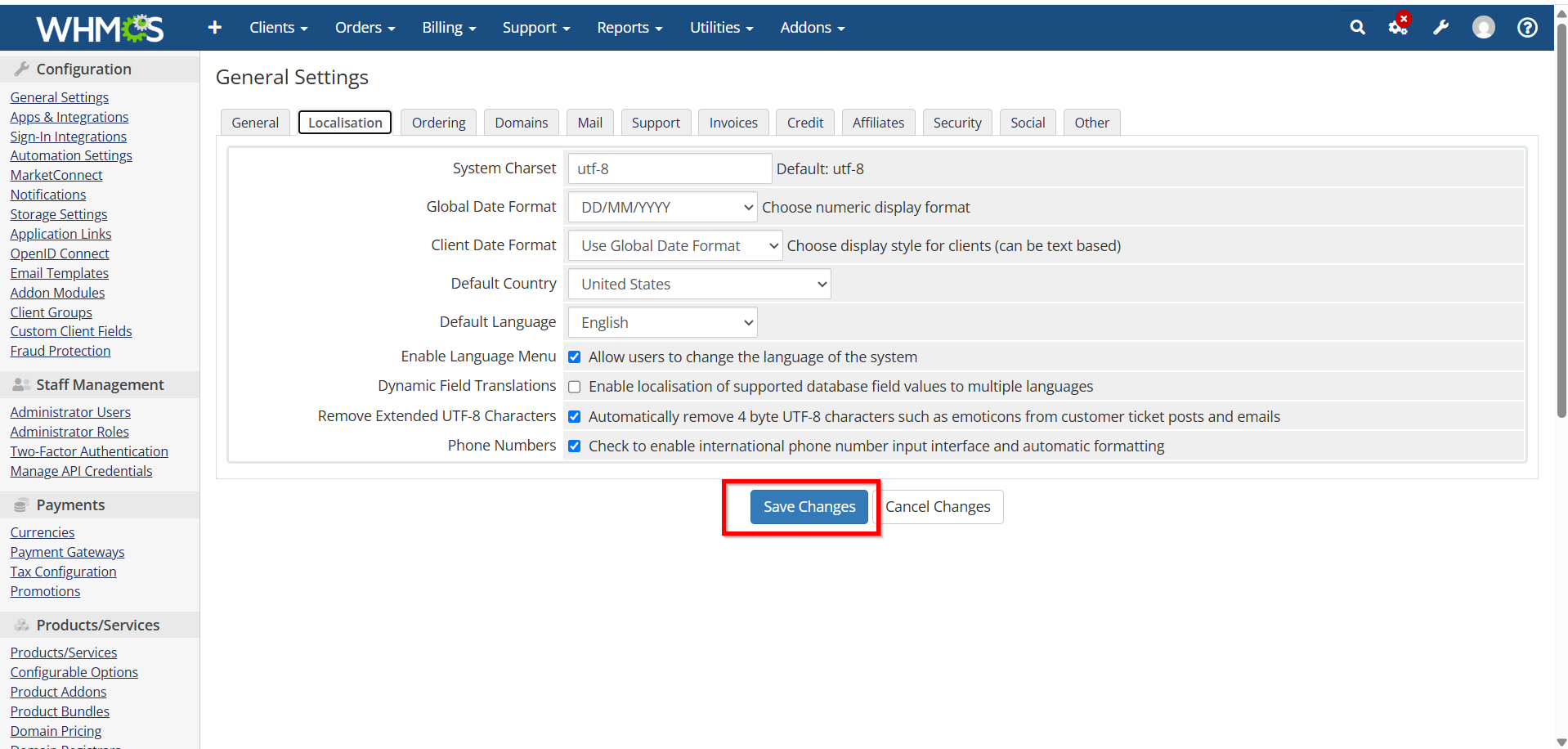
- Save Changes.
Step 5: Configure Ordering Settings
- Open the Ordering tab.
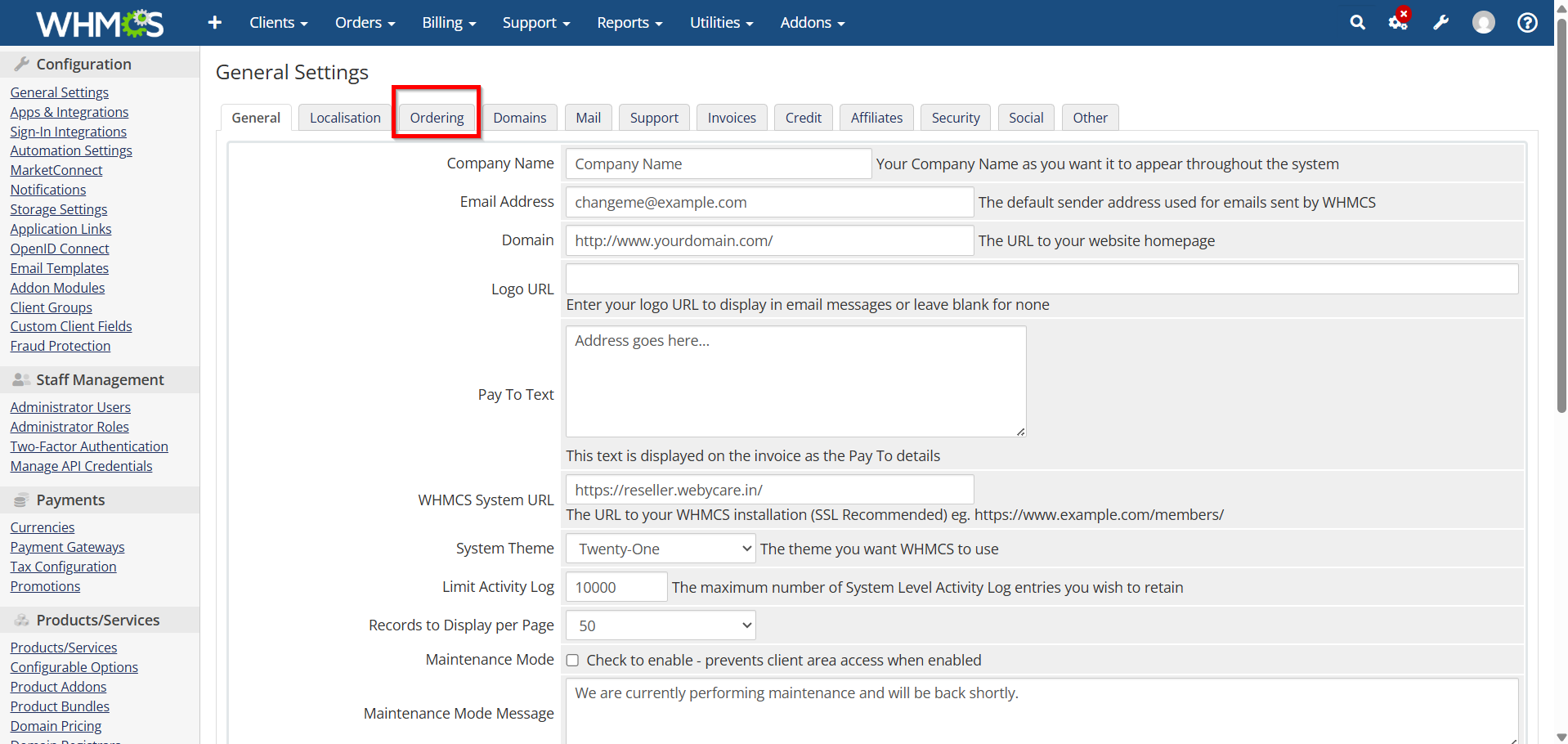
Configure:
-
Default order form template
-
Product recommendations
-
Domain ordering options
-
Shopping cart behavior
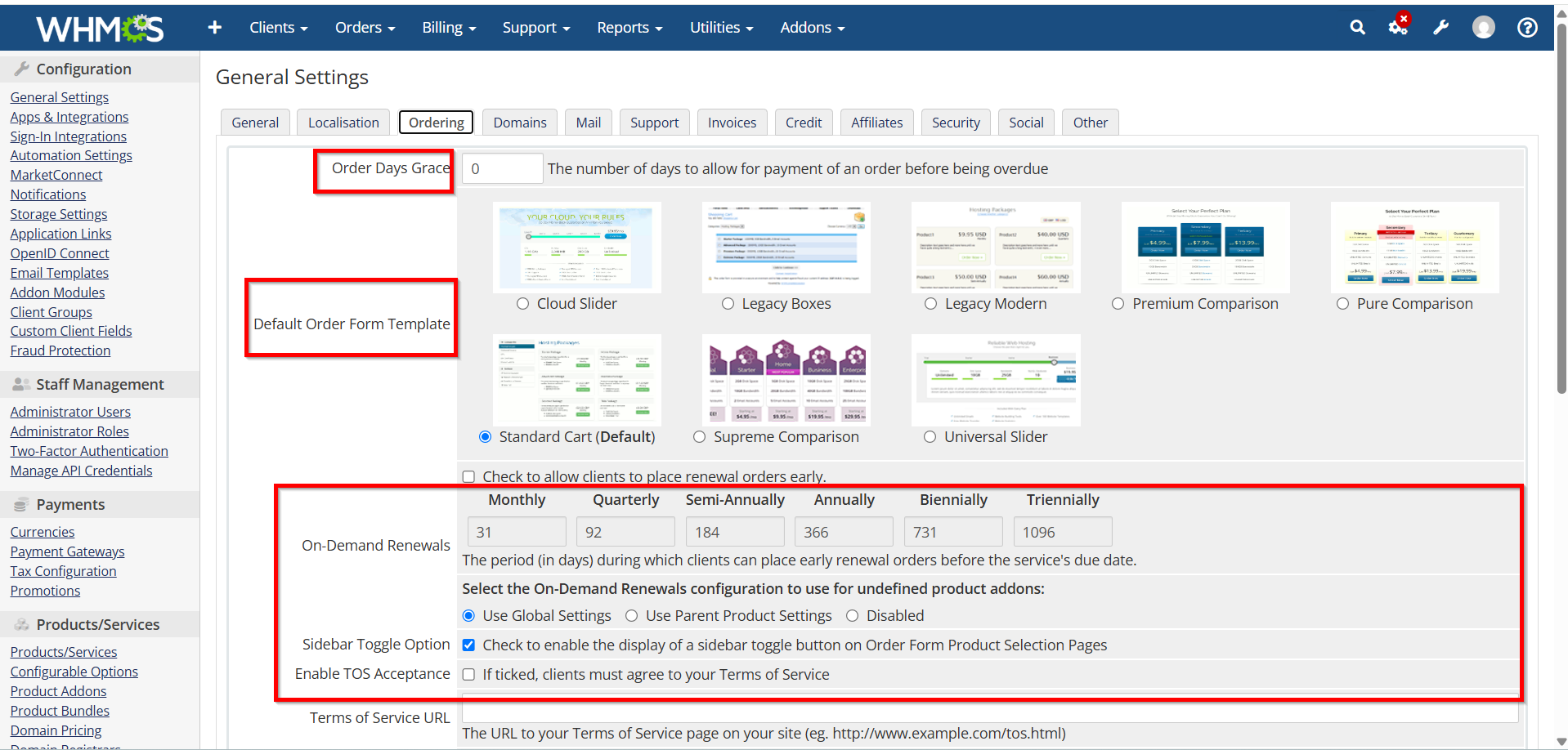
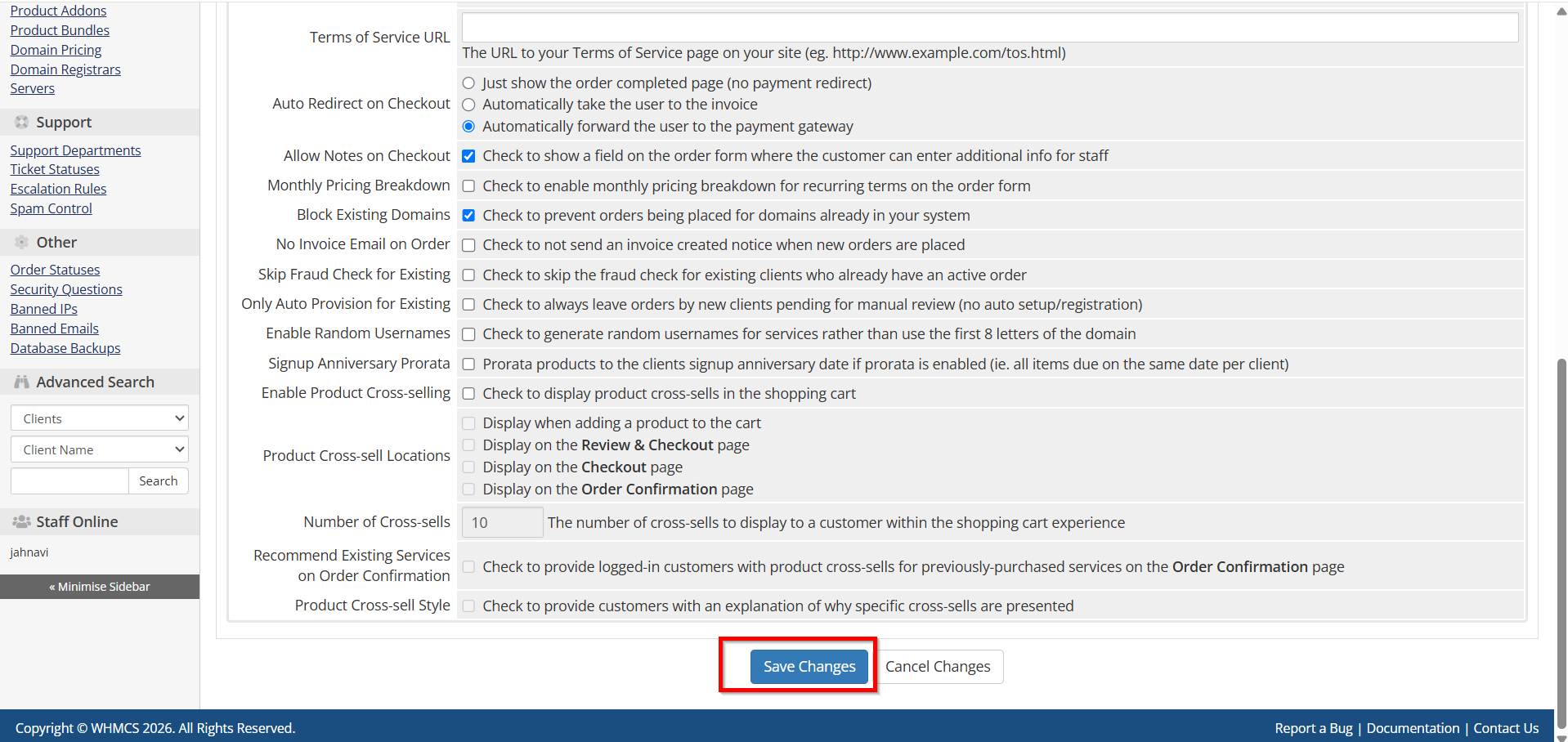
- Click Save Changes.
Step 6: Configure Domain Settings
- Navigate to the Domains tab.
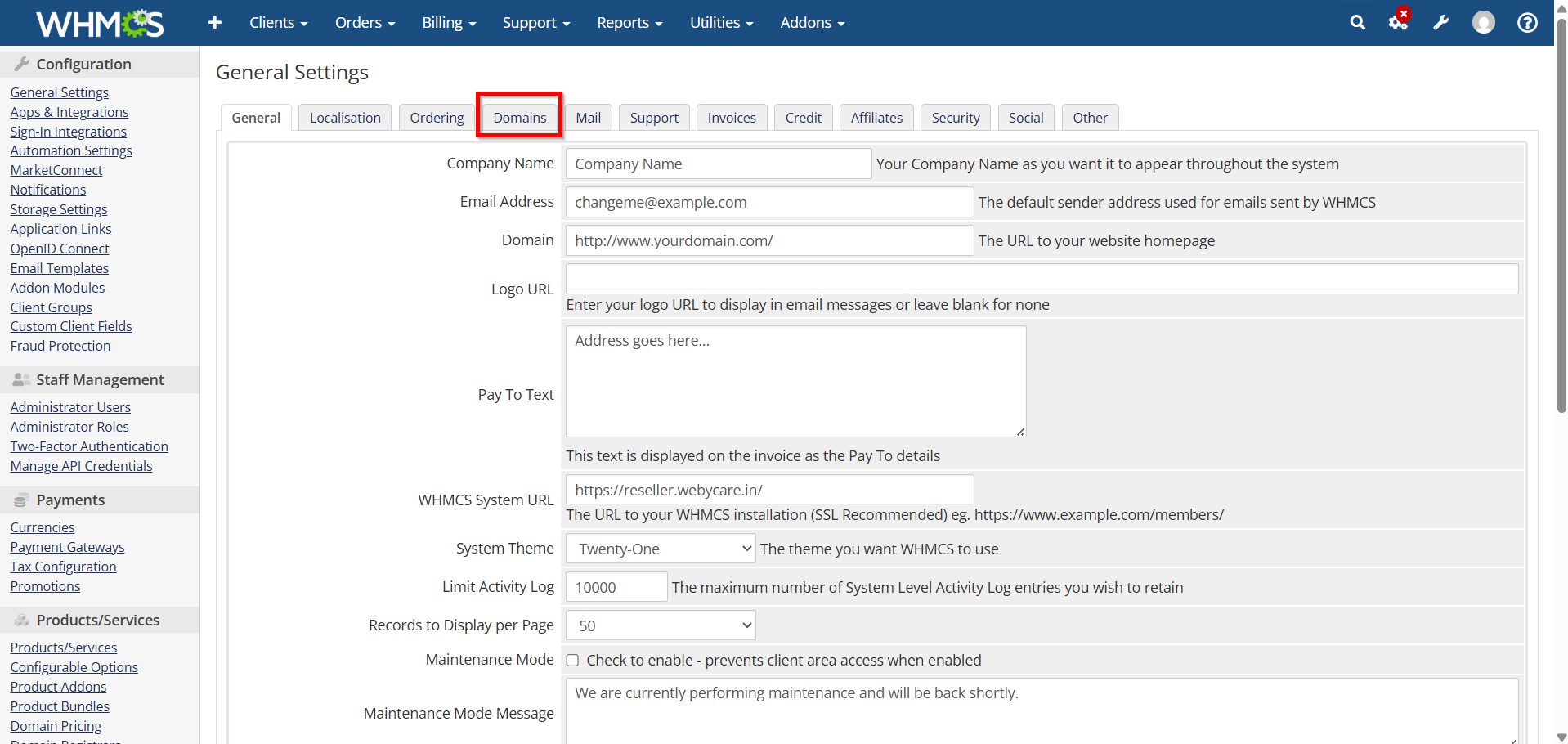
Set:
-
Domain registration options
-
Domain transfer settings
-
Domain lookup preferences
-
Renewal reminder settings
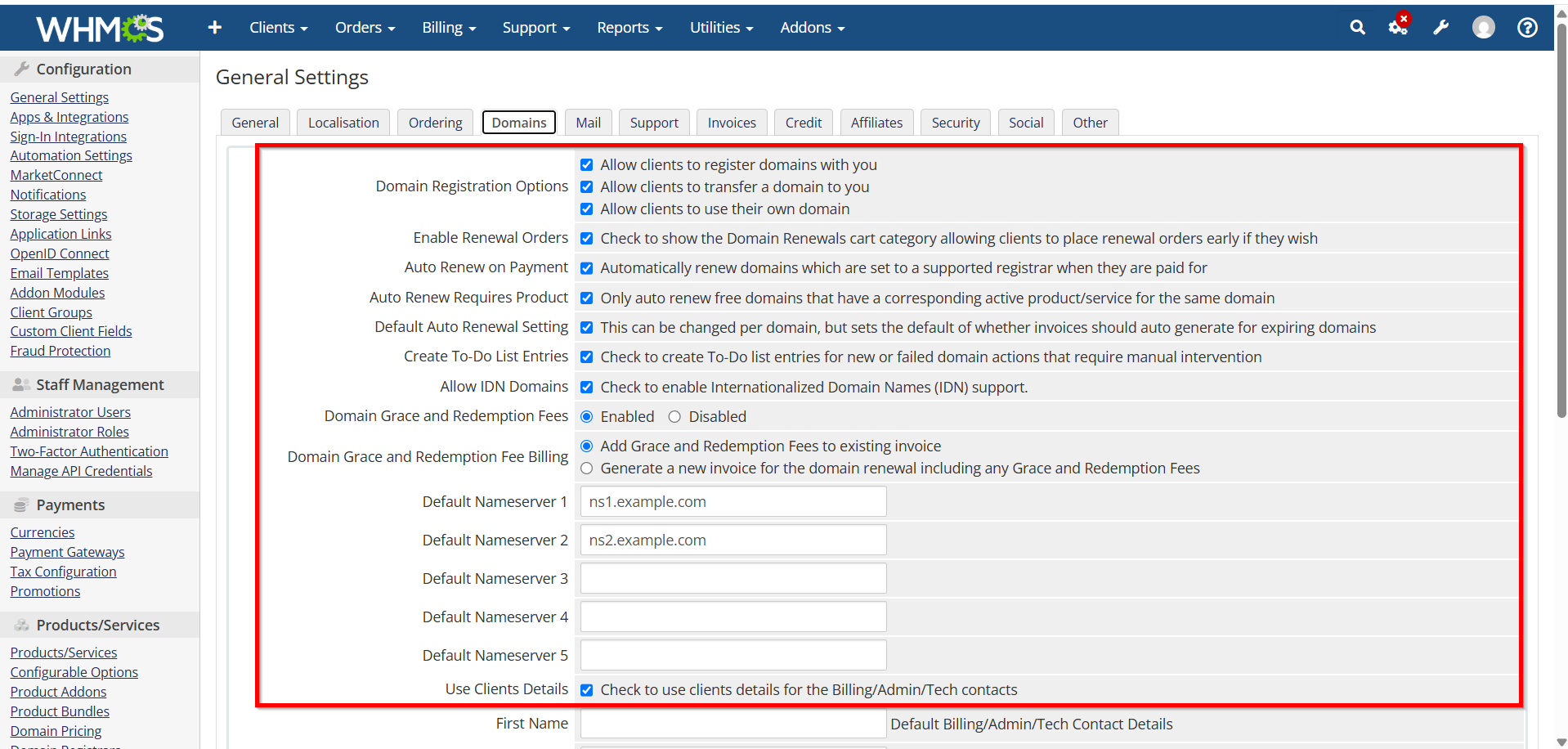
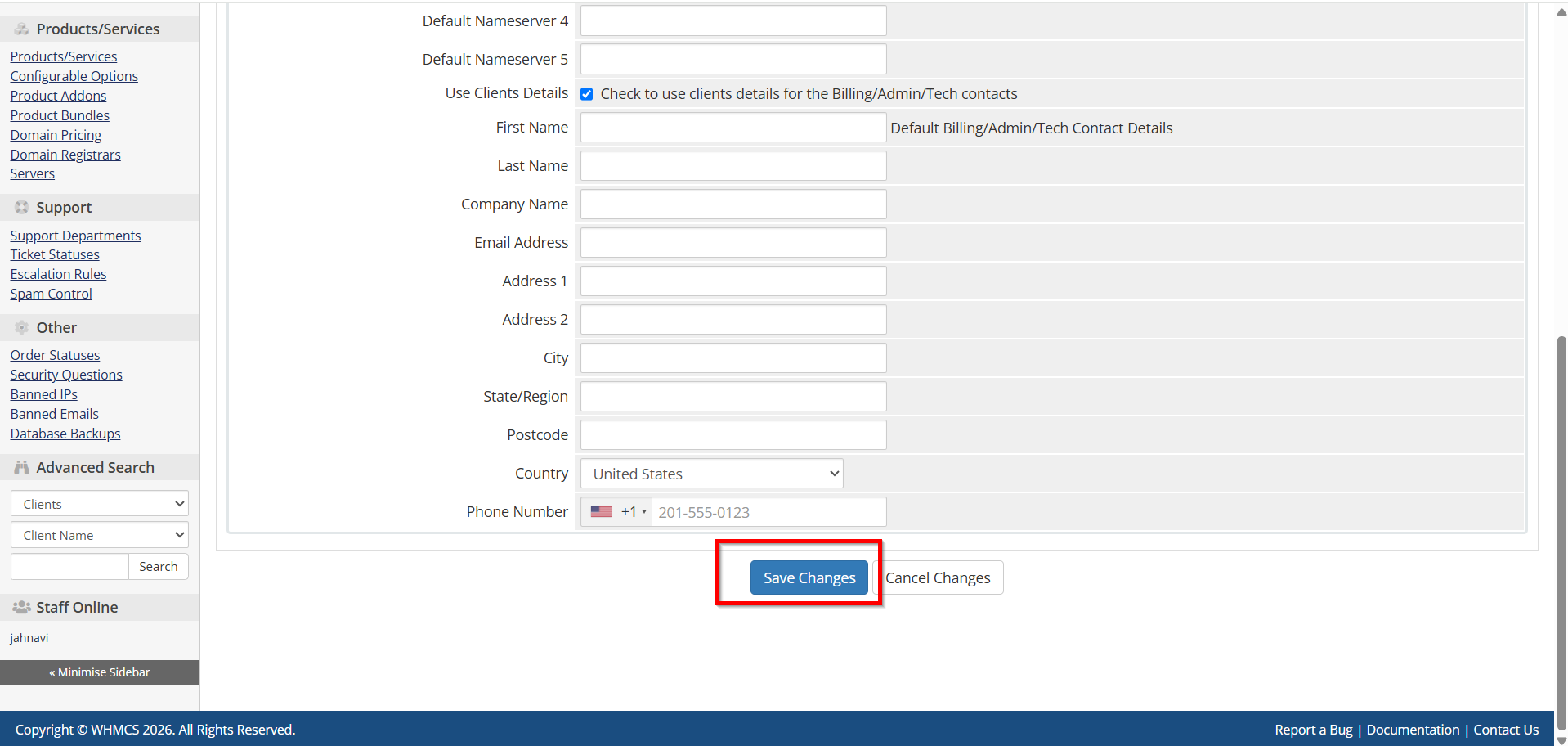
- Save the configuration.
Step 7: Configure Mail Settings
- Select the Mail tab.

Configure:
-
Mail provider
-
SMTP server details
-
Sender information
-
Email delivery settings
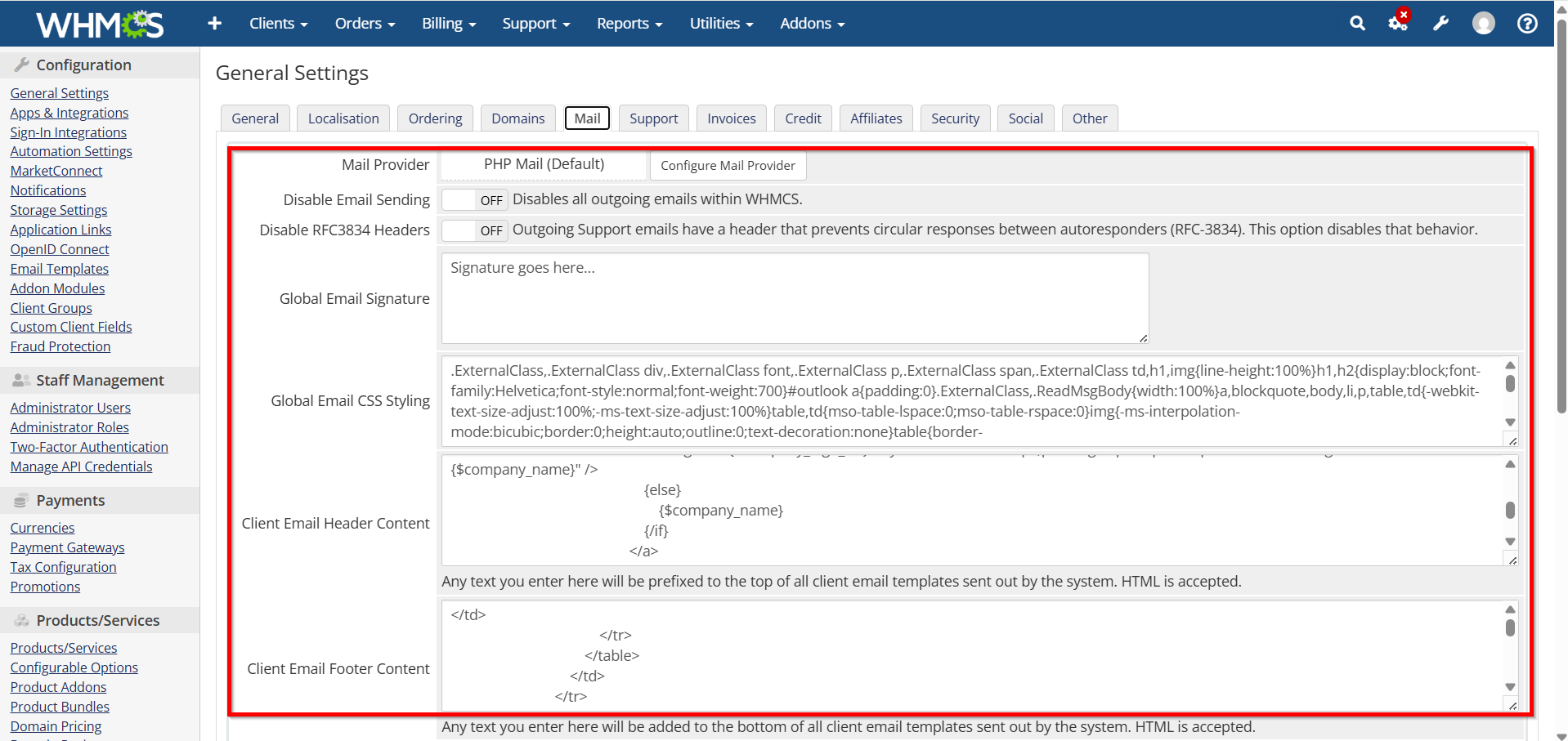
- Save your changes and perform a test email if available.

Step 8: Configure Invoice Settings
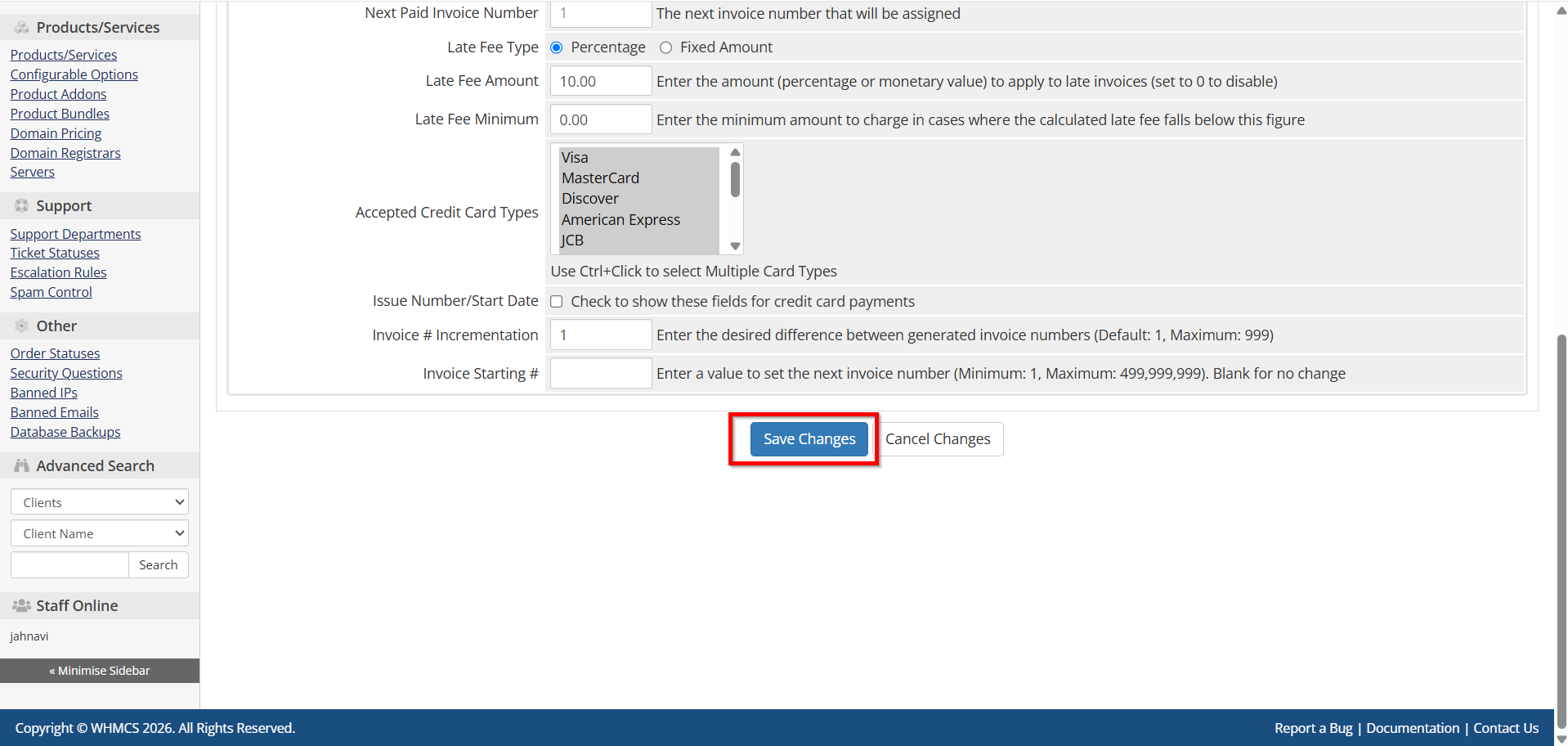
- Open the Invoices tab.

Set:
-
Invoice due dates
-
Invoice numbering format
-
PDF invoice options
-
Late fee settings

- Click Save Changes.
Step 9: Configure Security Settings
- Navigate to the Security tab.
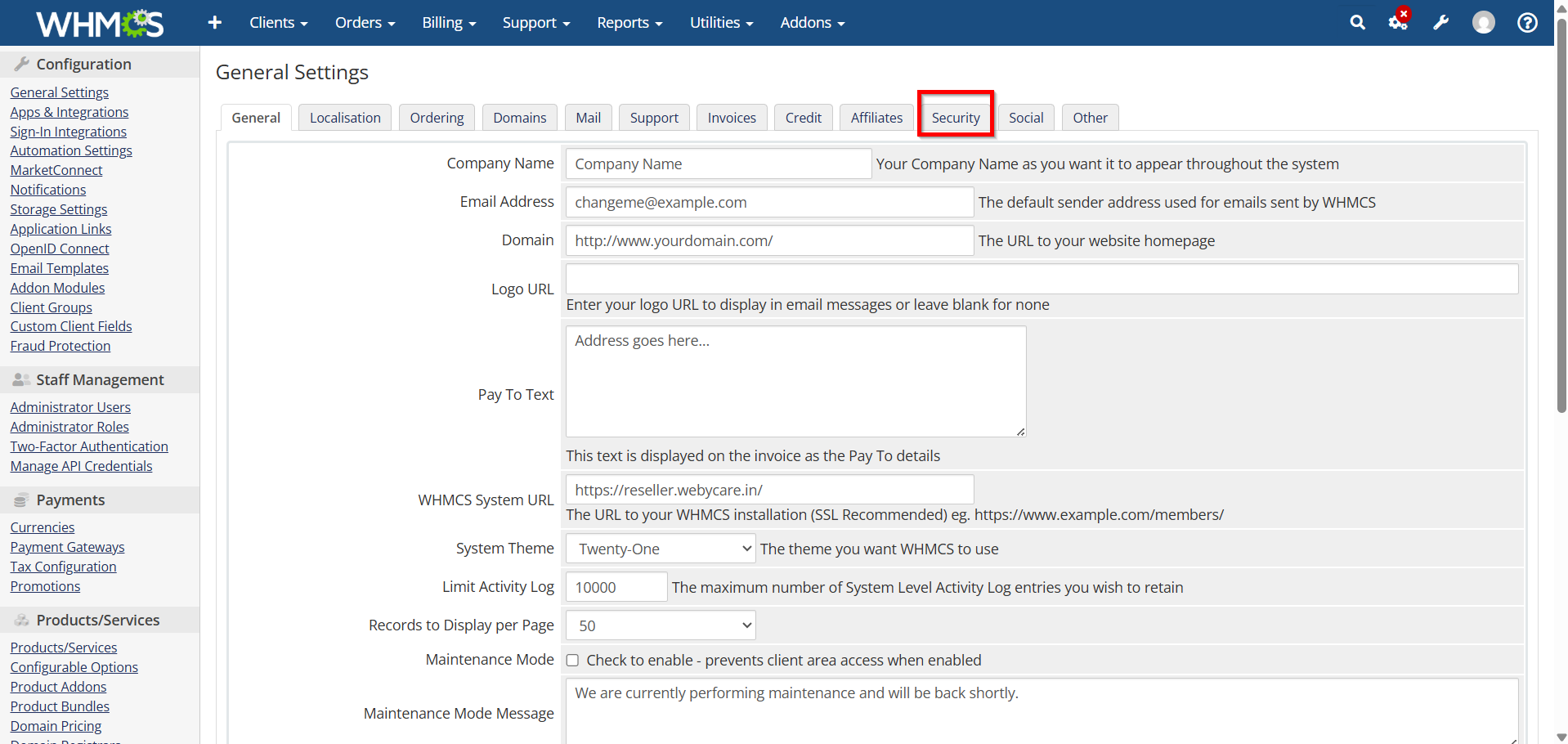
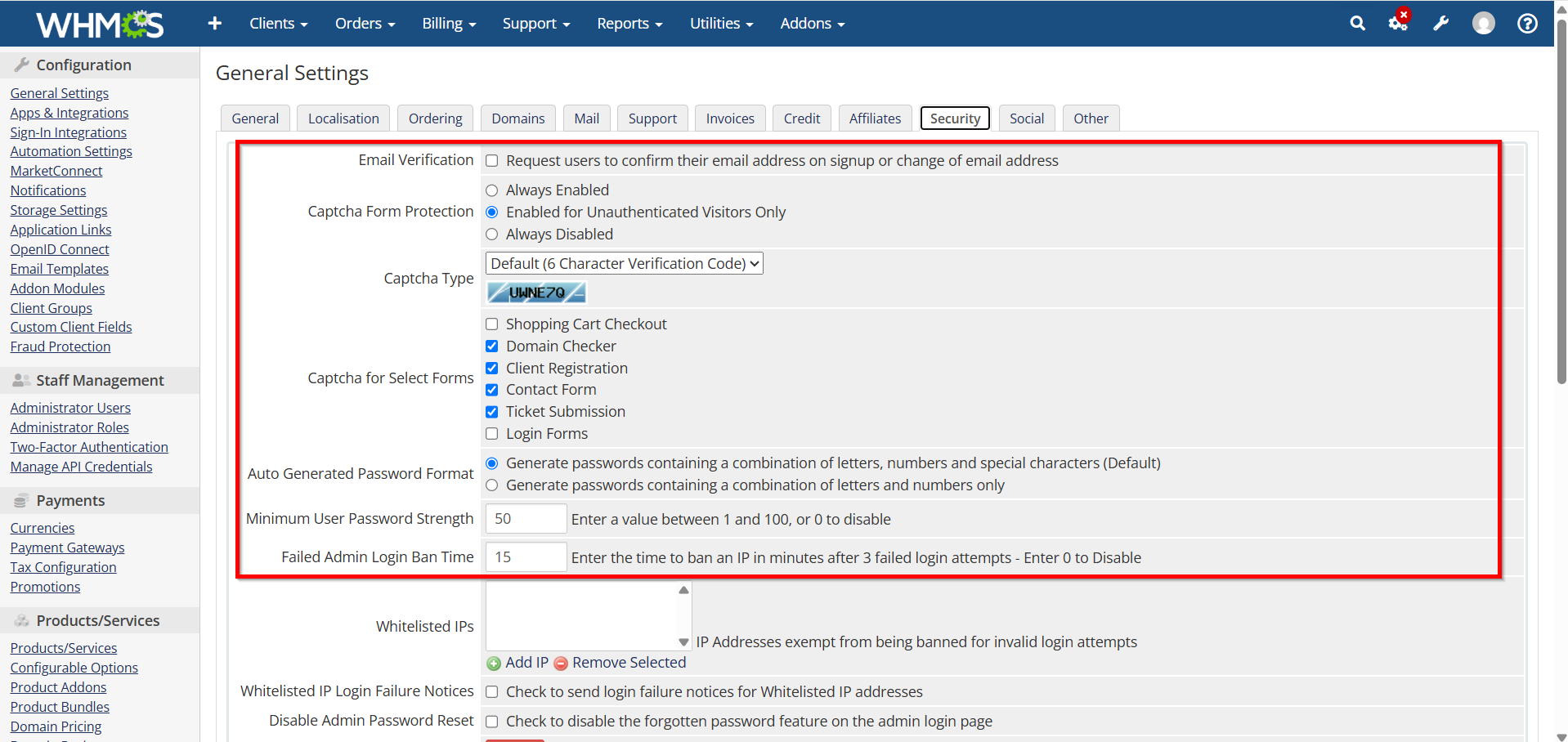
Configure:
-
Two-Factor Authentication
-
Password strength requirements
-
Login security options
-
Session timeout settings
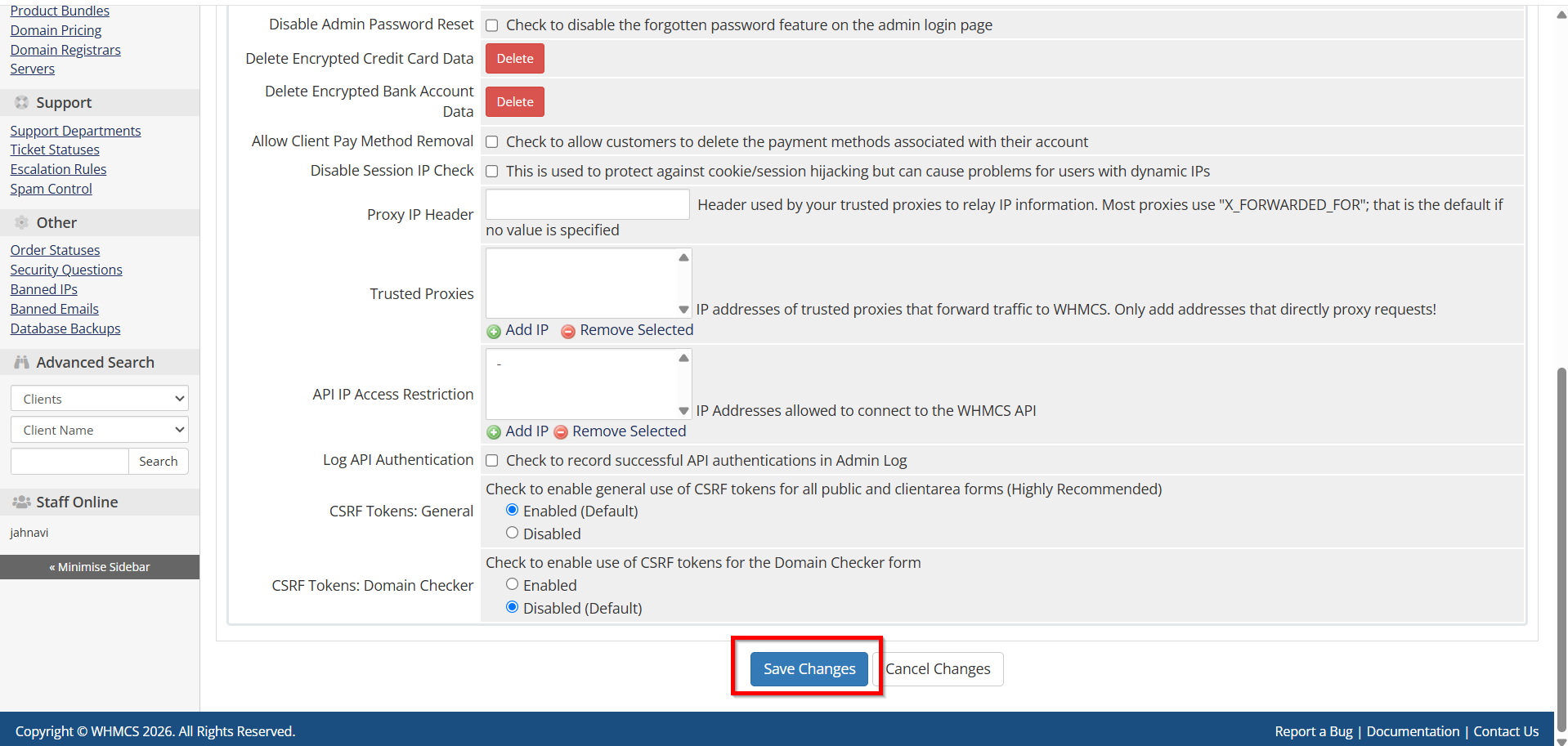
- Save the changes.
Step 10: Configure Support Settings
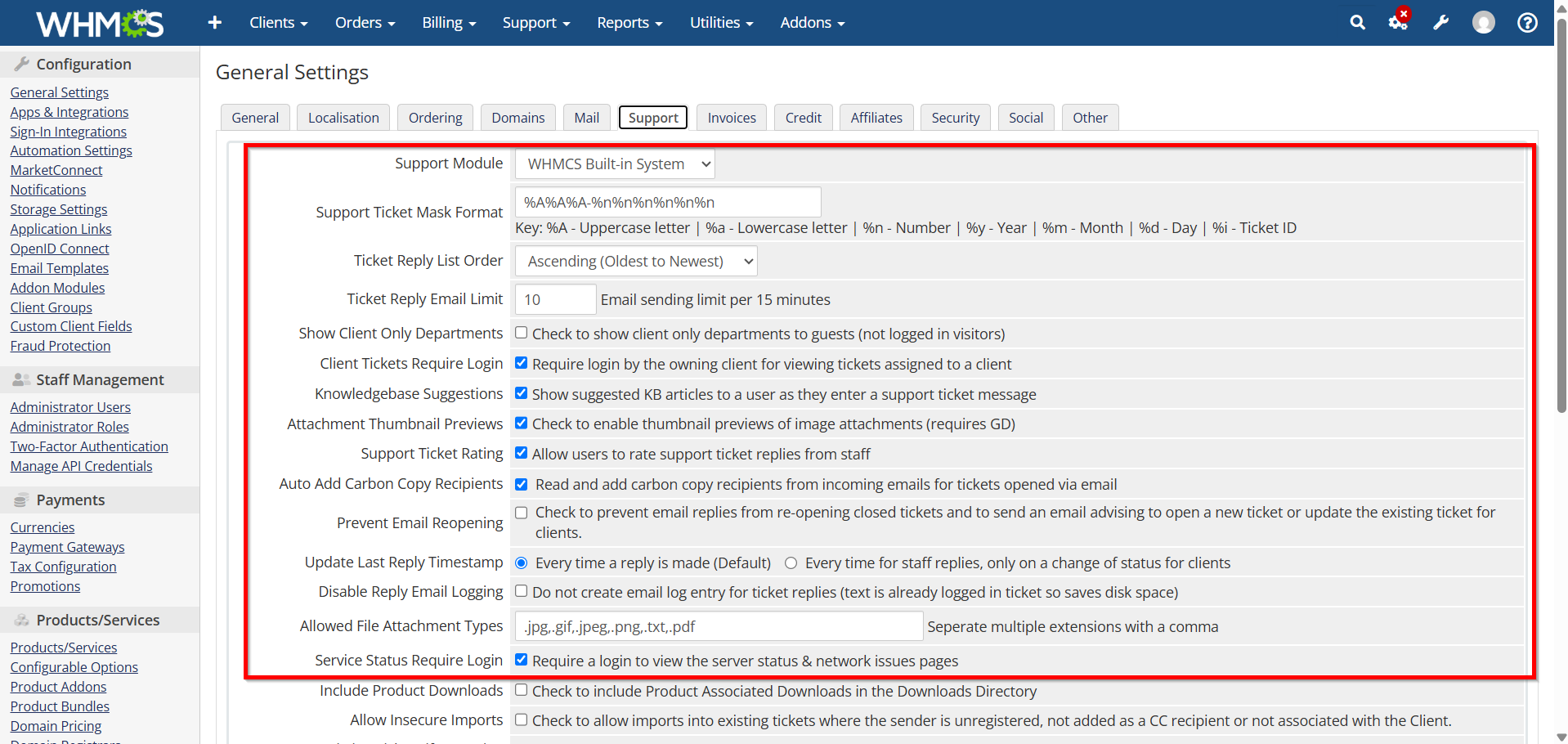
- Select the Support tab.

Set:
-
Ticket system preferences
-
Auto-response options
-
Client support settings
-
Attachment restrictions
- Click Save Changes.

Step 11: Review and Save All Settings
Review all configured options to ensure they match your business requirements.
Click Save Changes in each section to apply the settings.
Benefits of Configuring WHMCS General Settings
1. Improves Business Branding
Ensures your company name, contact details, and branding are displayed consistently across invoices, emails, and client communications.
2. Enhances Customer Experience
Allows you to configure language, currency, timezone, and ordering preferences to provide a smoother experience for clients.
3. Automates Billing Operations
Helps streamline invoice generation, payment reminders, and other billing processes, reducing manual administrative work.
4. Strengthens Security
Enables security features such as strong password policies and Two-Factor Authentication to help protect your WHMCS installation.
5. Ensures Reliable Communication
Proper mail settings help ensure invoices, support notifications, and important account updates are delivered successfully to clients.
Conclusion
WHMCS General Settings provide centralized control over your billing and automation platform. Properly configuring company information, localization, ordering preferences, domains, mail, invoices, support, and security settings ensures your WHMCS installation operates efficiently and delivers a professional experience for your clients. Regularly reviewing your WHMCS General Settings helps maintain security, improve performance, and support smooth business operations.
